Attendance & leave
Attendance, shifts & overtime
Shifts and the roster, connecting ZKTeco machines and importing punches, daily attendance, the monthly register, job cards, corrections and overtime approval — and how all of it reaches payroll
Who it is for:Owner / MDHR managerHR officerPayroll / accountsLine manager
On this page
All attendance work lives in the Time & leave section of the sidebar. Punches arrive from the machines (or from phone check-in), and HRDesk works out each day by itself from the shift — Present, Late, Half day, Absent, On leave — and at month end the same numbers go into the salary sheet.
Who can do what:
| Task | Who |
|---|---|
| View Daily attendance, the Monthly register and job cards | Owner, HR manager, HR officer, Payroll / accounts, Line manager (own team only) |
| Edit days, Bulk mark, Reprocess, Shift roster, Devices & import | Owner, HR manager, HR officer |
| Approve Regularization & OT | Owner, HR manager, HR officer, Line manager (own team only) |
| Create and change shifts (Organisation setup › Shifts) | Owner, HR manager |
Setting up shifts
If the shifts are wrong, late, half day and overtime are wrong too — so start here. Open Admin › Organisation setup and pick Shifts in the tabs at the top.
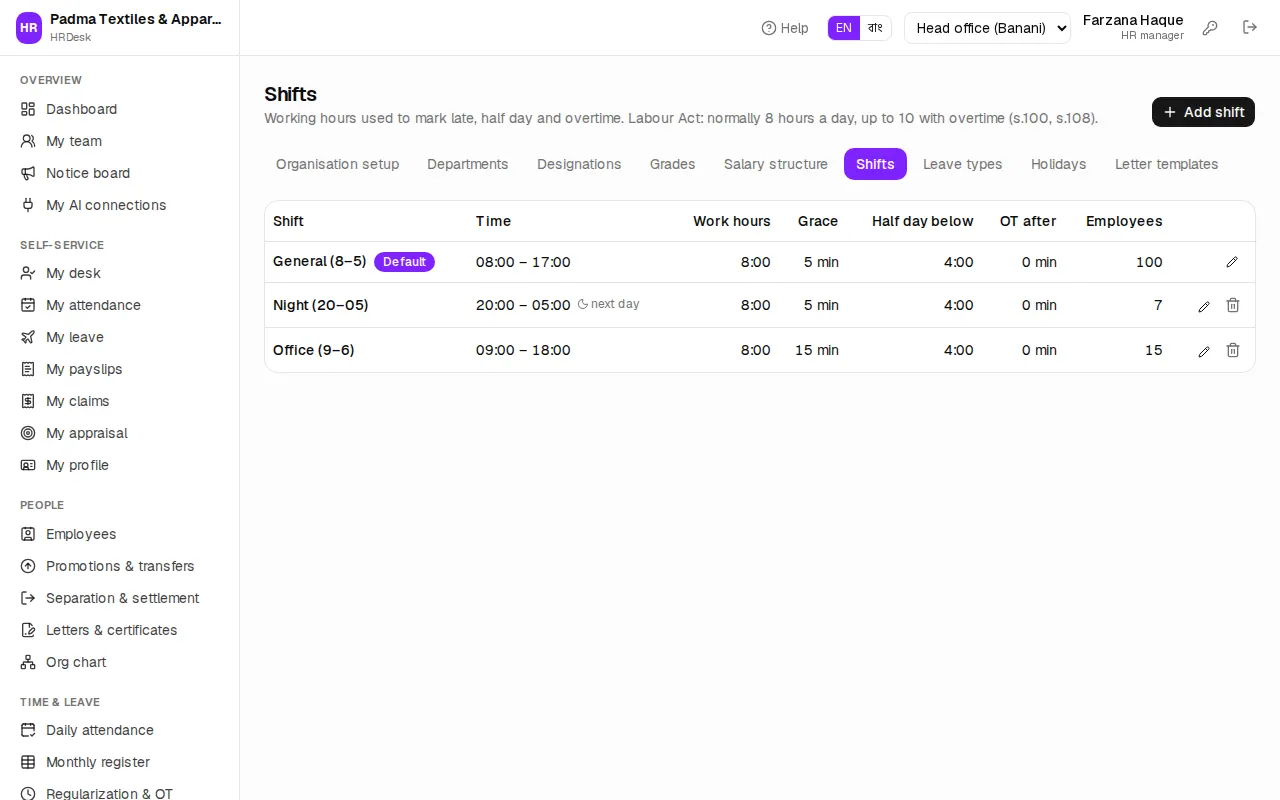
- Press Add shift.
- Enter the Shift name (e.g. General (8–5)), then Starts and Ends. An end before the start (e.g. Night (20–05)) means the shift ends the next day — the list shows a moon sign.
- Grace time (minutes) — lateness up to this many minutes after the start is not counted. Padma Textiles uses 5 minutes on factory shifts and 15 in the office.
- Break (minutes) — lunch / prayer break, not counted as work.
- Half day below (minutes) — worked less than this = half day.
- Overtime after (minutes) — overtime counts from the shift end plus this.
- Tick Default shift on the shift used for employees without one of their own, then save.
Which shift a person works is set on their employee profile in Shift (empty = the company default shift). Removing a shift that is in use only deactivates it.
Shift roster
For people whose shift changes week to week (day / night), use Time & leave › Shift roster. The roster is planned one department at a time; weeks start on Saturday.
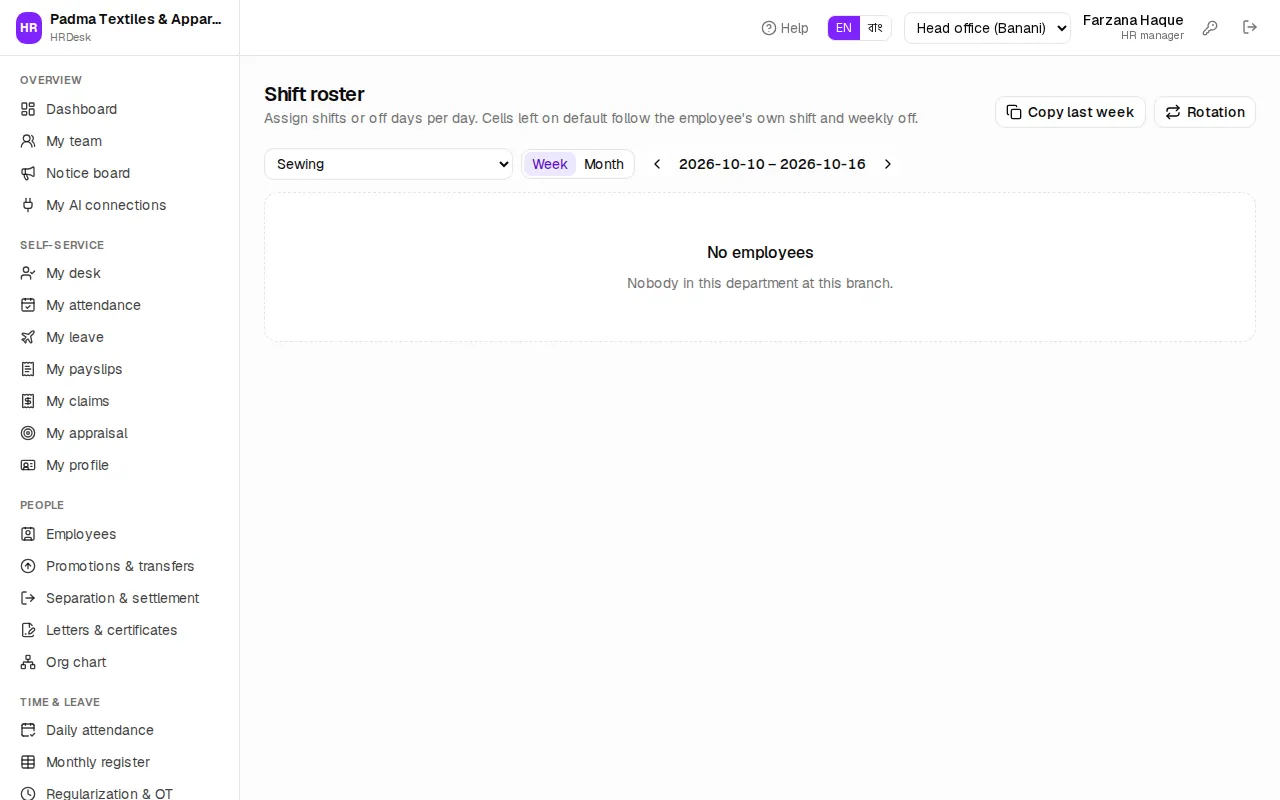
- Pick the department in Choose a department (e.g. Sewing). Choose the Week or Month view and move with the arrows.
- In each cell choose a shift or Off. A dashed cell means Default (no roster) — the person's own shift and weekly off apply.
- To change a whole row at once, use Fill row… under the name.
- Changed cells get a violet ring and the top shows how many changes are unsaved. Press Save roster.
If every week is the same, press Copy last week. To alternate two shifts, press Rotation — set First week starts, the number of Weeks, the Week 1 shift and Week 2 shift; tick Split the team so every second person starts on the other shift and both shifts are always staffed.
Connecting a ZKTeco machine (ADMS)
Add fingerprint / face / card machines under Time & leave › Devices & import. The machine pushes punches over the internet by itself (ADMS push) — no PC or extra software needed.
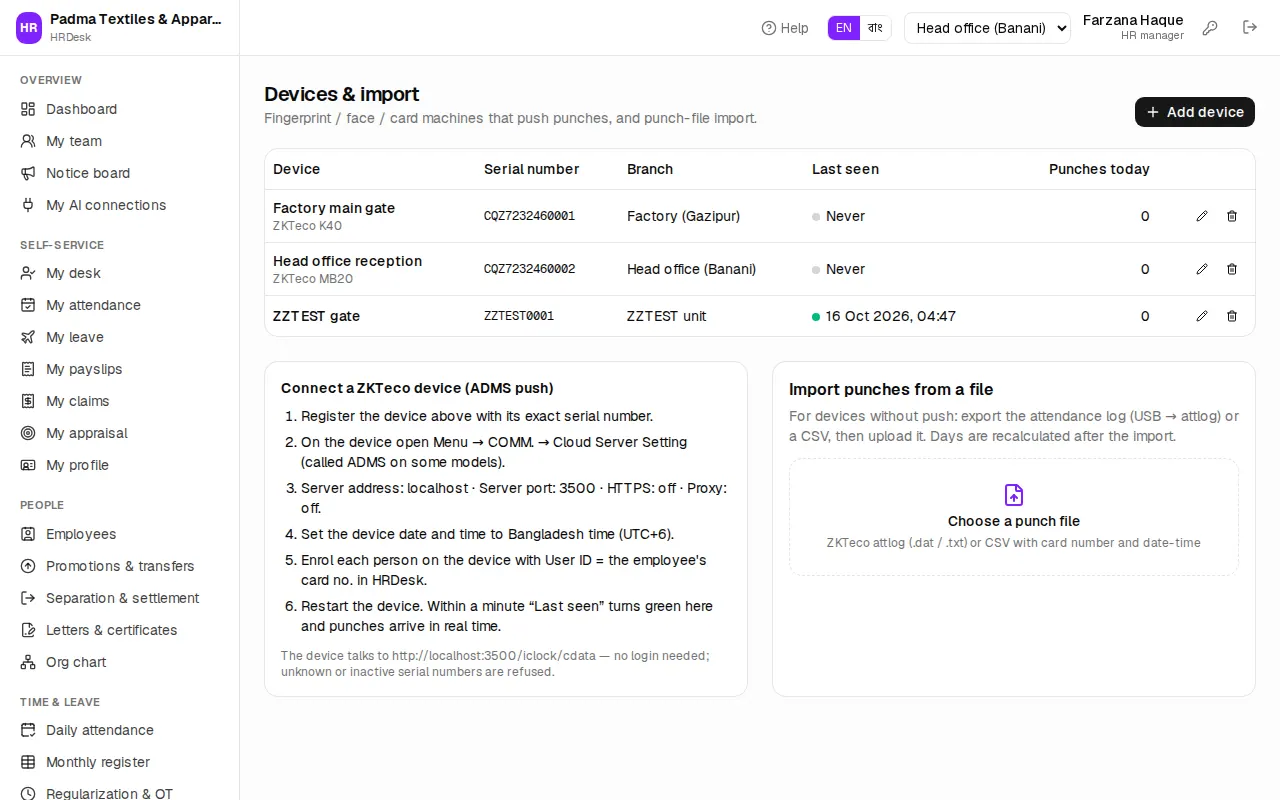
Register the machine in HRDesk:
- Press Add device.
- Enter a Name (e.g. Factory main gate).
- Type the Serial number exactly — on the machine it is under Menu → System info → Device info → Serial number (e.g. CQZ7232460001).
- Choose the office / factory it stands in and, if you like, the Model (e.g. ZKTeco K40). Save.
Set up the machine (the Connect a ZKTeco device (ADMS push) box lower on the page shows your server's exact address):
- On the machine open Menu → COMM. → Cloud Server Setting (called ADMS on some models).
- Type the server address and server port exactly as the box shows them. Set HTTPS as the box says and keep the proxy off.
- Set the machine's date and time to Bangladesh time (UTC+6).
- When enrolling each person on the machine, use User ID = their Card no. (attendance device) in HRDesk. Rupa Akter (EMP-0008) has card no. 1008, so her User ID on the machine is 1008.
- Restart the machine. Within a minute a green dot appears next to Last seen and Punches today starts counting.
The machine talks to /iclock/cdata on your server; no login is needed, but unknown or inactive serial numbers are refused. Punches whose card number matches nobody are skipped.
Importing punches from a file
For machines that can't push, use the Import punches from a file box on the same page.
- Export the attendance log from the machine to USB (attlog .dat / .txt) or a CSV with the card number and date-time.
- Press Choose a punch file and pick the file. A preview appears first — Punches in file, Matched, Already stored and Employees.
- The yellow box lists card numbers that matched nobody — put them on the right employee profiles as the card no. and choose the file again.
- When it looks right press the import button (e.g. Import 850 punches — the number of new matched punches). The same punch is never stored twice, and the days are recalculated after the import.
Employees can also clock in and out from their phone when Phone check-in is on under Settings › Work week & attendance. With Only at the office (geofence) ticked, check-in only works within the radius of their office / factory (set on the Offices & factories page). The employee side is in Self-service.
Daily attendance
Time & leave › Daily attendance shows today (or any earlier day) at a glance.
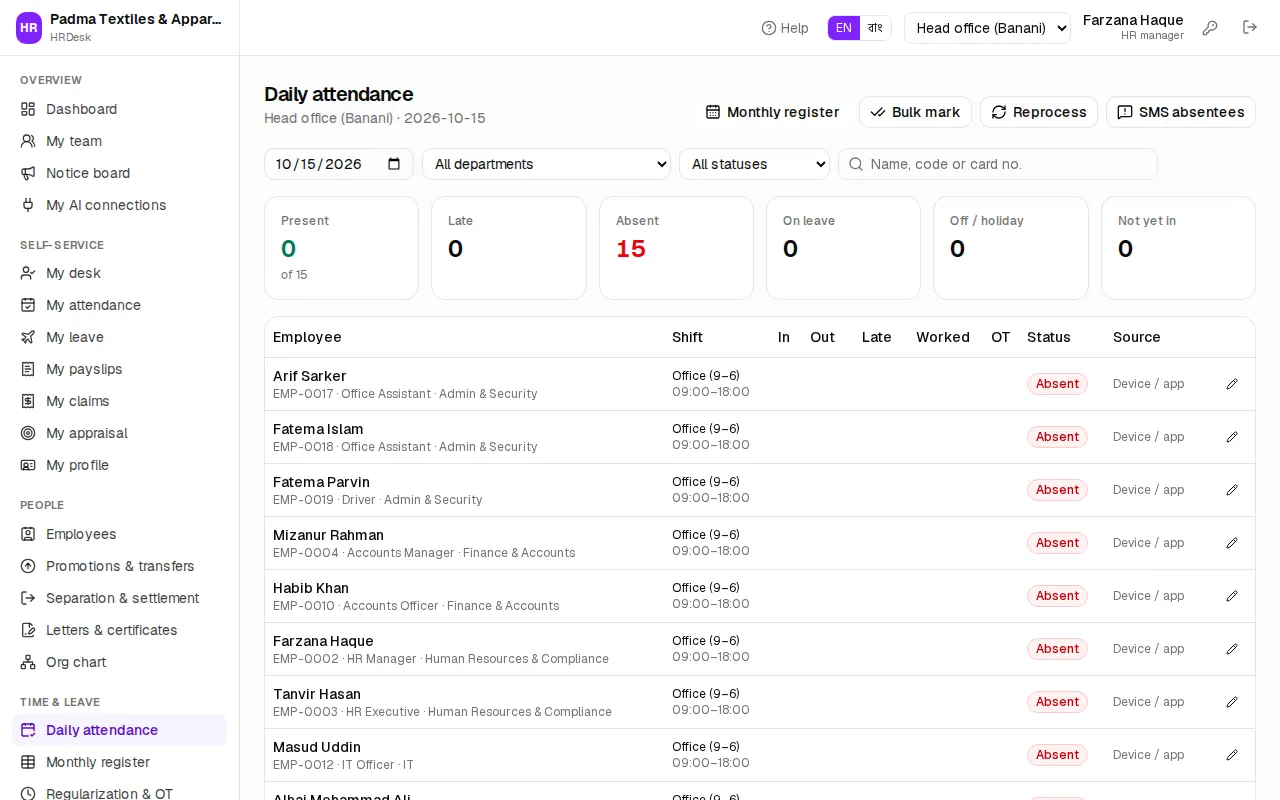
The cards at the top count Present, Late, Absent, On leave, Off / holiday and Not yet in. Filter by date, department and status, or search by name, code or card no. Each row shows the shift, In, Out, minutes late, Worked, OT, Status and Source (Device / app, Edited by HR or Regularized).
How the status is worked out:
- First punch = in, last punch = out. After shift start + grace time the day is Late.
- Worked less than the half-day limit = Half day. With only one punch, the empty In or Out shows a red "missing".
- A working day without punches becomes Absent; days of approved leave become On leave by themselves.
Correcting one person's day:
- Press the pencil at the end of the row.
- Change the Status, or type the In / Out times. Optionally set Approved OT (minutes) (empty = the computed overtime).
- Write the reason in Note and save. To go back to the punches, choose Automatic (from punches).
Many people at once: press Bulk mark, choose the department and Mark as (Present, Absent, Holiday or Weekly off) and write the Reason (e.g. power cut — machines were down). With Only people without punches ticked, those who punched keep their times; approved leave is never changed.
If shifts, rosters or leave changed afterwards, press Reprocess and give the date range — the days are recalculated. Days edited by HR, regularized or locked by payroll are kept. To text the absentees press SMS absentees (absence SMS must be switched on in the integration settings).
Monthly register and job cards
Time & leave › Monthly register shows a code for every day of the month: P (present), L (late), HD (half day), A (absent), LV (on leave), H (holiday), OFF (weekly off), with totals and overtime hours on the right. An asterisk (*) means the day was edited by HR or regularized.
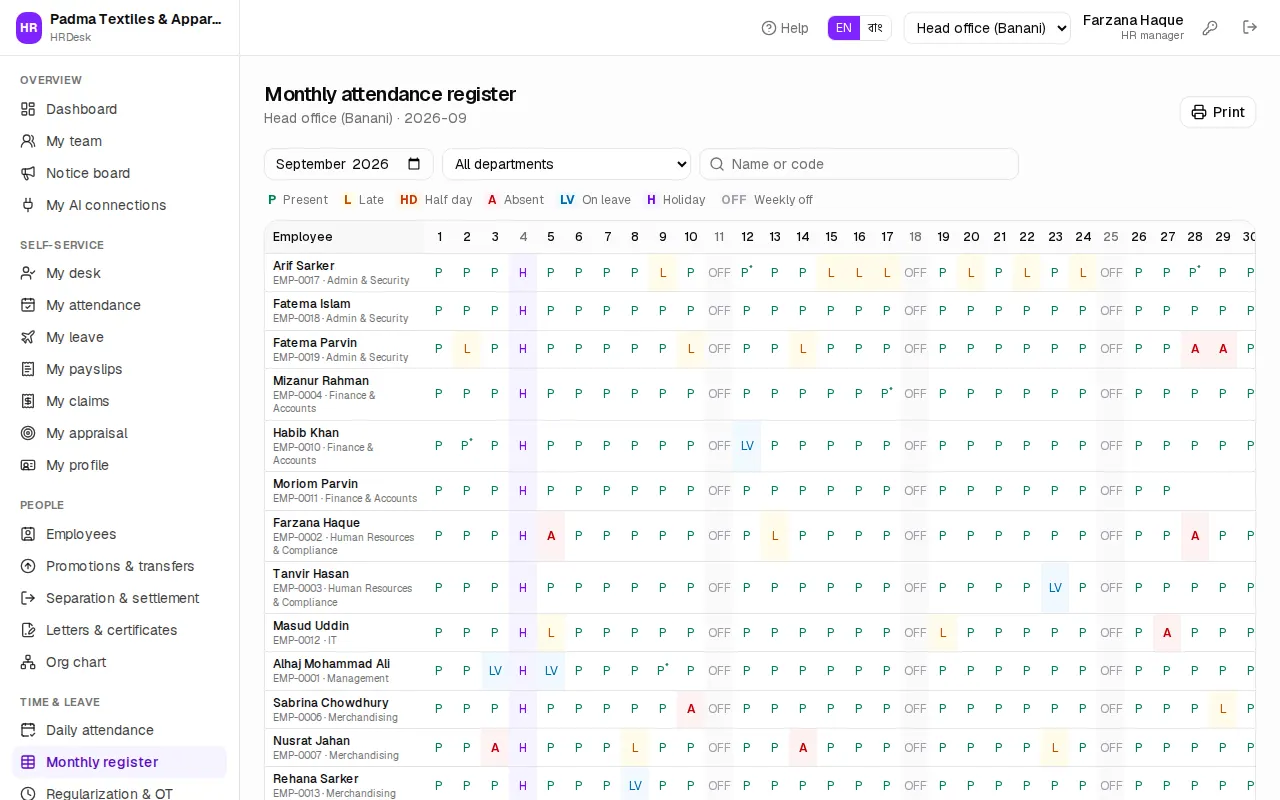
- Choose the Month and department. Print prints the register for the notice board or the file.
- One person's job card: press the document icon at the end of their row — a one-page job card opens in a new tab.
- A whole department's job cards: once a department is chosen, a Job cards button appears at the top — one A4 page per person.
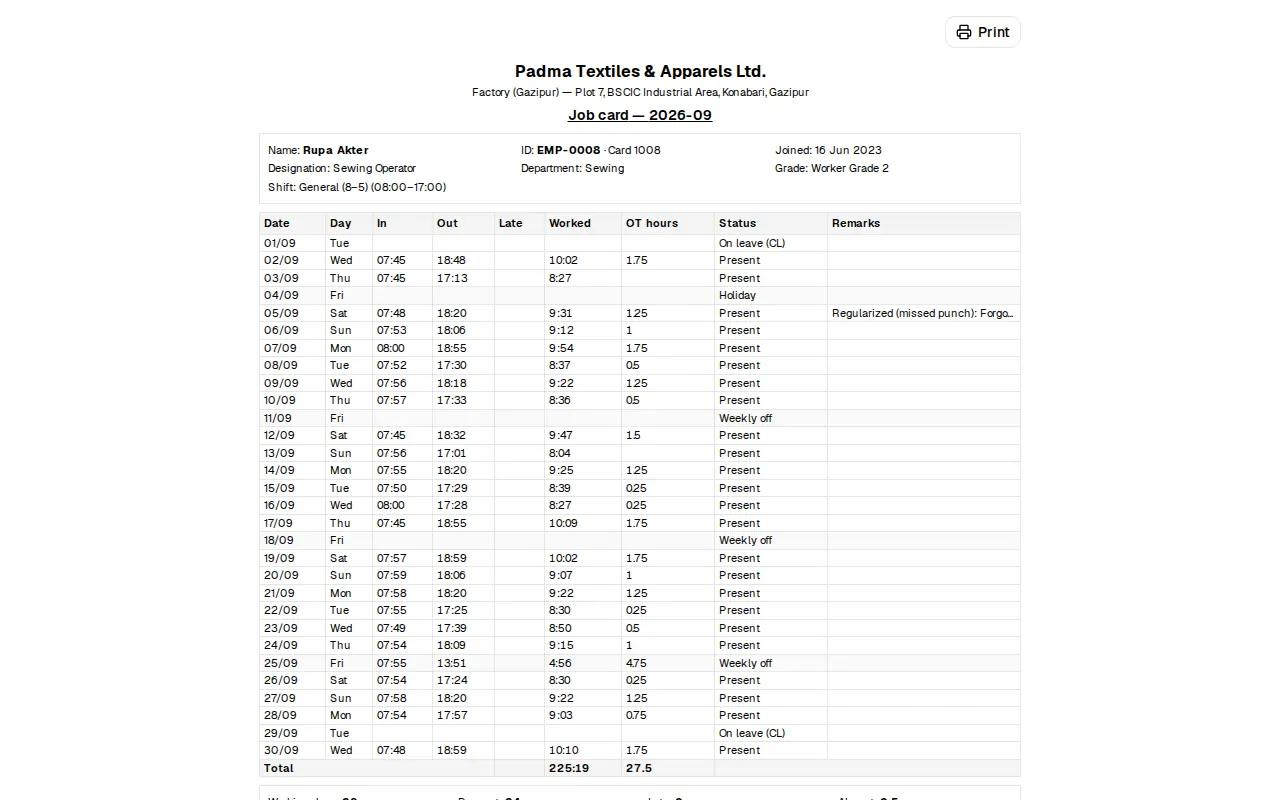
The job card lists each day's in, out, late, worked time, overtime and remarks with the month's totals — this is what labour inspectors and buyer audits ask for.
Corrections and overtime approval
When an employee forgot to punch, was on outdoor duty or worked extra, they send a Request correction from My attendance. Requests arrive under Time & leave › Regularization & OT. A line manager sees only their own team, HR sees everyone; one approval is enough.
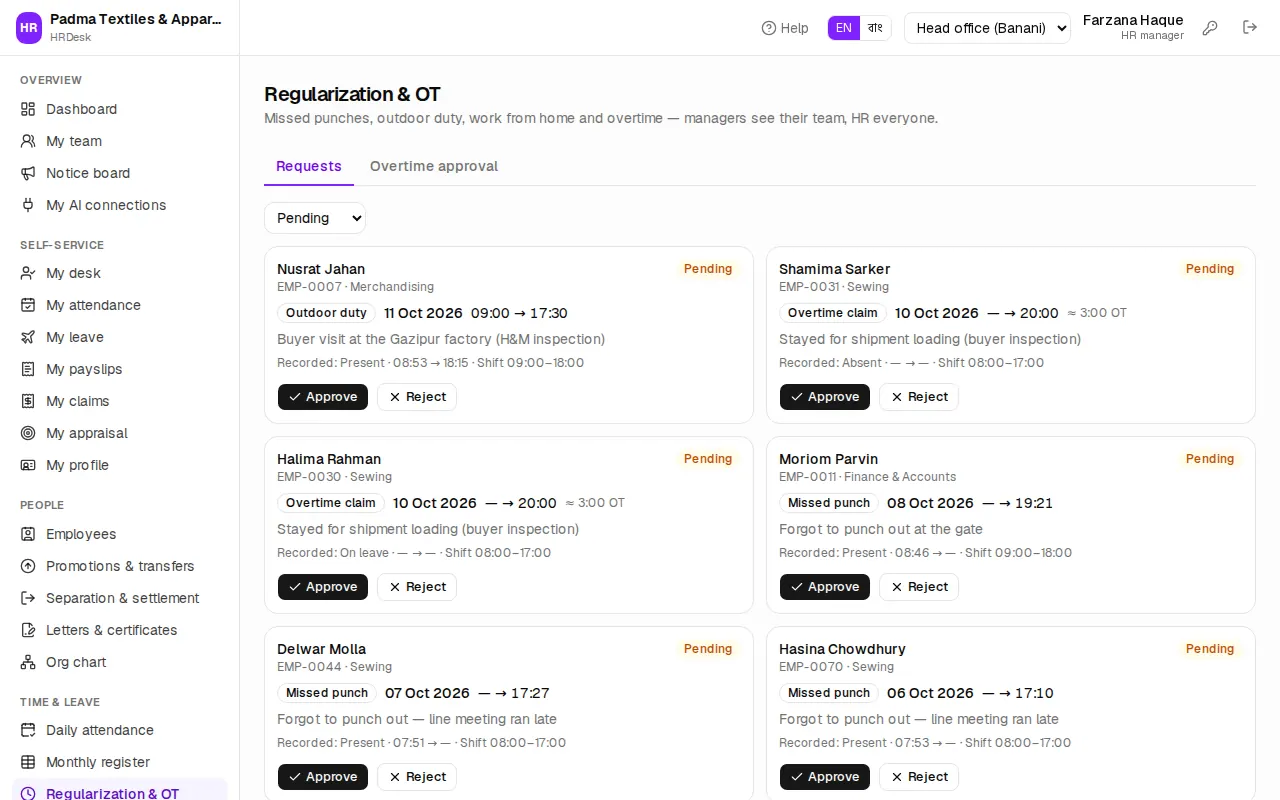
On the Requests tab each card shows the kind (Missed punch, Outdoor duty, Work from home or Overtime claim), the date, the times asked for, the reason and what the machine recorded.
- Press Approve. For an overtime claim you can change the Approved OT (minutes). Add a Note (optional) and confirm — the day is updated at once and its source becomes Regularized.
- Otherwise press Reject and give the Reason.
The Overtime approval tab lists everyone who worked past their shift end in the date range, with the Computed overtime.
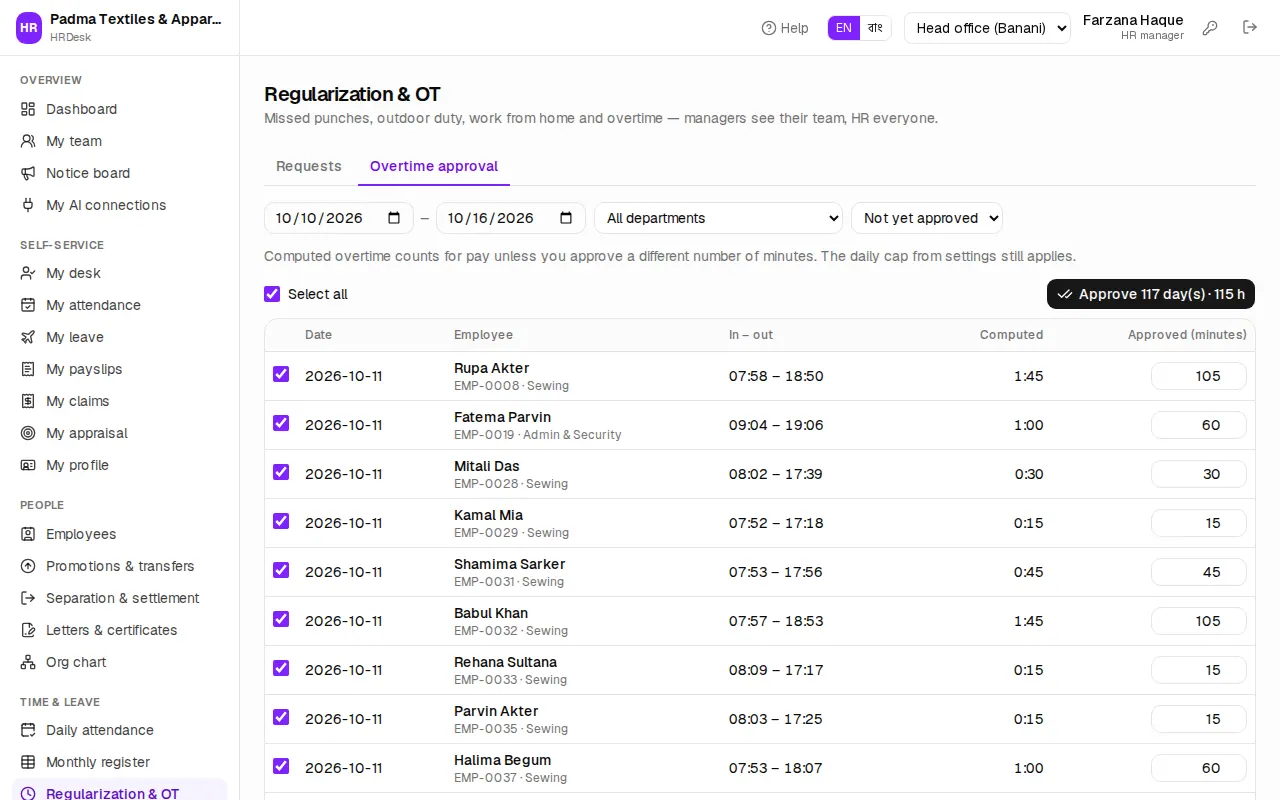
- Change the minutes in Approved (minutes) where needed.
- Tick the rows (or Select all) and press the approve button — it shows the days and total hours (e.g. Approve 12 day(s) · 18 h).
Computed overtime counts for pay even without a separate approval; the daily cap (Most overtime counted a day (hours), 2 hours under the Act) always applies.
How attendance reaches payroll
When a salary sheet is prepared or recalculated, the month's attendance supplies:
- Absent days and unpaid leave → the absence deduction. A half day = ½ present + ½ absent.
- Late days — per Late days per one day's deduction in Settings (Padma Textiles deducts one day's basic for every 3 late days).
- Overtime — approved minutes (computed if not approved), up to the daily cap.
- Attendance bonus — for a full month without a single absent or late day.