Notices & reports
Reports & audit log
Every report on headcount, attendance, leave, payroll, tax and provident fund, recruitment and assets — filters, CSV export and printing — plus the audit log of who did what and when.
Who it is for:Owner / MDHR managerHR officerPayroll / accounts
On this page
Admin › Reports in the sidebar holds all of HRDesk's reports in one place. Each report is a card — open it to get filters at the top, a table with totals below. Reconciling the month's salary, showing papers to a labour inspector or a buyer's auditor, or pulling numbers for a management meeting all start here.
Who sees what:
| Task | Who |
|---|---|
| Open Reports, filter, CSV and print (employees, attendance, leave, recruitment, assets) | Owner, HR manager, HR officer, Payroll / accounts |
| Payroll and Compliance reports — salary, payroll cost, overtime pay, bonus, loans, final settlements, expense claims, TDS (tax) and PF | Owner, HR manager, Payroll / accounts (not HR officer) |
| Audit log | Owner, HR manager |
| Line managers and employees | No reports (managers see their team on the /team page) |
Opening a report and filtering
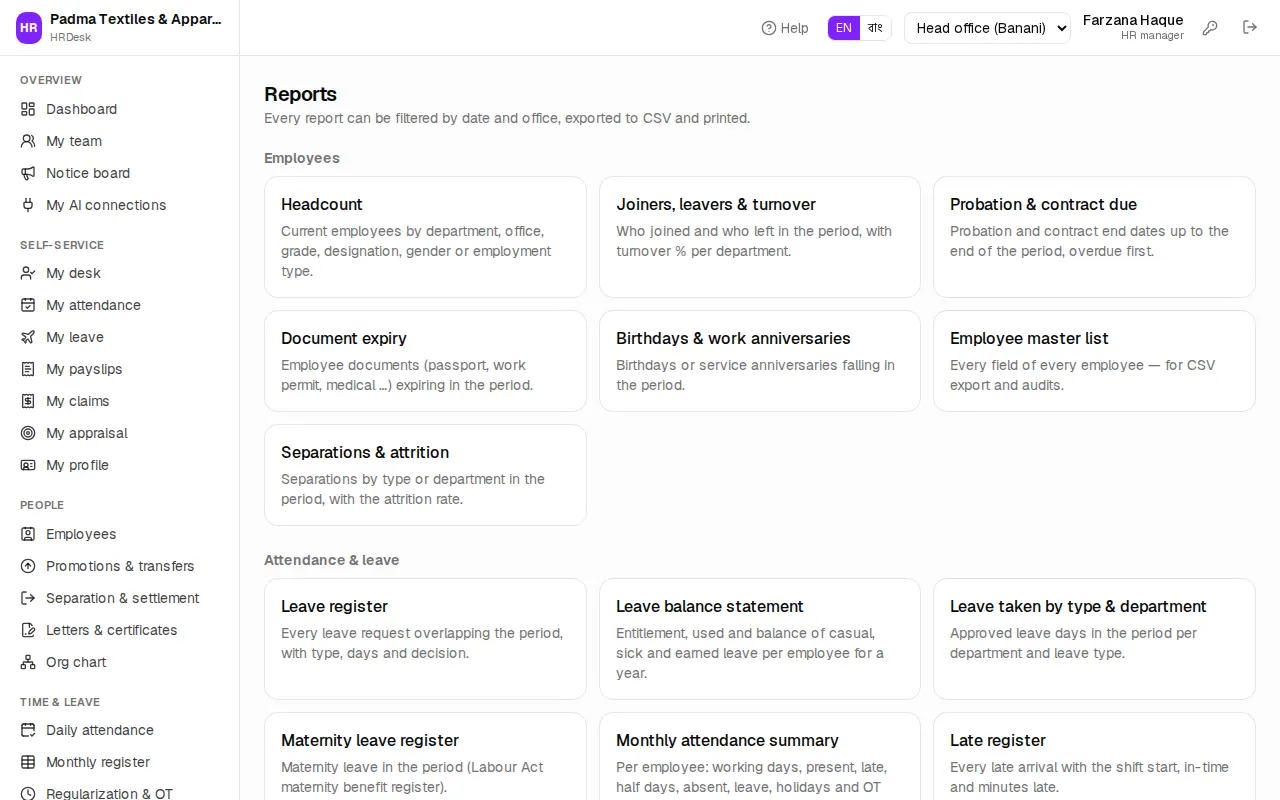
- Press Reports in the sidebar. The cards are grouped: Employees, Attendance & leave, Payroll, Compliance, Recruitment & talent and Audit.
- Press the card of the report you need.
- Set the filters at the top:
- Dates — two date boxes (from – to). By default the 1st of this month to today. Reports that show today's position (like Headcount) have no dates.
- Office / factory — with several offices a select box appears. Users not tied to one office can also pick All offices. It starts on the office chosen in the header.
- One or two report-specific choices, such as Group by (Department, Office / factory, Grade …), Status, Year or Show.
- The table updates as soon as you change a filter — there is no separate button.
When nothing matches you see Nothing to show. Many reports have summary tiles above and a totals row below the table; a short note at the bottom explains the rule used (for example how turnover is worked out).
CSV export and printing
Two buttons sit at the top right of every report:
- CSV — downloads the table (with the totals row) as a CSV file for Excel or Google Sheets. Money is in Taka with two decimals and no ৳ sign, so you can add it up straight away. Bangla names come through correctly. The button is disabled when the table is empty.
- Print — opens the browser's print dialog. The paper carries the company name, report name, office, date range and the chosen options, plus who printed it and when. Filters and the sidebar are left off. For a PDF, choose Save as PDF instead of a printer.
Employee reports
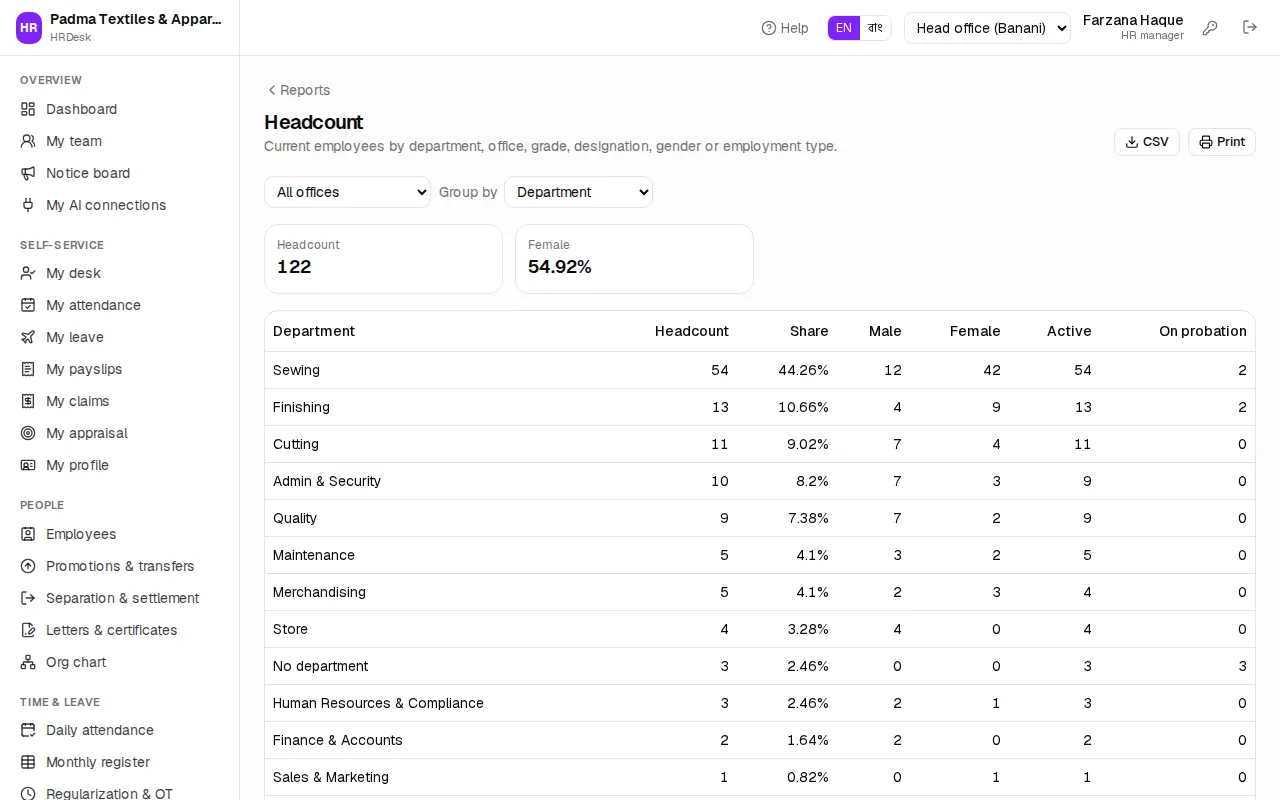
| Report | What it shows | Extra filter |
|---|---|---|
| Headcount | Current employees | Group by: Department, Office / factory, Grade, Designation, Gender, Employment type |
| Joiners, leavers & turnover | Who joined and who left; turnover % per department | Show: By department / Every entry |
| Probation & contract due | Probation and contract end dates up to the end of the period, overdue first | — |
| Document expiry | Passports, work permits, medicals … expiring | Already expired: Only in the period / Include expired |
| Birthdays & work anniversaries | Birthdays or service anniversaries in the period | Show: Birthdays / Work anniversaries |
| Employee master list | Every field of every employee — for CSV export | Employees: Current / Separated / All |
| Separations & attrition | Separations by type or department, with the attrition rate | Group by: Type / Department / Every entry |
Turnover = leavers ÷ the average of opening and closing headcount. Cancelled separations are left out of attrition.
Attendance and leave reports
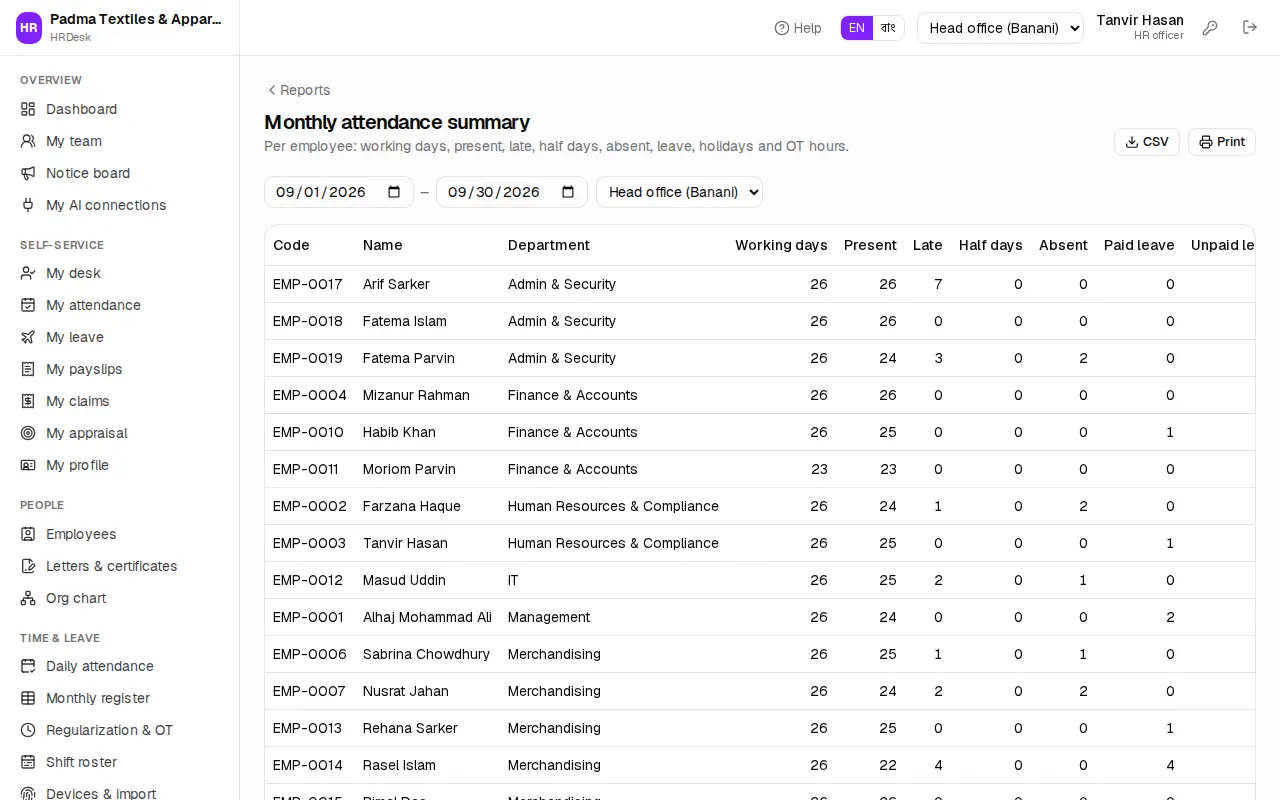
| Report | What it shows |
|---|---|
| Monthly attendance summary | Per employee: working days, present, late, half days, absent, leave, holidays and OT hours. Half day = ½ present + ½ absent |
| Late register | Every late arrival — shift start, in-time, minutes late |
| Overtime register | OT hours × hourly OT rate (basic ÷ divisor × rate) |
| Absent list | Everyone absent without leave, with phone numbers — handy for follow-up calls |
| Daily headcount by department | Per day and department: on roll, present, late, absent, on leave, off (at most 62 days at a time) |
| Leave register | Every leave request overlapping the period; pick Status: Approved / Pending / Rejected / Cancelled / All |
| Leave balance statement | Entitlement, used and balance of casual, sick and earned leave for a year; pick the Year (this year and the two before) |
| Leave taken by type & department | Approved leave days, department × leave type |
| Maternity leave register | The Labour Act maternity benefit register |
OT hours are the approved minutes (or the computed minutes when none were approved), capped per day by the company setting. The attendance rules are in the Attendance chapter.
Payroll reports
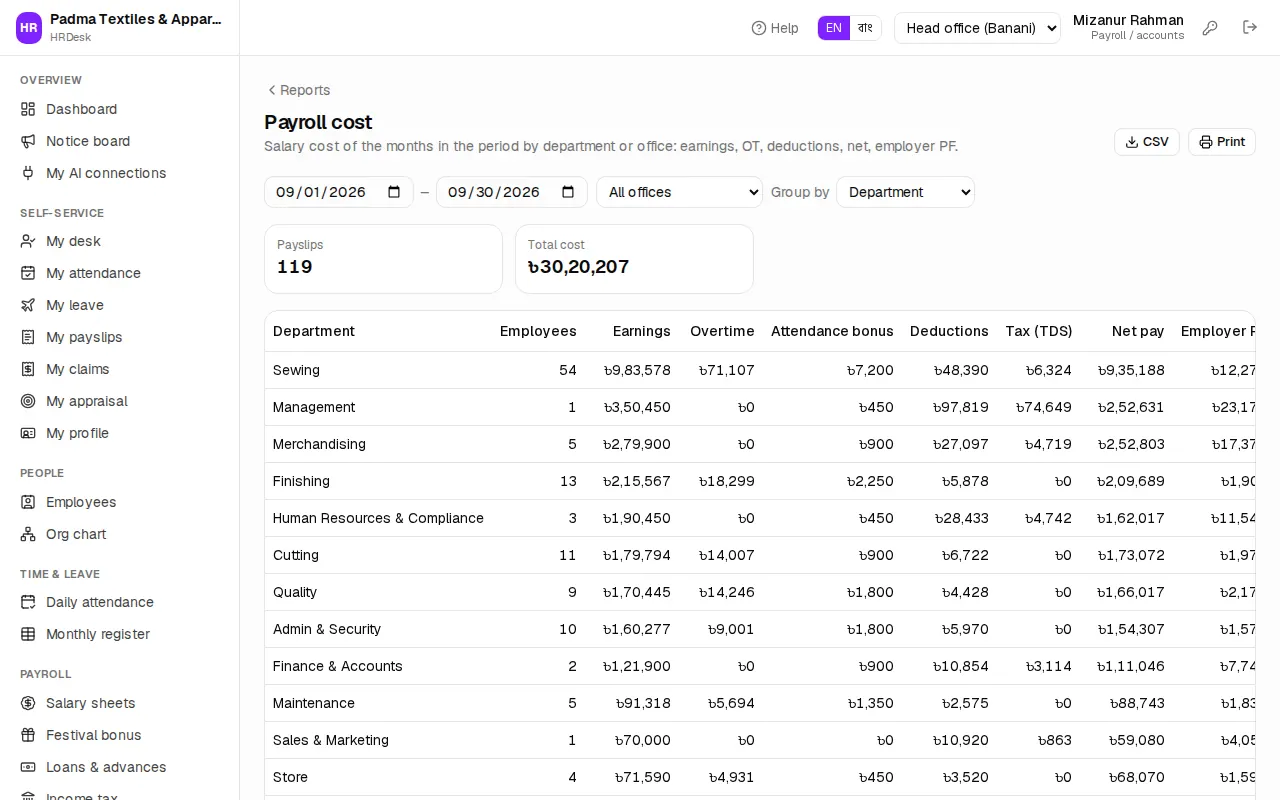
Payroll reports take every salary month the date range touches. For example 15 September – 10 October gives the September and October salary sheets.
| Report | What it shows |
|---|---|
| Payroll cost | By department or office: earnings, OT, attendance bonus, deductions, tax, net and the employer PF share; total cost = earnings + employer PF |
| Salary register | Every payslip of those months — gross, earnings, deductions, net, pay method and status |
| Overtime payments | OT hours and pay per employee from the payslips |
| Festival bonus register | Bonus lines of the bonuses with a pay date in the period |
| Loans & advances outstanding | Active loans and salary advances with the balance still to recover (today's position) |
| Payroll variance | Month-over-month headcount and salary cost with the change |
| Pending final settlements | Open separations with the saved settlement amounts (zero if none saved yet) |
| Expense claims | Claims submitted in the period by category or department (rejected and cancelled left out) |
| Unpaid approved claims | Approved claims not yet paid — cash / bank / bKash or with salary |
Compliance: tax and provident fund
- Tax deducted at source (TDS) — salary income and tax deducted per employee, for the yearly withholding return. Only approved and paid payslips count. The income year runs July–June, so for a full year use 1 July to 30 June. The Employees choice is Only with tax deducted or Everyone paid.
- Provident fund register — per member: opening balance, employee and company contributions, interest (profit) and closing balance.
How tax and PF are worked out is in Loans, tax & provident fund.
Recruitment, training and assets
| Report | What it shows |
|---|---|
| Recruitment funnel | Applications that reached each stage (shortlisted, interview, offer, hired); Group by: Job / Source. An application rejected later still counts at every stage it reached |
| Applications by source | Where candidates came from (careers page, referral, bdjobs …) and where they are now |
| Time to hire | Days from application to hire, per job or every entry |
| Open positions | Positions open today, candidates in the pipeline and deadlines (the date filter does not apply) |
| Training hours | Hours of training attended per employee or department |
| Compliance trainings | Fire safety, first aid and other sessions: invited vs attended — useful for buyer audits |
| Assets by category | How many assets of each kind are issued, in store, damaged or lost, and their value |
| Assets by holder | Which employee holds which asset today |
| Lost & damaged assets | Assets returned damaged, reported lost or marked so in the register |
The audit log: who did what and when
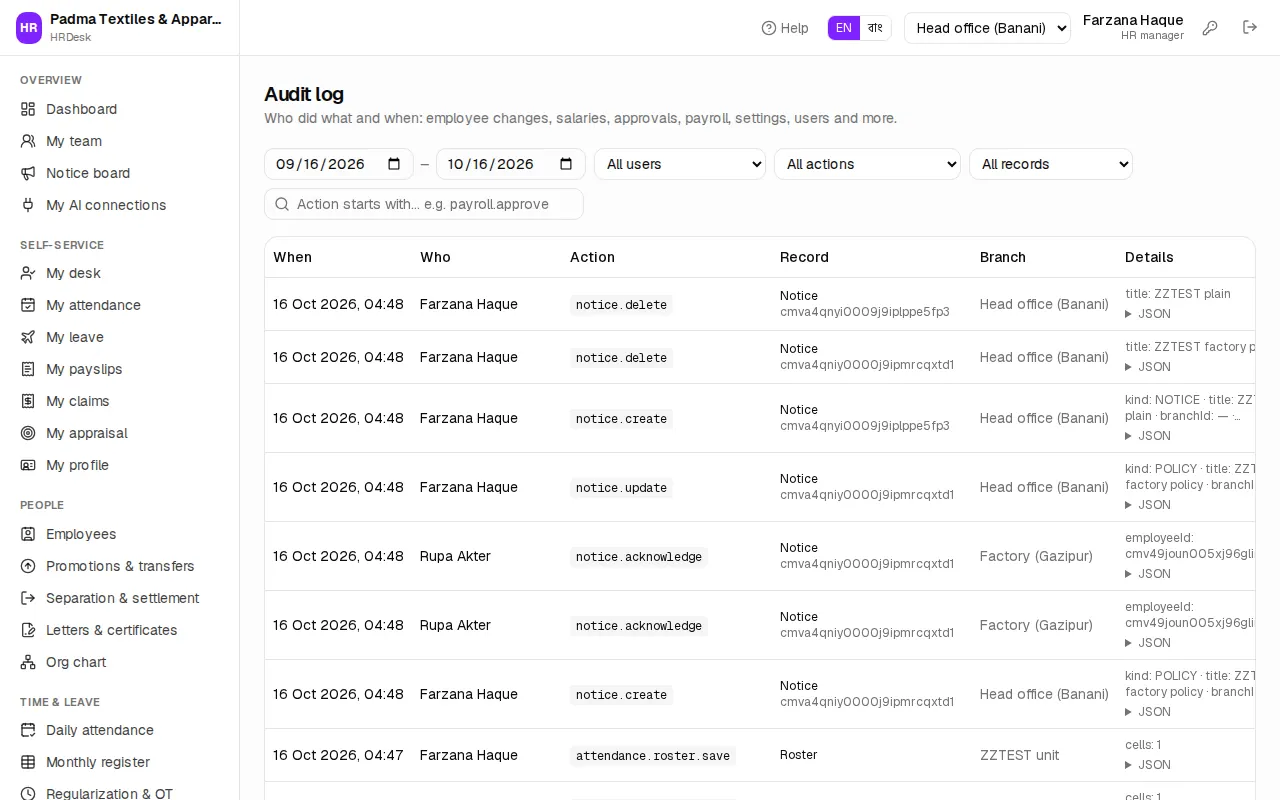
Open Admin › Audit log in the sidebar (or the card in the Audit group at the bottom of Reports). Employee changes, salary changes, approvals, salary sheets, settings, users — every important action is written here. Nothing can be deleted or edited from this page.
- Pick the dates — by default the last 30 days.
- Pick one user from All users (for example Tanvir Hasan).
- Pick an area from All actions — for example Employees, Promotions & transfers, Attendance, Payroll, Users, Settings.
- Pick a record type from All records (for example Salary sheet).
- Or type the start of an action in the search box, such as
payroll.approve.
The table shows When, Who, Action, Record, Branch and Details (what changed). Press the id under a Record to see all activity on that one record from the very beginning; press Record … × clear to drop that filter. There are 50 rows per page with page buttons below; on a phone each row is a card.
System in the Who column means no person did it — it happened automatically.