Recruitment & performance
Recruitment
Opening jobs and publishing them on your careers page, online applications, moving candidates through the stages, interviews, job offers, and creating the employee record after hiring
Who it is for:Owner / MDHR managerHR officerLine manager
On this page
The Recruitment part of the sidebar runs the whole hiring process: opening a job, advertising it on the company's own careers page, online applications, screening, interviews, the offer — and finally the new employee's record in one step.
| Task | Who |
|---|---|
| Open jobs, screen candidates, schedule interviews, offer and hire | Owner, HR manager, HR officer |
| See the interviews they sit on, record score and feedback, add notes | Line manager |
| Apply on the careers page | Anyone — no login needed |
Opening a job
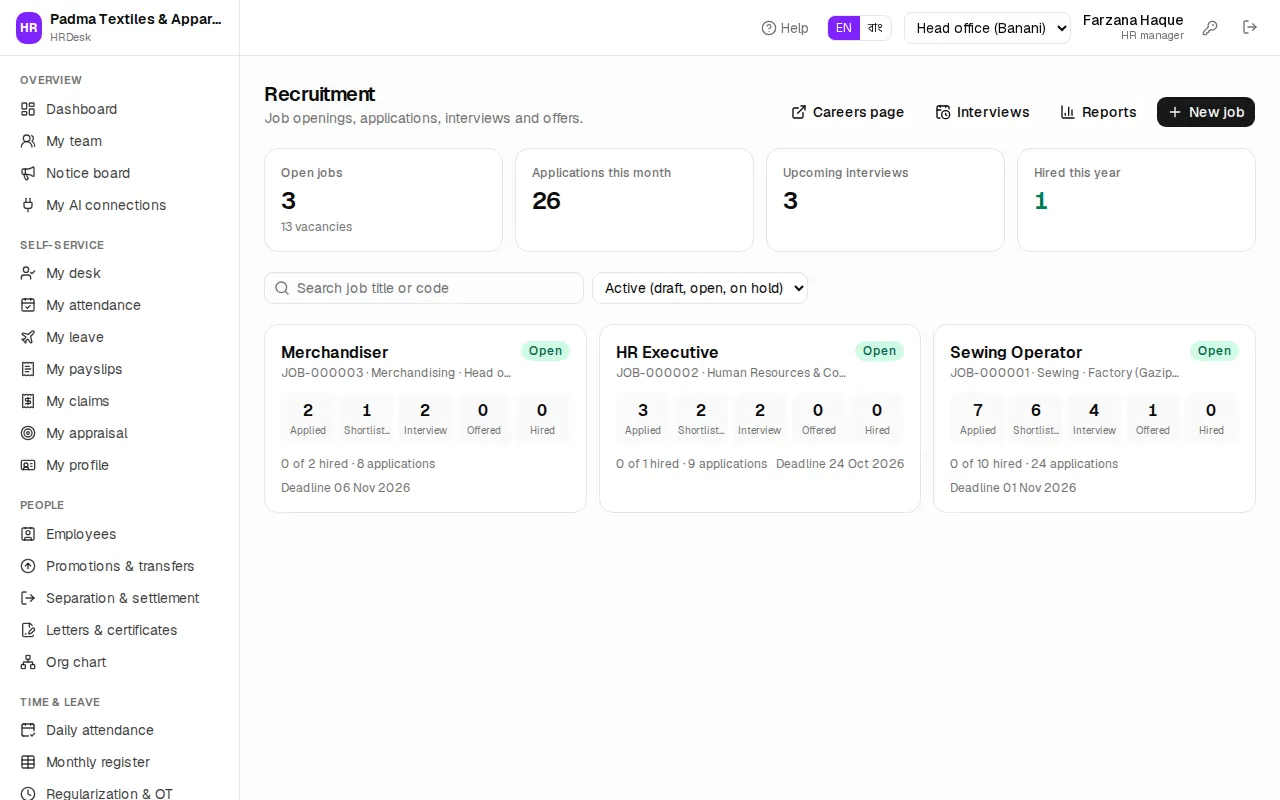
Open Recruitment. The top shows Open jobs (with the number of vacancies), Applications this month, Upcoming interviews and Hired this year. Below, each job card shows how many candidates are at each stage.
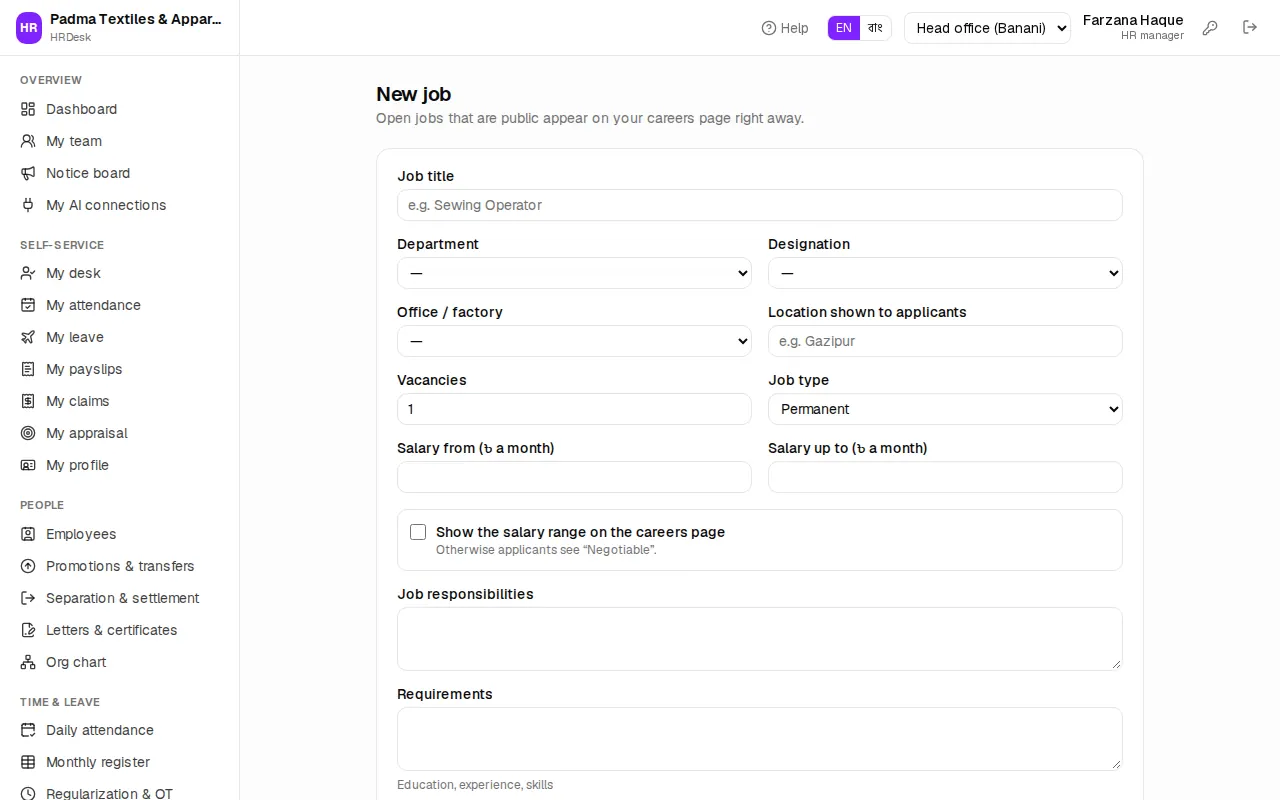
- Press New job.
- Fill Job title (e.g. Sewing Operator), Department, Designation, Office / factory.
- Location shown to applicants (e.g. Gazipur), Vacancies (how many people you need), Job type.
- Salary from (৳ a month) and Salary up to (৳ a month). To show the figures on the careers page tick Show the salary range on the careers page — otherwise applicants see "Negotiable".
- Write the Job responsibilities (required) and Requirements (education, experience, skills).
- Set the Application deadline (empty means "Open until filled").
- Status — keep Draft to open it later; choose Open to take applications.
- Keep Publish on the careers page ticked (untick for internal or agency-only hiring), then press Save job.
On the job page the dropdown at the top changes the status at any time — Open, On hold, Closed, Filled. Once as many people are hired as there are vacancies, the job turns Filled by itself.
The careers page and online applications
Every company has its own careers page — for Padma Textiles it is /careers/padma. The Careers page button at the top of Recruitment opens it; share the link on your Facebook page, a Bdjobs ad or the notice board.
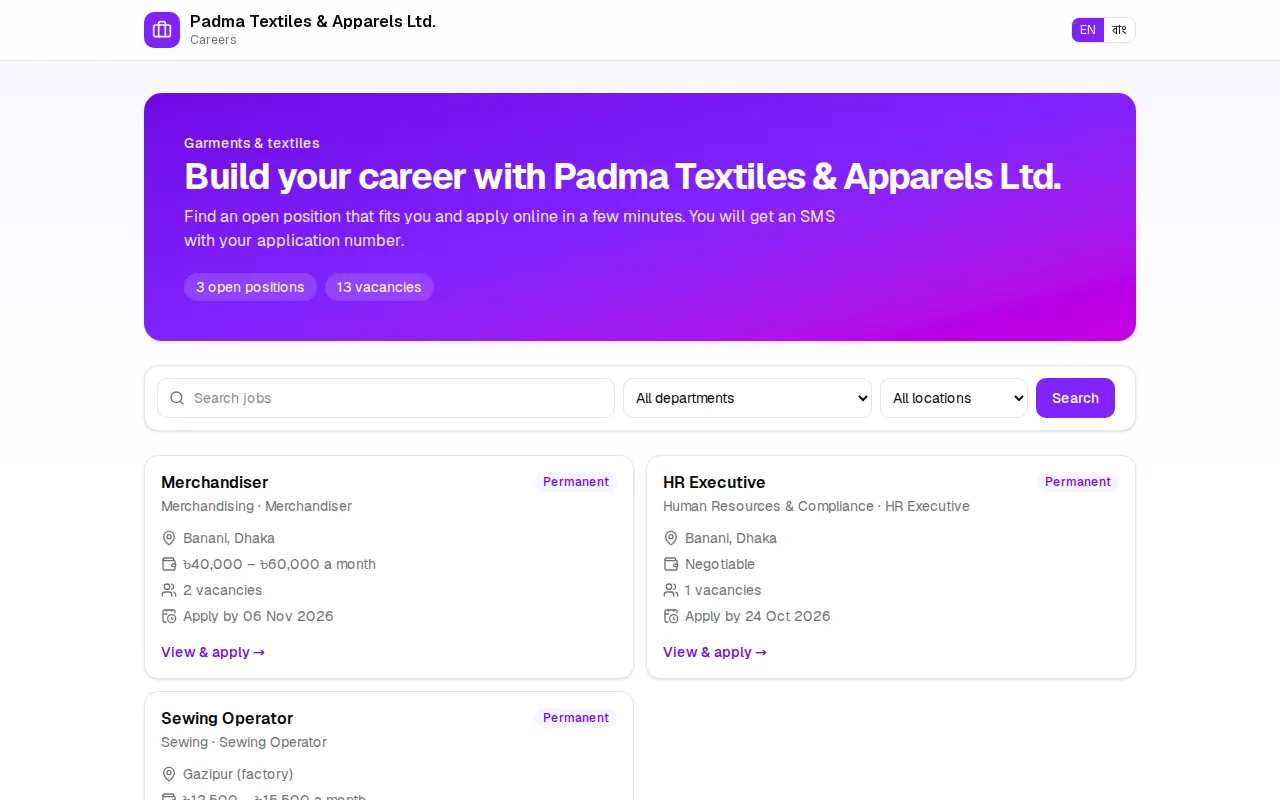
What an applicant sees and does:
- The company name, the number of open positions and a search box (filter by department, job type, location). A Bangla/English switch is at the top.
- View & apply on a job card shows the responsibilities, requirements, salary, deadline and the application form.
- The form: Full name and Mobile number (required), email, sex, date of birth, address, education, experience (years), notice period, current company, current and expected salary, CV / résumé (PDF or Word, max 5 MB) and a cover letter.
- They tick that the information is true and press Submit application. The "Thank you for applying!" page shows the application number (APP-000046 …), which is also sent by SMS.
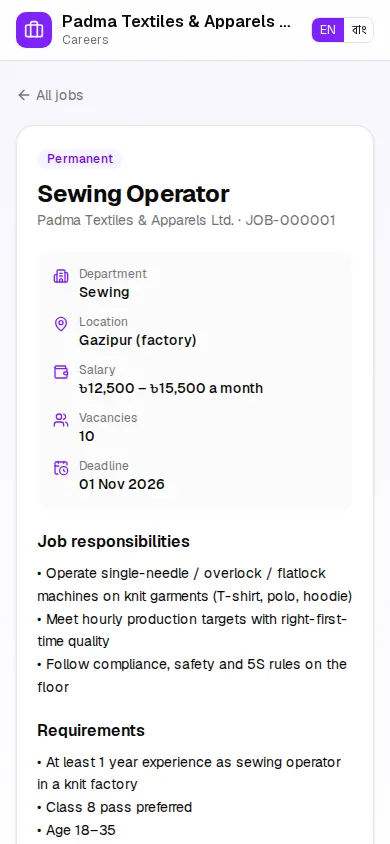
The page works well on phones — most workers apply from their mobile. The footer says "We never ask for money to apply or to get a job."
Screening candidates — the pipeline
Click a job card to open its pipeline. Candidates move through the stages:
Applied → Shortlisted → Interview → Offered → Hired; beside them Rejected / withdrawn.
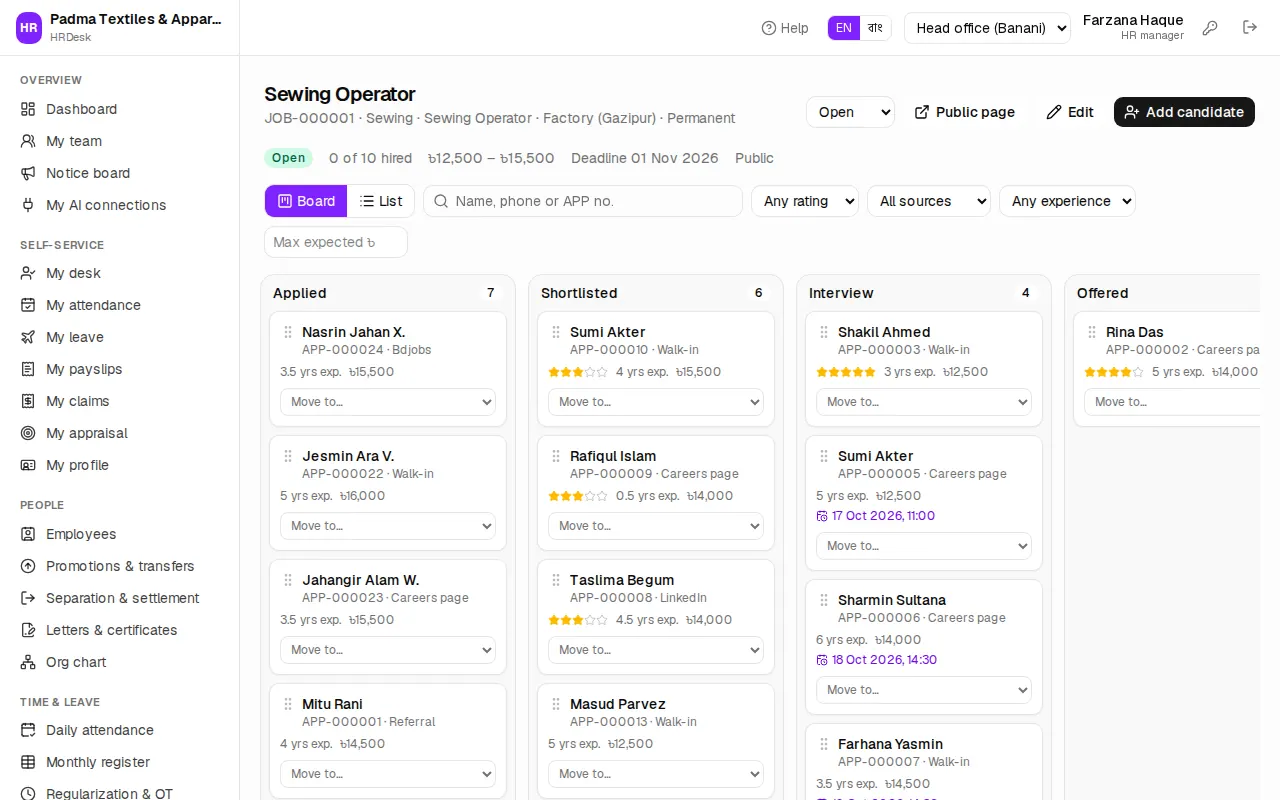
- In the Board view drag a card to another column, or pick a stage from the Move to… list at the bottom of the card (easier on a phone).
- In the List view tick several and press Shortlist or Reject together; tick Send SMS to the candidates to text them all.
- Search by name, phone or APP no.; filter by rating, source, experience and maximum expected salary.
Adding a candidate yourself: for walk-ins, referrals or Bdjobs applicants press Add candidate. Enter name, mobile and Source (Careers page, Referral, Bdjobs, LinkedIn, Walk-in, Other); for a referral pick the employee under Referred by. You can upload the CV too.
The candidate page
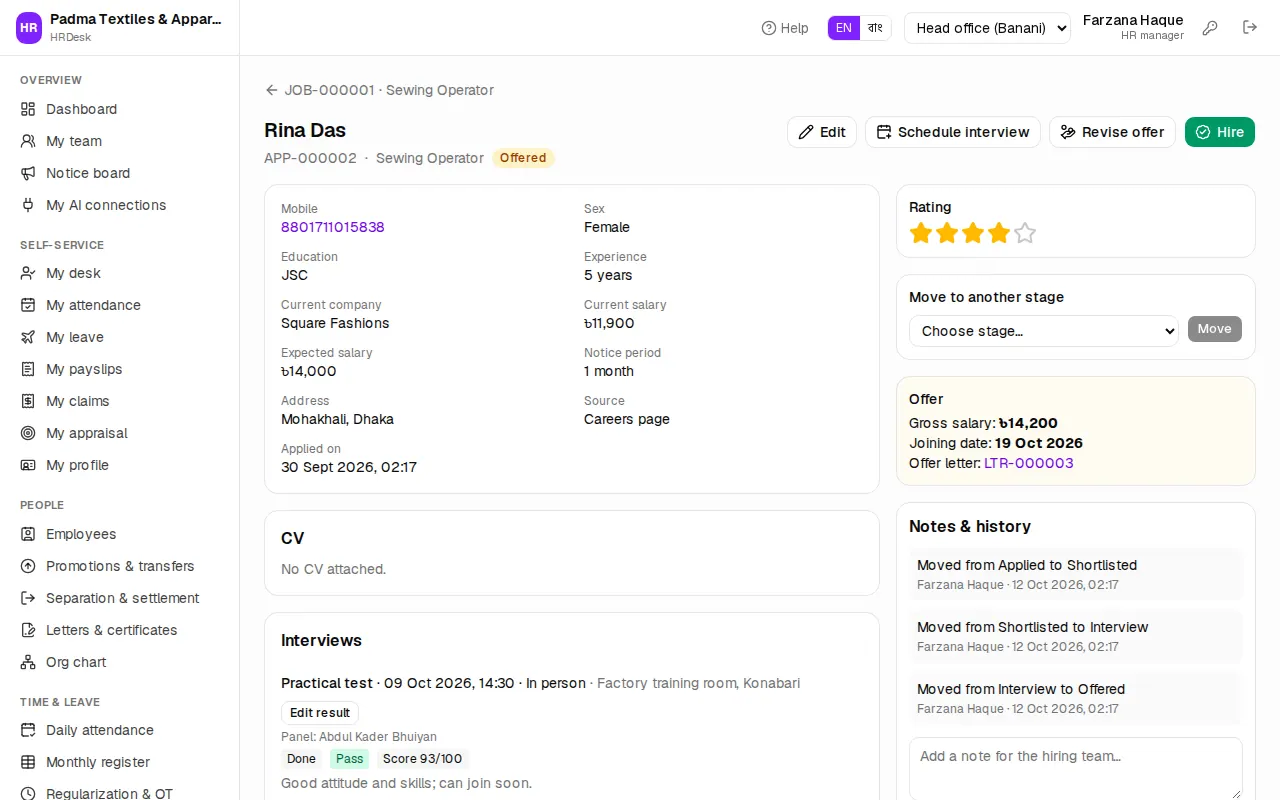
Click a candidate's name to see all their details, the CV (a PDF opens right on the page), interviews, and on the right:
- Rating — 1 to 5 stars.
- Move to another stage — pick the stage and press Move. When rejecting, write the Reason (internal); for shortlisting or rejecting you can tick Send SMS to the candidate.
- Notes & history — every stage change and the team's notes, with who and when. Write one with Add note.
Interviews
- On the candidate page press Schedule interview.
- Fill the Round (e.g. Written test, Practical test), Date, Time, Mode (In person, Phone, Video call) and Place or meeting link.
- Add employees to the Interview panel (e.g. the section's line manager).
- Keep Send the interview invitation by SMS ticked and press Save.
A candidate at Applied or Shortlisted moves to Interview by itself. To change the time press Reschedule.
After the interview press Record result: Status (Done, Cancelled, No-show), Score (0–100), Result (Pass, Fail, On hold) and Feedback.
The Interviews page (button at the top of Recruitment) lists every scheduled interview — Upcoming / Past & done, Everyone's / Mine.
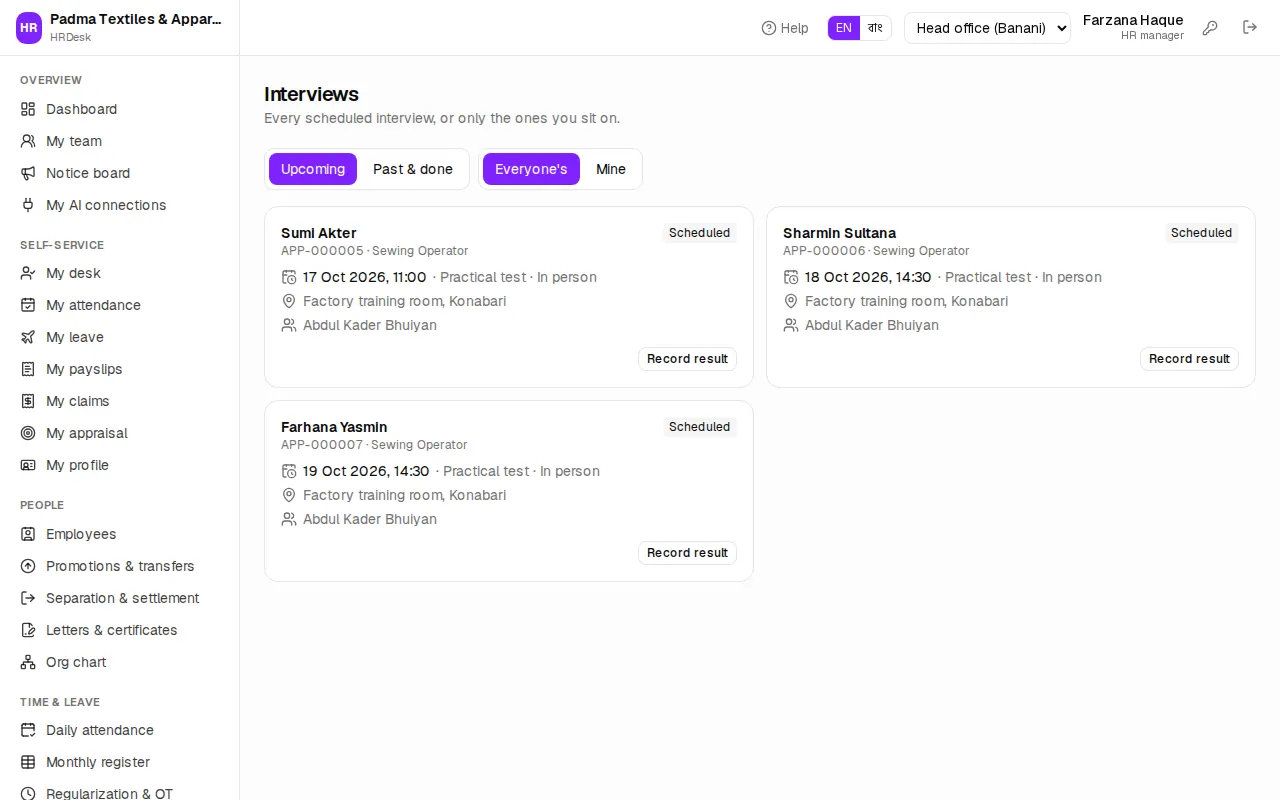
For line managers: Recruitment in the sidebar opens My interviews directly — the interviews where you are on the panel. Click the candidate's name to see the CV, use Record result after the interview for your score and feedback, and add notes if needed.
The job offer
- On the candidate page press Make offer.
- Enter the Gross salary (৳ a month), Joining date and Designation in the letter.
- Issue the offer letter and Send SMS to the candidate are both ticked by default.
- Press Save offer.
The candidate moves to Offered; the Offer box on the right shows the salary, joining date and offer letter number — click the number to print. To change it after negotiation press Revise offer.
Hiring and creating the employee record
When the candidate accepts:
- Press the green Hire button on the candidate page and confirm.
- The Add employee form opens, saying "Prefilled from application APP-000002 (Sewing Operator)." Name, mobile, address, department, designation, joining date and the offered salary are already filled.
- Complete the rest (NID, card no., reports to …) and press Save employee — details in Managing employees.
The candidate page then shows "Employee record created" with an Open record button. If you leave the form without saving it shows "Hired — the employee record has not been created yet." — press Create employee record to start again. When every vacancy of the job is filled, the job turns Filled by itself.
Recruitment reports (applications by source, time to hire) are in Reports.