Getting started
Getting started
What HRDesk is, signing in, what is where on the screen, the dashboard, switching language and office, your password, which menus each role sees and starting a free trial
Who it is for:Owner / MDHR managerHR officerPayroll / accountsLine managerEmployee
On this page
HRDesk runs all the HR and payroll work of a company or factory in one place: employee records, daily attendance and shifts, leave, the monthly salary sheet and payslips, festival bonus, loans, income tax, provident fund, recruitment, appraisals and notices. Employees can check in, apply for leave and see their payslips from their own phone. This chapter covers the first-day basics so everyone can start with confidence.
The guide uses the demo company Padma Textiles & Apparels Ltd. as its example: a head office in Banani, a factory in Gazipur and about 120 employees.
Signing in
HRDesk runs in a web browser, on a computer or a phone. Chrome or Edge work best. You sign in with your Mobile number and Password.
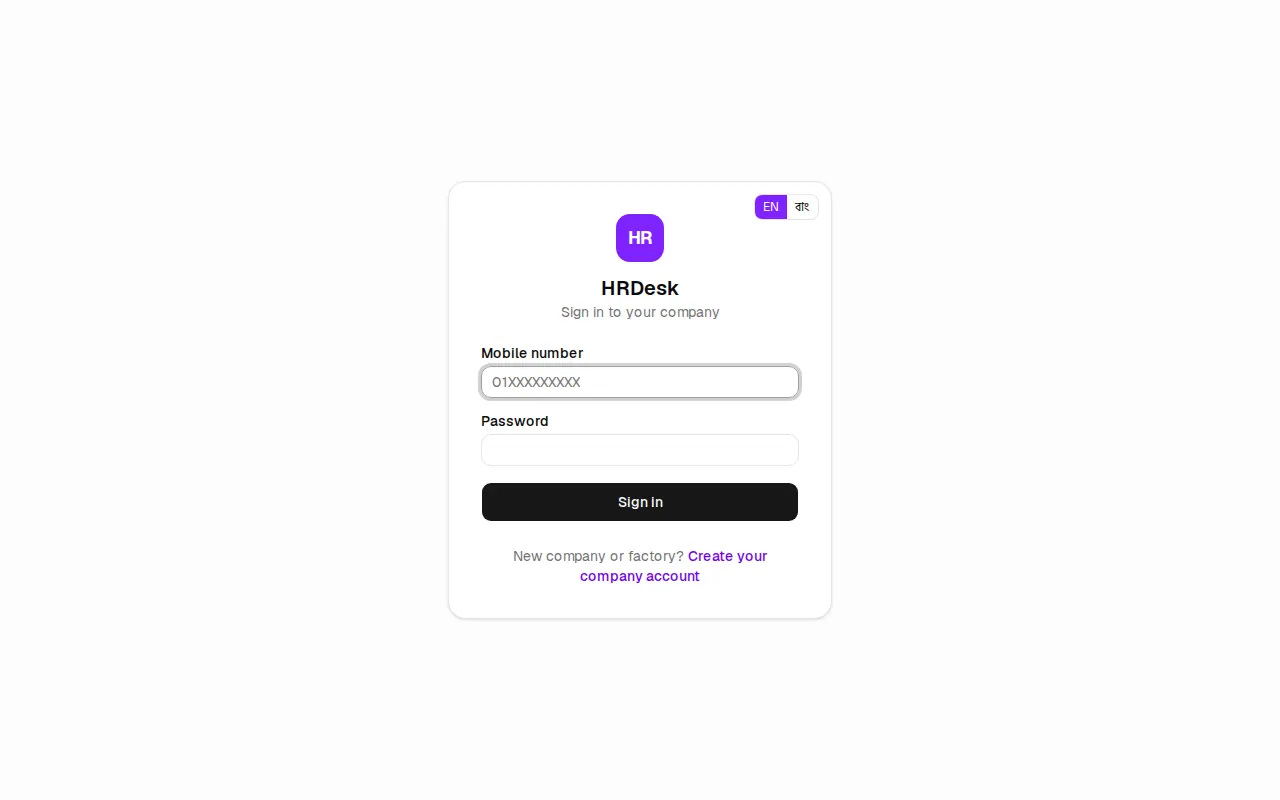
- Open your company's HRDesk address in the browser. The page says "Sign in to your company".
- Type your 11-digit number in Mobile number (for example
01XXXXXXXXX). - Type your Password.
- Press Sign in.
There are two kinds of login:
- Staff logins (owner, HR, payroll/accounts, line managers) are created by the owner or HR manager on the Users & roles page (see Owner setup).
- Employee self-service logins are created by HR from the employee's record with Create login. The employee's mobile number is the login; a 6-digit password goes out by SMS, or HR hands it over if SMS is not set up.
After signing in, each person lands on the page for their main job:
| Role | Page that opens after sign-in |
|---|---|
| Owner / MD, HR manager, HR officer | Dashboard |
| Payroll / accounts | Salary sheets |
| Line manager | My team |
| Employee (for example sewing operator Rupa Akter) | My desk |
The sign-in page has an EN | বাং switch in the top right corner, so you can pick the language before signing in.
The screen layout
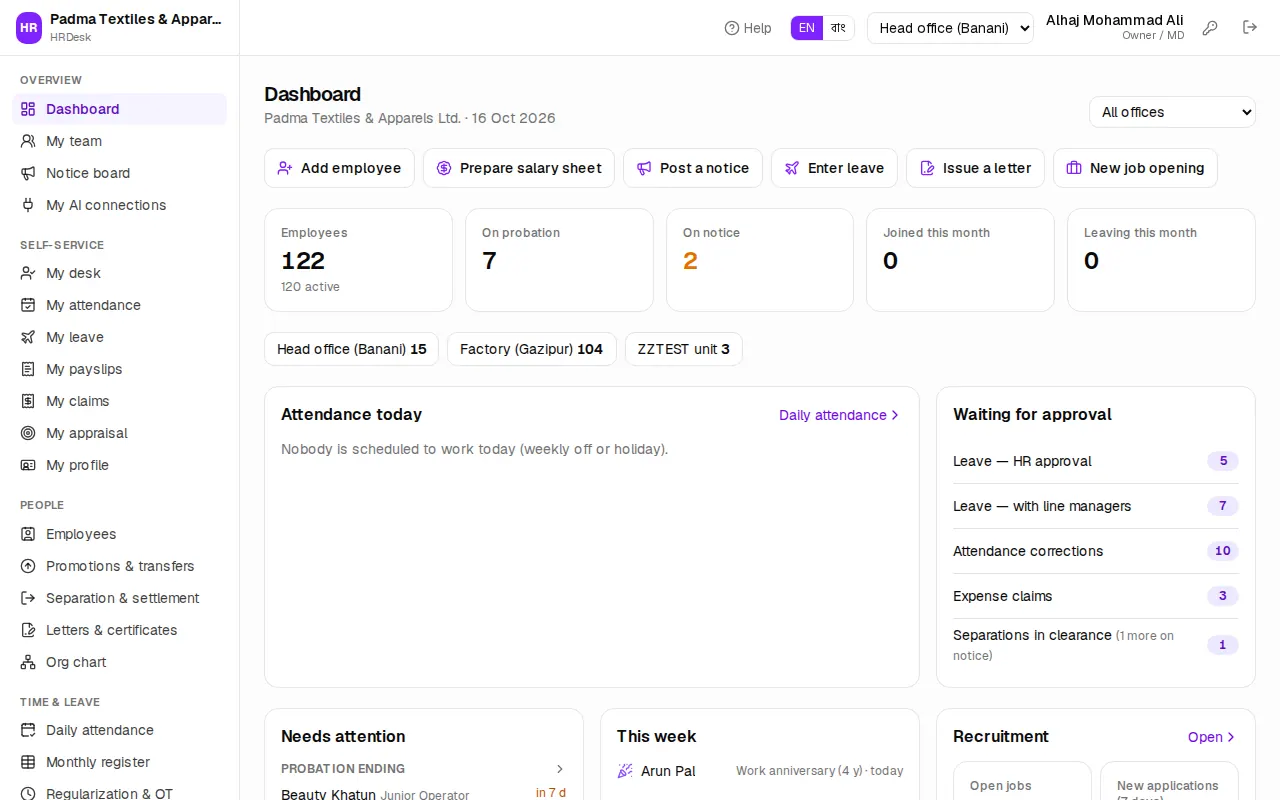
Left menu (sidebar): the company name at the top, then the menu in sections — Overview, Self-service, People, Time & leave, Payroll, Talent (recruitment, performance, training, assets) and Admin. The page you are on is highlighted in violet. Menus your role may not use are not shown at all, and modules that are not in the company's licence are hidden too.
Top bar (header), from left to right:
- Help (the question-mark icon) — opens the guide chapter for the page you are on, in a new tab, so half-done work is not lost.
- EN | বাং — the language switch.
- The office / factory name, or a drop-down if you work in more than one.
- Your name and role (for example "HR manager").
- The key icon — change your own password.
- The door-shaped icon — sign out. Always use it before you leave a shared computer.
Yellow banner at the top: when the licence has ended but is still in its grace days, every page shows "Your licence has expired. HRDesk keeps working until (date); please renew." with a Details link. What to do is in Licence, payments & AI.
Reading the dashboard
Under the Dashboard title you see the company name and today's date. Below it are shortcut buttons for your role: Add employee, Prepare salary sheet, Post a notice, Enter leave, Issue a letter, New job opening. Each person only sees the buttons their role allows.
HR part (owner, HR manager, HR officer):
- Tiles at the top: Employees, On probation, On notice, Joined this month, Leaving this month. With more than one office, the headcount of each office follows; click one to open that office's employee list.
- Attendance today: Present, Late, Absent, On leave, Not yet in. Click a box to open that list on Daily attendance.
- Waiting for approval: leave waiting for HR, leave still with line managers, Attendance corrections, expense claims and separations in clearance.
- Needs attention: probation and contracts ending, and documents expiring, in the next 30 days.
- This week (birthdays and work anniversaries), Recruitment, Upcoming holidays and Latest notices.
Payroll part (owner, HR manager, payroll/accounts): last month's payroll cost compared with the month before, Loans & advances outstanding, Approved claims to pay, TDS deducted this income year, the status of each office's salary sheets, and the next Eid or Puja under Festival bonus. A yellow warning appears if no bonus run exists yet before the festival.
Line managers see My team today: how many of their team are in, late, absent or on leave, and how many requests are Waiting for me.
People who are not tied to one office get a drop-down at the top right of the dashboard: All offices shows the whole company, or pick one office.
Switching language
- Find the EN | বাং switch in the header.
- Press বাং for Bangla or EN for English.
The whole app changes at once, and your choice is saved on your account. People who have never picked a language see the company's Default language (Settings › Language). A few texts have no Bangla translation yet and still show in English.
Switching office / factory
Each office or factory has its own employees, attendance and salary sheet. Departments, grades and policies are shared.
- Open the office drop-down in the header (for example Head office (Banani) or Factory (Gazipur)).
- Pick the office you are working on. The page reloads.
If you see just an office name and no drop-down, your login is limited to that one office — in the demo, HR officer Shahidul Islam sees only the Gazipur factory.
Changing your password
Everyone can change their own password. Employees should change the password they first received by SMS.
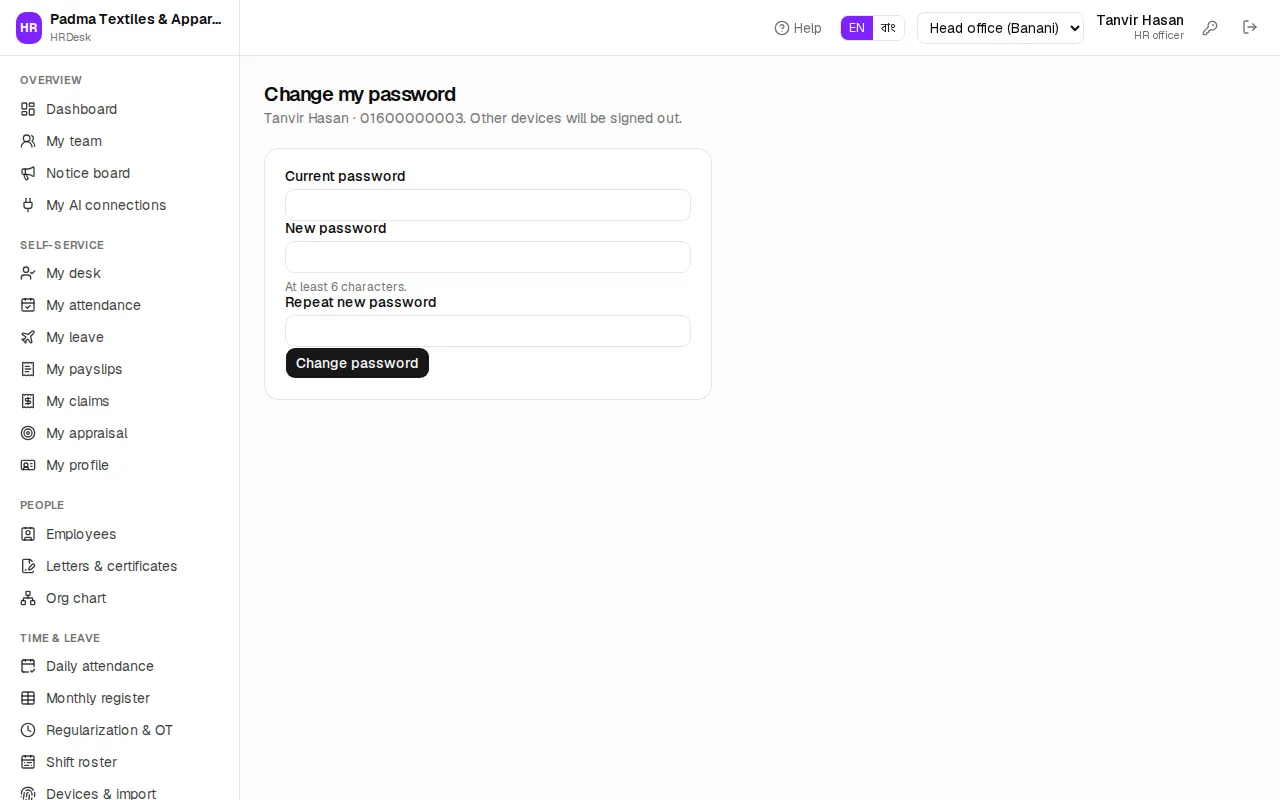
- Press the key icon in the header (owners and HR managers can also use the My password button on Settings).
- Type your Current password.
- Type a New password — at least 6 characters.
- Type it again in Repeat new password.
- Press Change password. "Password changed" means it worked.
You stay signed in on this device; every other device is signed out.
What each role sees
Every user has exactly one role. The role decides which menus appear and which buttons work.
| Role | Main work | In the sidebar |
|---|---|---|
| Owner / MD | Everything | Every menu, including Integrations and Online payments |
| HR manager | All of HR: employees, promotions, separations, final leave approval, approving salary sheets, settings, users | Everything except Integrations and Online payments |
| HR officer | Adding and editing employees, attendance, rosters, devices, leave, letters, recruitment, training, assets, notices, SMS | People, Time & leave, most of Talent, Reports (without the payroll, tax and PF reports), SMS & WhatsApp; no payroll menus |
| Payroll / accounts | Preparing and paying salary sheets, festival bonus, loans, income tax, provident fund, expense claims | Employees, Daily attendance, Monthly register, the whole Payroll section, Reports |
| Line manager | Their own team only: attendance, first-step leave and overtime approval, claims, appraisals | My team, their team's Employees and attendance, Leave requests, Expense claims, Recruitment, Performance |
| Employee | Own attendance, leave, payslips, claims, appraisal, profile | Only Notice board and Self-service |
All staff roles also see the Self-service section (My desk, My attendance, My leave, My payslips …) because they are employees too. The employee role has no dashboard.
If a page shows No access, it is not meant for your role; ask the owner or HR manager to change your role if you really need it. The full permission list is under What each role can do at the bottom of Users & roles.
Using HRDesk on a phone
There is no separate app to install; HRDesk works in the phone's browser.
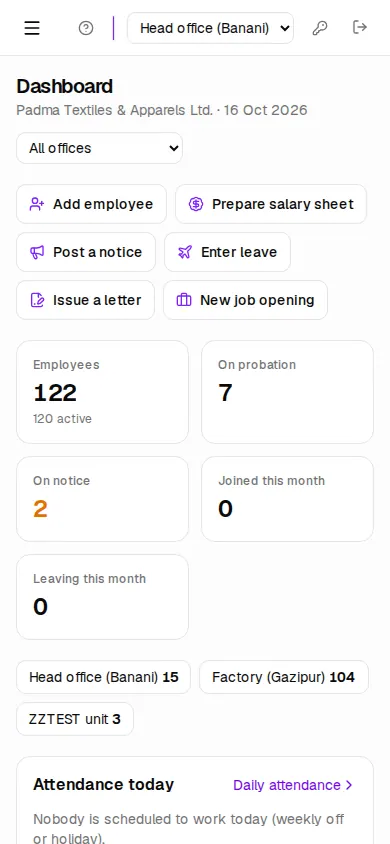
- The sidebar is hidden. Tap the three-line (☰) button at the top left to open the menu; it closes by itself when you pick a page.
- To save space, Help shows only as the question-mark icon, and your name and role are hidden.
- Swipe wide tables (such as a salary sheet) left and right.
- Employees can check in from their phone if the company keeps Phone check-in on — see Employee self-service.
Starting a free trial
A new company can start HRDesk on its own. On the sign-in page press Create your company account.
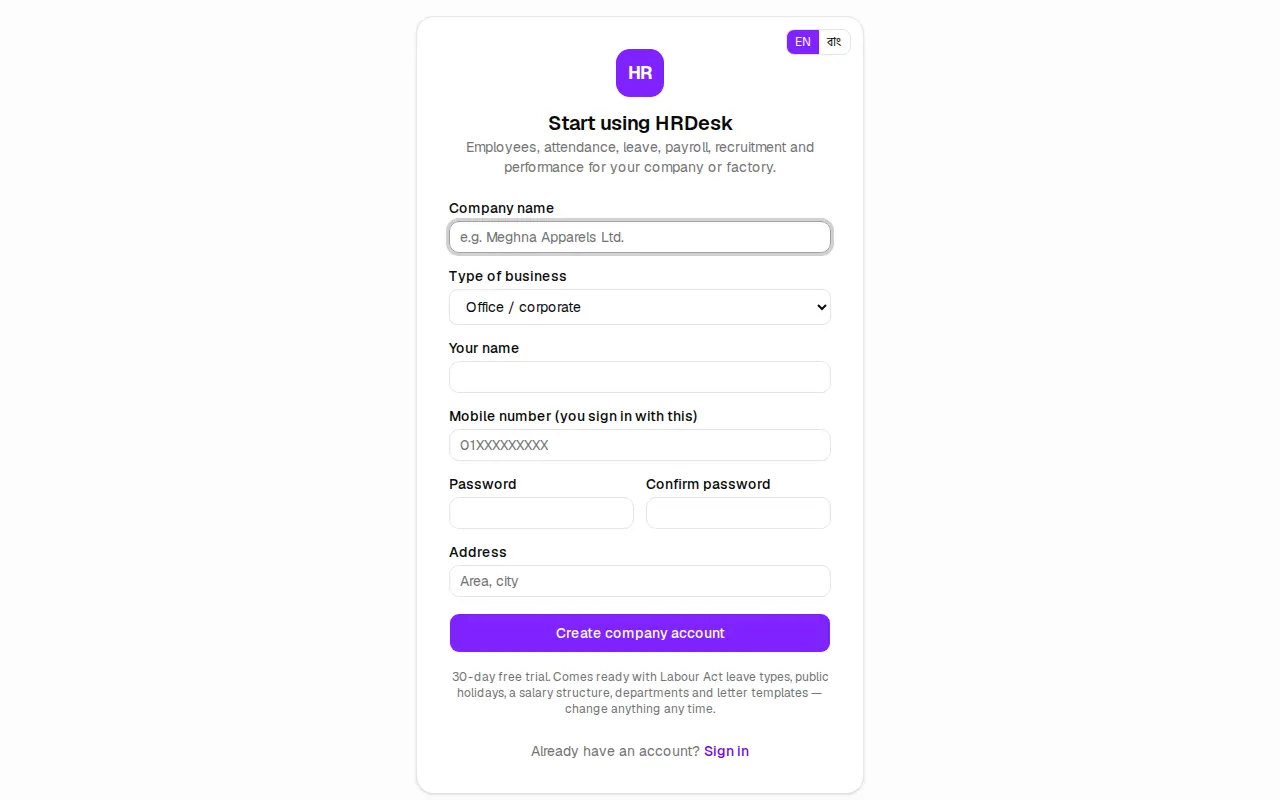
- Type the Company name.
- Choose the Type of business, for example Garments / factory or Office / corporate. The starter setup depends on it (see below).
- Enter Your name and Mobile number (you sign in with this).
- Enter Password and Confirm password (at least 6 characters). Address is optional.
- Press Create company account. After a few seconds you are signed in as the owner, on the dashboard.
A 30-day free trial starts. HRDesk comes ready with:
| What | Garments / factory | Every other type |
|---|---|---|
| First office | "Factory" (code FAC) | "Head office" (code HO) |
| Salary structure | The Dec 2023 garments minimum-wage structure (medical ৳750, transport ৳450, food ৳1,250, house rent 50% of basic) | Basic 60% of gross, plus house rent, medical and conveyance |
| Shifts | General (8–5) and Night (20–05) | General (9–6) |
| Grades | Worker Grade 1–4 and Staff — Officer | M1, M2, E1, E2, S1 |
| Departments and designations | Cutting, Sewing, Finishing, Quality … / Sewing Operator, Helper, Line Chief … | Management, HR, Finance, Sales … / Manager, Executive … |
| Policy | Attendance bonus ৳450; every 3 late days deduct one day's basic | Standard defaults |
Both get the Labour Act leave types (casual 10 days, sick 14 days, earned leave 1 day per 18 days worked, maternity 112 days, leave without pay), this year's public holidays and letter templates (appointment, confirmation, promotion, experience certificate and more). You can change all of it later.
Where to go next
- Owners and HR managers: Owner setup, then Employees.
- Attendance and leave: Attendance and Leave.
- Payroll / accounts: Payroll and Loans, tax & PF.
- Line managers: For line managers.
- Employees: Employee self-service.
- When something goes wrong: Troubleshooting. Unfamiliar words: Glossary.