Payroll
Salary sheets, payslips & festival bonus
Salary structure, preparing, checking, approving and paying the monthly salary sheet, printing payslips, bank advice and bKash/Nagad files, and Eid/Puja festival bonuses
Who it is for:Owner / MDHR managerPayroll / accounts
On this page
- Salary structure: basic, house rent and allowances
- An employee's pay and payment details
- Preparing the month's salary sheet
- What goes into each payslip
- Checking and correcting the sheet
- Approving and reopening
- Paying salaries
- Printing payslips, the sheet and summaries
- Bank advice and bKash / Nagad files
- Festival bonus (Eid, Puja)
The Payroll part of the sidebar holds all the month-end work — Salary sheets, Festival bonus, Loans & advances, Income tax, Provident fund and Expense claims. This chapter covers salary sheets and festival bonuses; loans, tax, provident fund and expense claims are in Loans, tax & provident fund.
A salary sheet goes through three steps, and each step belongs to a different person — so nobody can prepare a salary and release it alone:
| Task | Who |
|---|---|
| Set the Salary structure (salary heads) | HR manager, Owner |
| Set an employee's gross salary (Payroll / accounts can see it) | HR manager, Owner |
| Prepare salary and bonus sheets, Recalculate, edit, hold, delete a draft | Payroll / accounts, Owner |
| Approve and Reopen a sheet | HR manager, Owner |
| Mark salaries and bonuses paid | Payroll / accounts, Owner |
| View sheets, print, download CSV files | HR manager, Payroll / accounts, Owner |
In the demo, Mizanur Rahman (Payroll / accounts) prepares and pays, and Farzana Haque (HR manager) approves.
Salary structure: basic, house rent and allowances
For each employee you enter only the monthly gross; it is split into basic, house rent, medical, transport, food allowance and so on by the company's Salary structure. Open Organisation setup › Salary structure to see it.
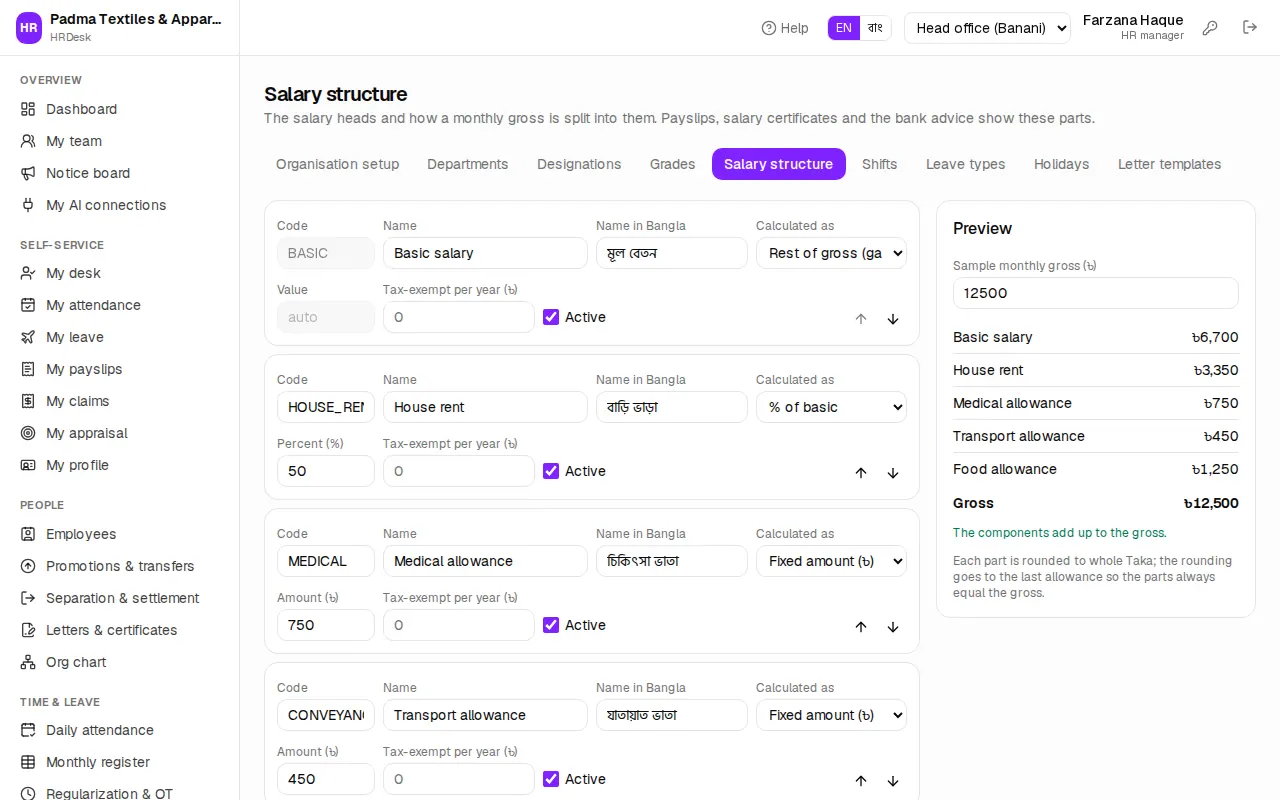
The garments structure (December 2023 minimum-wage gazette) is built in: medical ৳750, transport ৳450 and food ৳1,250 fixed; basic = (gross − these three) ÷ 1.5; house rent 50% of basic. For example a grade 4 sewing operator on a gross of ৳12,500 gets basic ৳6,700 and house rent ৳3,350.
Each component row has a Code, Name, Name in Bangla, Calculated as and its value:
- Fixed amount (৳) — the same Taka every month (e.g. food allowance).
- % of gross or % of basic — a percentage.
- Rest of gross (garments formula) — BASIC only; whatever is left after the other parts is the basic.
- Tax-exempt per year (৳) — how much of this head is free of income tax.
To change the structure:
- Edit the row fields, or press Add component. Use the up/down arrows to change the order.
- In the Preview on the right, type a Sample monthly gross (৳) and check the split. Yellow or red warnings appear when the parts don't add up.
- Press Save structure. The button stays disabled while a red error remains.
To start over, use Garments minimum-wage structure or Office structure under Start from a standard structure.
An employee's pay and payment details
On the employee record (Employees › name › Edit) the payroll needs:
- In Salary, the Gross salary (৳ / month) — the split by head shows right below. After the first time, pay changes go through an Action (increment / promotion) so the Salary history stays right — see Employees.
- Overtime eligible — usually yes for workers, no for officers.
- In Salary payment, the Payment method (Bank, bKash, Nagad, Rocket, Cash, Cheque); for a bank the Bank, Bank branch, Account no. and Routing no.; for a mobile wallet the Wallet number (empty = the employee's mobile).
- Provident fund member, e-TIN and Exempt from salary tax deduction — see Loans, tax & provident fund.
The overtime rate, absence deduction, late rule, attendance bonus and the day the salary month starts are in Settings under Payroll and Overtime — see Owner & company setup.
Preparing the month's salary sheet
Before you start, make sure the month's attendance, overtime approvals and leave are complete (Attendance, Leave).
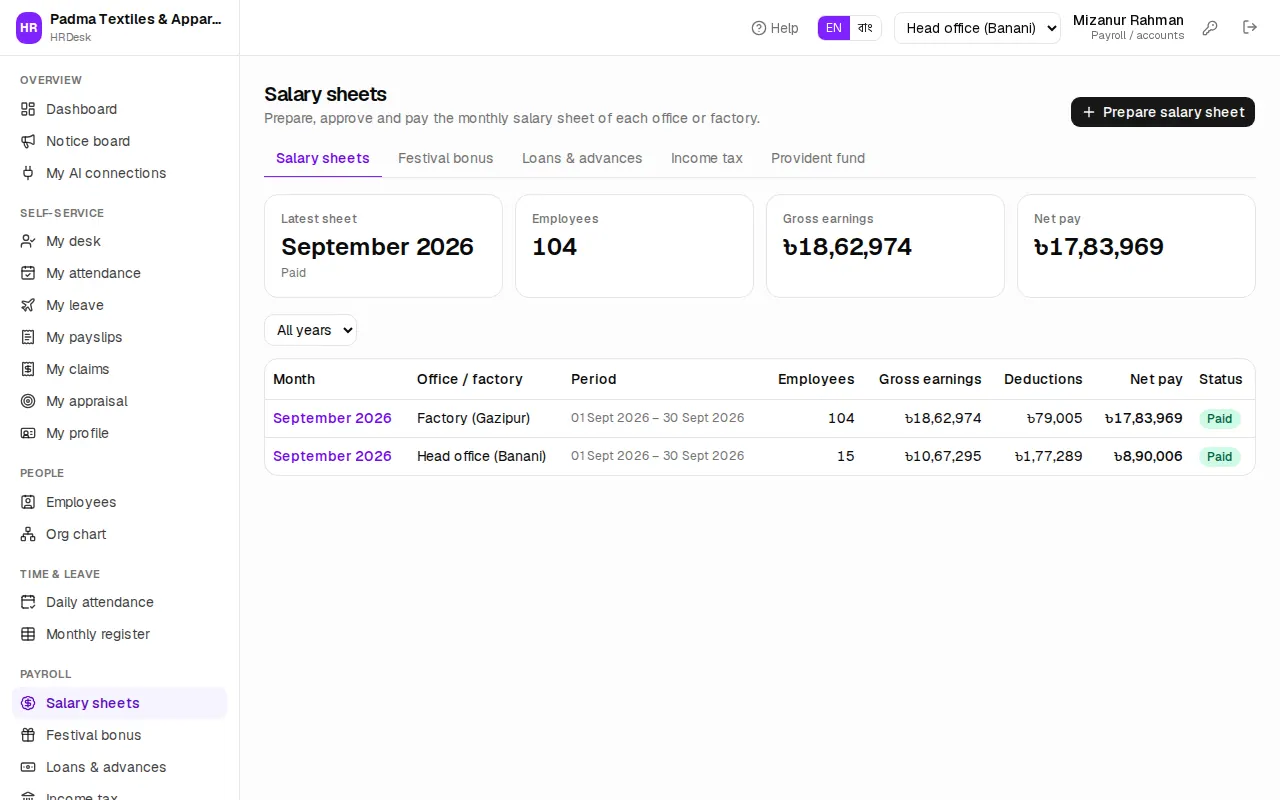
- Open Payroll › Salary sheets. The cards show the latest sheet's month, headcount, Gross earnings and Net pay.
- Press Prepare salary sheet.
- Pick the Salary month (last month by default). The pay period is shown below it — usually the calendar month, or the 21st to the 20th if Settings says so.
- Office / factory — one sheet for All offices & factories, or one per office / factory (e.g. Factory (Gazipur) and Head office (Banani)). You can't mix both for the same month.
- Press Prepare. The sheet opens as a Draft with one payslip (number SAL-…) for every eligible employee.
If the sheet for that month and office already exists, a new one is refused — open the existing one and press Recalculate.
What goes into each payslip
On prepare or recalculate, HRDesk pulls in for each employee:
| Column | Where it comes from |
|---|---|
| Pres., Abs., Leave, Late | The month's attendance: present, absent (incl. unpaid leave), paid leave and late days |
| Basic, house rent, allowances | The salary history; pro-rated by days for joiners, leavers and mid-month increments |
| OT hrs, OT pay | Overtime hours from attendance × basic ÷ 208 × 200% (demo settings); only for "overtime eligible" employees |
| Att. bonus | A month with no absence, late day or unpaid leave (৳450 in the demo) |
| Absent ded. | Absent days × basic ÷ days in the period (Labour Act s.126) |
| Late ded. | One day's basic for every 3 late days (demo settings) |
| Tax | Monthly tax deducted at source (TDS), from the yearly projection |
| PF | 10% of basic for provident fund members (demo settings) |
| Loan | This month's instalment of active loans and advances |
| Other earn. | Lines you add by hand, plus approved expense claims paid with salary and leave encashments for this month (or earlier, unpaid) |
| Other ded. | Lines you add by hand — revenue stamp, canteen, fines and so on |
The exact formulas for your company are printed in one line under the sheet. Net pay = total earnings − total deductions; every amount is in whole Taka.
Checking and correcting the sheet
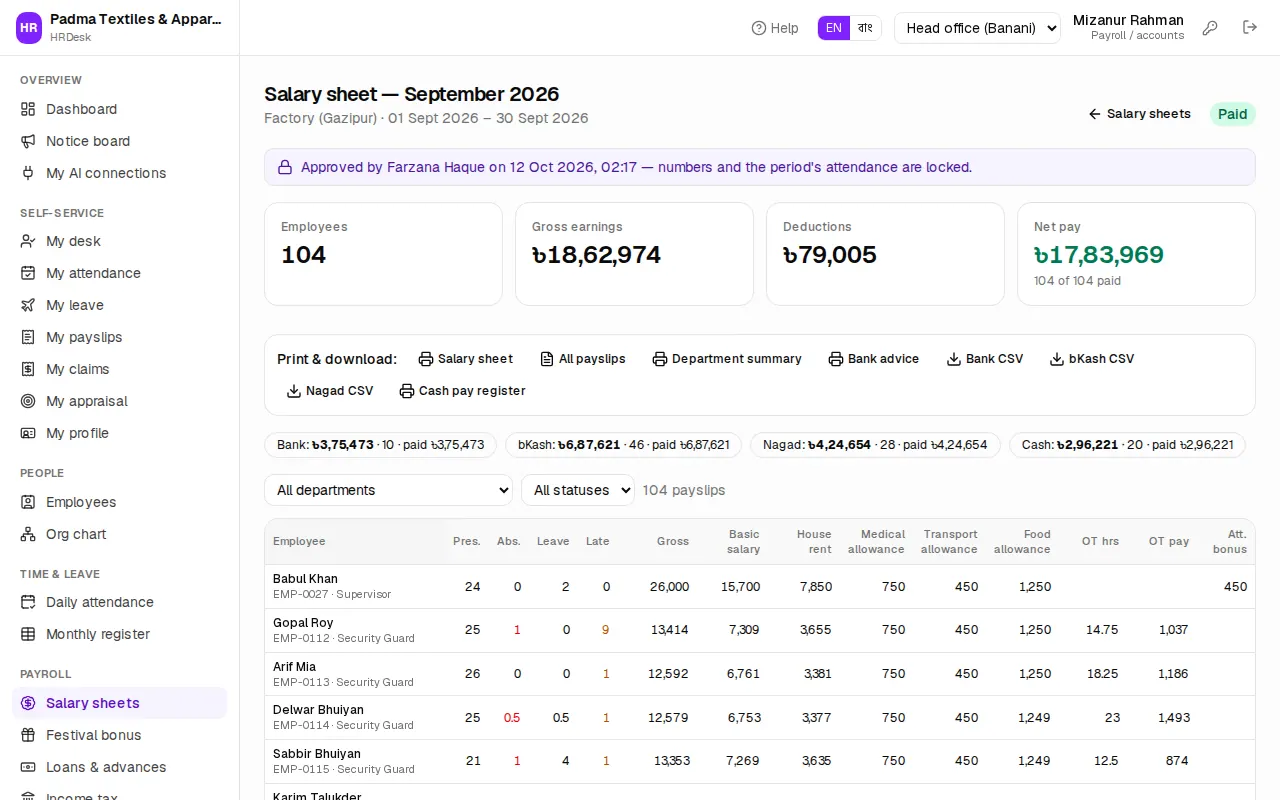
Each employee is one row; use the All departments and All statuses filters to see, say, only the Sewing department. Click a payment-method chip (Bank, bKash, Nagad …) to show only that method.
To add arrears, a production incentive or a revenue stamp for someone:
- Press the pencil (Edit other earnings & deductions) at the end of the row.
- Under Other earnings press Add, then type a Description and the amount. Untick Taxable if it is not taxable income.
- Add lines under Other deductions the same way; Revenue stamp ৳10 adds the stamp in one click.
- Type a Note if needed — it is printed on the payslip. Then press Save & recalculate.
To hold someone's salary (papers missing, say), press the pause icon (Hold); press play (Release) to free it. Held payslips are shaded yellow and skipped when paying.
If attendance, leave or loans change later, press Recalculate — the numbers are rebuilt while your manual lines, notes and holds are kept. A sheet made for the wrong month can be removed with Delete (drafts only).
Approving and reopening
When the checks are done, the HR manager opens the sheet and presses Approve. Then:
- The sheet and its payslips become Approved; no more edits or recalculation.
- The period's attendance is locked, so nobody can change it after salaries are paid.
- A violet line at the top shows who approved it and when.
- Leave encashments on the sheet are marked paid (Leave).
If a mistake turns up, the HR manager can press Reopen as long as nobody has been paid yet — the sheet goes back to Draft, attendance is unlocked and its leave encashments are unpaid again (a recalculation picks them up once more).
Paying salaries
Once the sheet is Approved, payroll / accounts send the money and mark it paid in HRDesk:
- Press Pay salaries.
- Choose the Pay method — Every method, or one at a time (bKash today, bank tomorrow). The brackets show how many are left.
- Optionally pick a Department, and set the Payment date.
- Press Mark paid.
To pay a single person, press the wallet icon (Mark paid) on their row.
Marking paid also books the loan instalments as recovered, posts the provident fund contributions to the ledger, marks the expense claims paid, and sends the salary SMS when it is switched on. When everyone is paid the sheet turns Paid by itself.
Printing payslips, the sheet and summaries
In the Print & download row of the sheet:
- Salary sheet — the whole sheet on A3 or A4, with or without a signature column (Show signature column).
- All payslips — two payslips per A4 page; choose English / বাংলা at the top. If a department filter is on, only that department.
- Department summary — per department: headcount, earnings, overtime, deductions, net pay and employer PF.
One payslip: the printer icon (Print payslip) on the row. Pick A5 or A4 and English or Bangla. Draft and held payslips carry a faint "DRAFT" / "HELD" watermark.
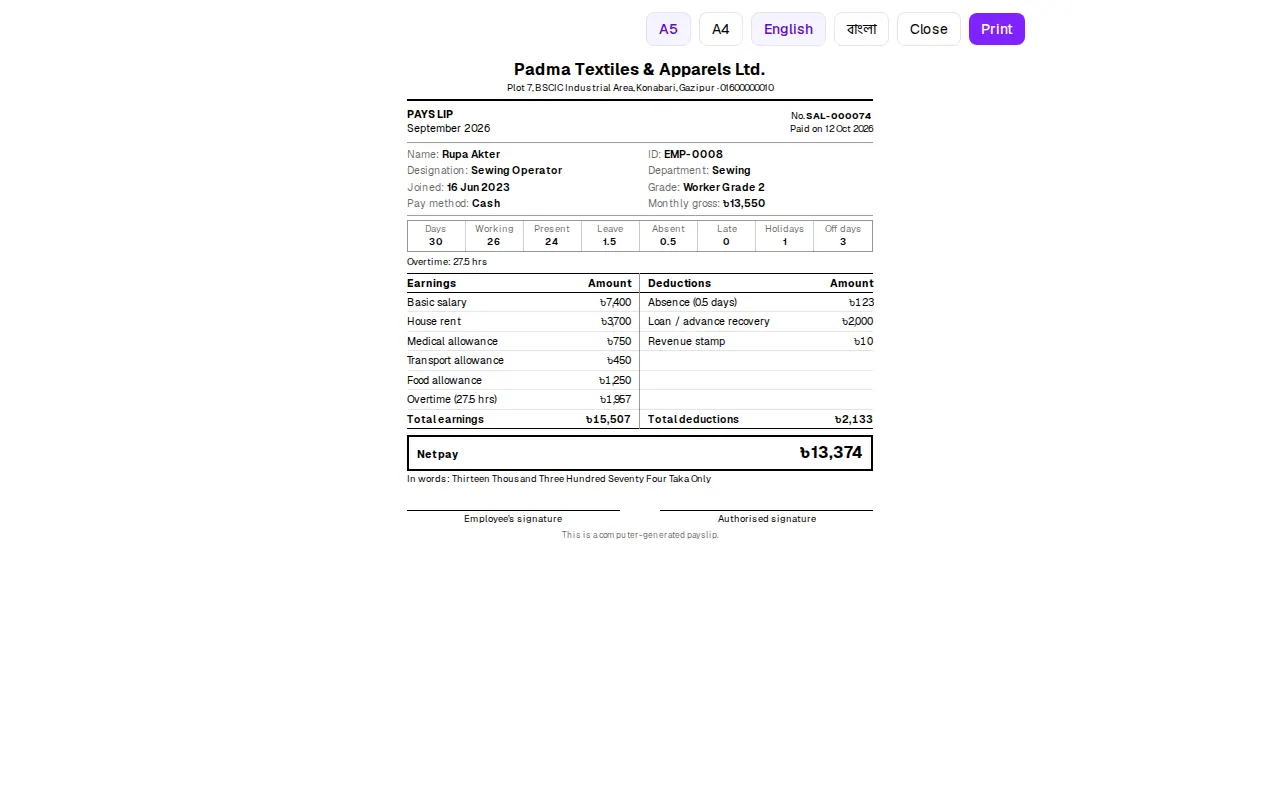
Employees can see and print their own approved and paid payslips under My payslips — see Employee self-service.
Bank advice and bKash / Nagad files
Only the buttons for methods that at least one employee uses are shown:
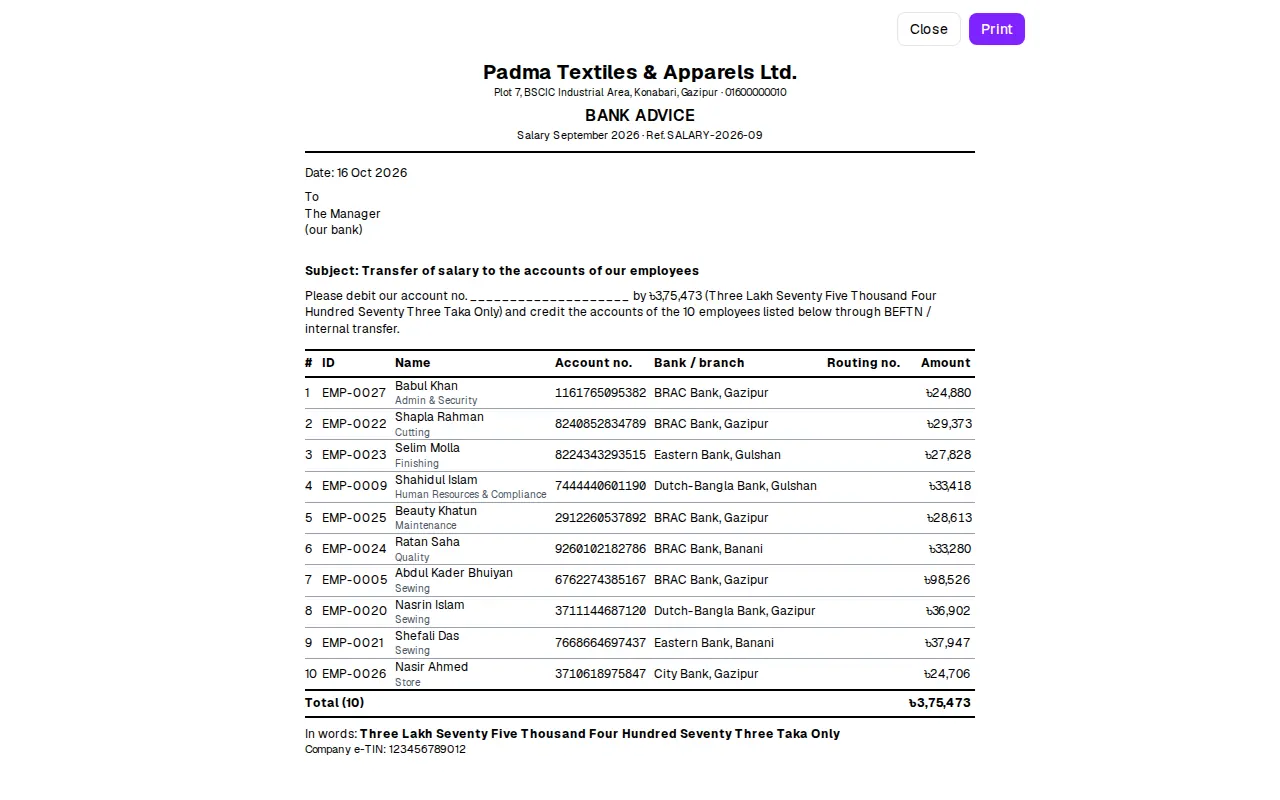
- Bank advice — a letter to the bank manager with the total in words, each employee's account no., branch, routing no., and signature lines.
- Bank CSV — the usual BEFTN bulk-upload layout.
- bKash CSV, Nagad CSV, Rocket CSV — wallet no., amount, name; upload it to that provider's bulk-disbursement portal.
- Cash pay register — names, amounts and a signature box for those paid in cash.
Festival bonus (Eid, Puja)
The Labour Rules 2015 give two festival bonuses a year, each up to one month's basic, after a year of service. HRDesk builds the list from the rate and service period in Settings.
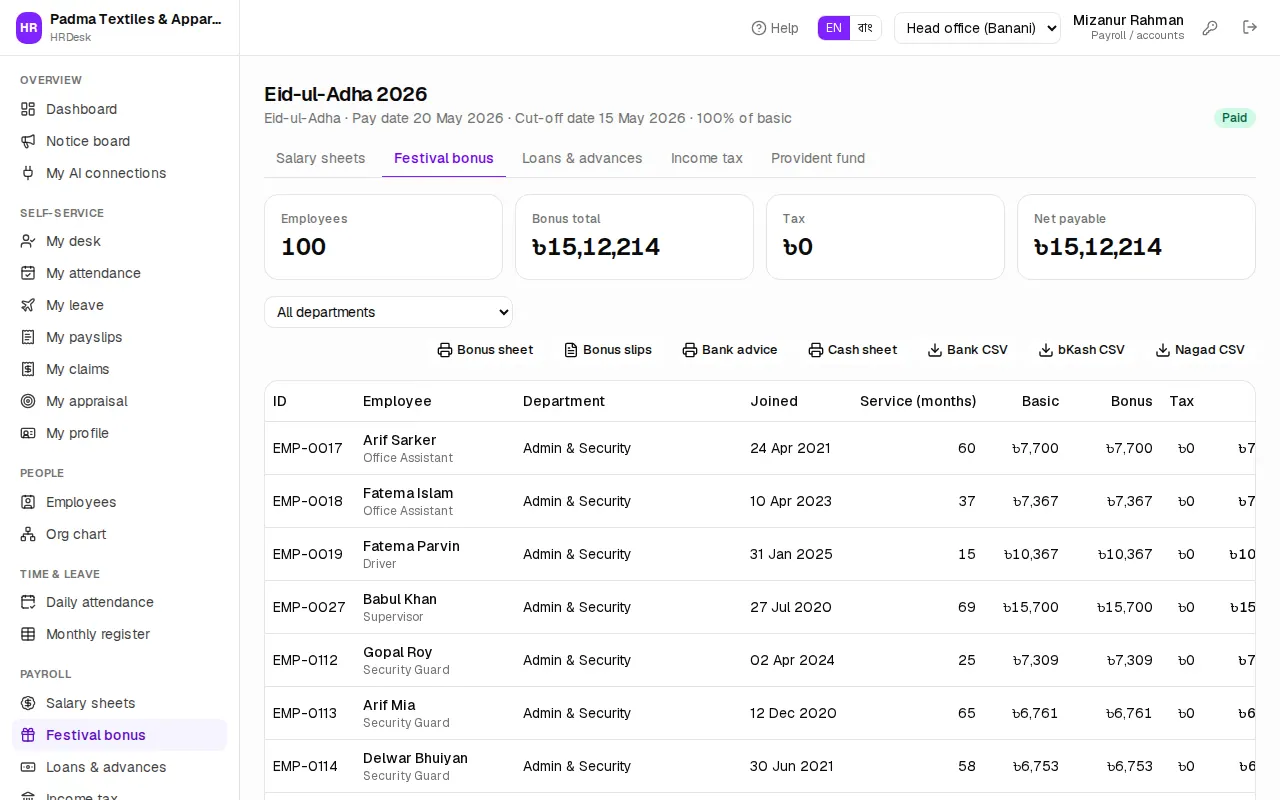
- Open Payroll › Festival bonus and press New festival bonus.
- Enter the Name (e.g. Eid-ul-Adha 2026), Festival, Bonus % of basic, Pay date and Cut-off date — service is counted until the cut-off.
- Leave Religion on Everyone, or limit it to one religion. Leave Office / factory empty for all.
- Press Prepare bonus sheet. Eligible employees are filled in — those with less service get a pro-rata share or are left out, as Settings say.
While it is a draft, use the pencil to change someone's Bonus, Tax or Note, the bin to remove them, and Add employee to add one by hand. Regenerate rebuilds every line — manual changes are lost.
After that it works like the salary sheet: the HR manager presses Approve (or Reopen), then payroll / accounts press Mark paid, which marks the whole bonus paid at once. Bonus sheet, Bonus slips, Bank advice, Cash sheet and the bank / bKash / Nagad CSV files are in the same place.