Employees
Managing employees
Adding employees, bulk import, the employee profile and documents, self-service logins, promotions, transfers and increments, letters and certificates, ID cards and the org chart
Who it is for:Owner / MDHR managerHR officerPayroll / accountsLine manager
On this page
Every person in the company has one record: personal details, job details, pay, documents and the full career history. Attendance, leave and the salary sheet all run from this record, so put a new worker into HRDesk on their joining day.
Who can do what:
| Task | Who |
|---|---|
| View the employee list, profiles and org chart, write notes | Owner, HR manager, HR officer, Payroll / accounts, Line manager (own team only) |
| Add, edit, import, documents, logins, ID cards | Owner, HR manager, HR officer |
| See and set salaries | Owner, HR manager (Payroll / accounts can only see them) |
| See NID, birth registration and passport numbers and the Documents tab | Owner, HR manager, HR officer |
| See bank account / routing and bKash / Nagad / Rocket wallet numbers | Owner, HR manager, HR officer, Payroll / accounts (for the bank advice) |
| Promotions, transfers, increments, disciplinary actions | Owner, HR manager |
| Issue letters and certificates | Owner, HR manager, HR officer |
| Edit letter templates | Owner, HR manager |
The employee list
Open Employees in the sidebar. The top shows how many match (e.g. "119 employees match").
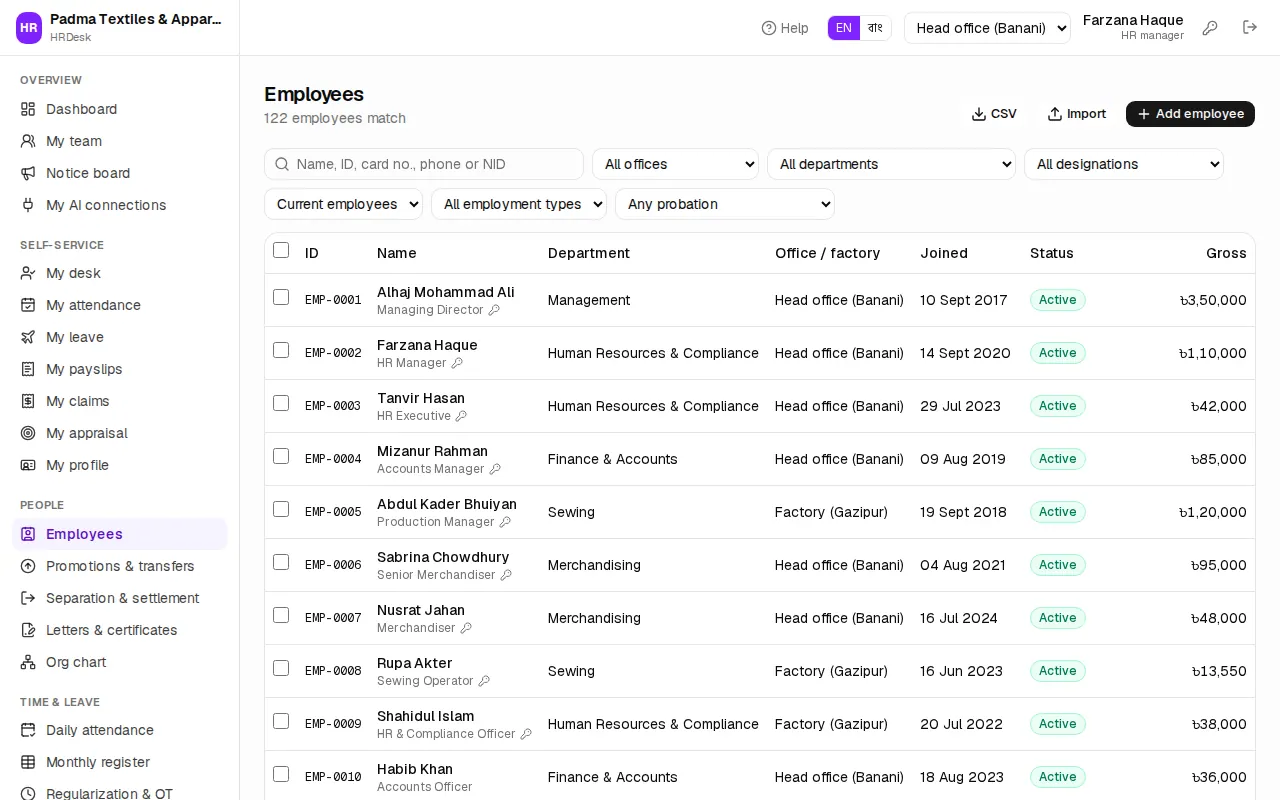
- Type a name, ID, card no., phone or NID in the search box (searching by NID works only for the owner and HR).
- Filters: office (e.g. Factory (Gazipur)), department, designation, status, employment type and Probation ending in 30 days.
- By default you see Current employees — to see people who have left, choose All, incl. separated in the status filter.
- CSV downloads the filtered list for Excel.
- The Gross column only shows if you may see salaries.
Tick rows on the left to get a bar with Create self-service logins and Print ID cards.
Adding a new employee
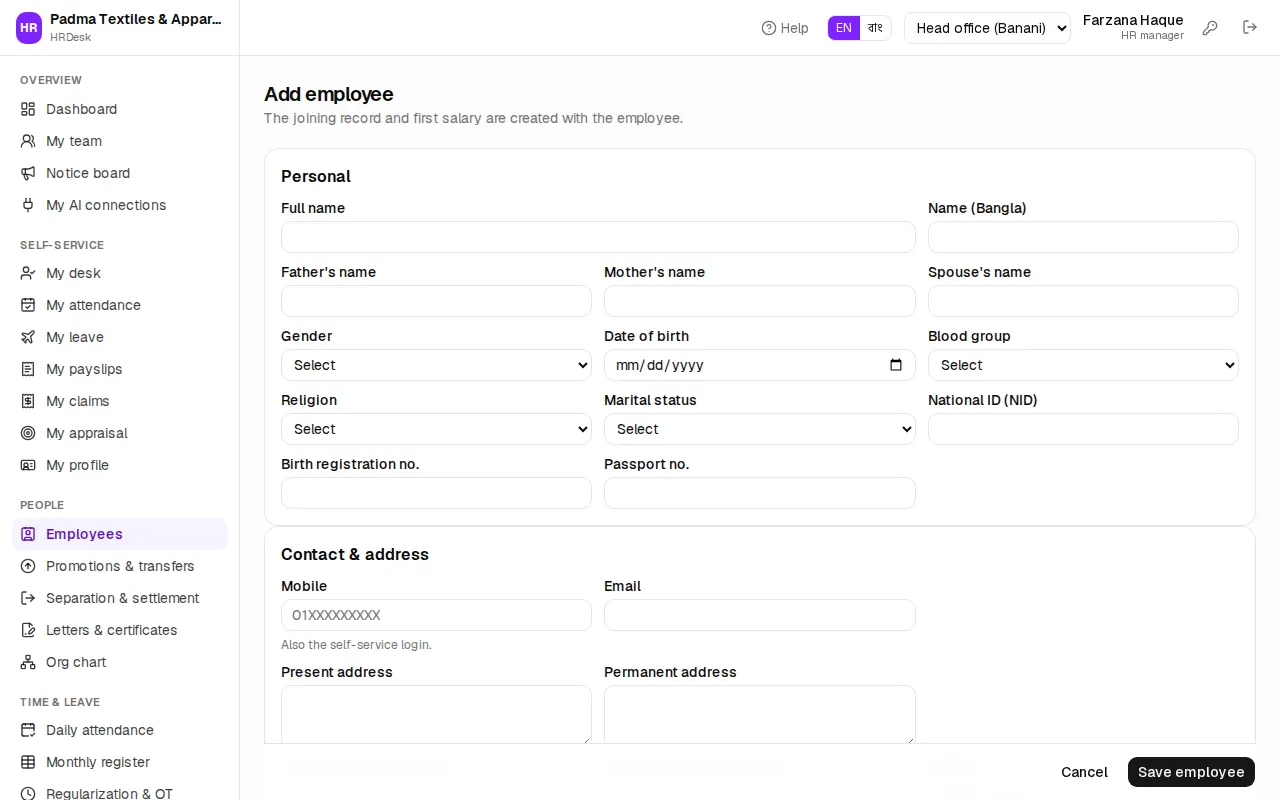
- Press Add employee.
- Personal: Full name (required), Name (Bangla), father's, mother's and spouse's names, Gender, Date of birth, Blood group, Religion, Marital status, National ID (NID) or Birth registration no., Passport no.
- Contact & address: Mobile (01XXXXXXXXX — the same number is used later for the self-service login), email, present and permanent address, emergency contact name, phone and Relation.
- Job:
- Leave Employee ID empty for the next number (EMP-0121 …), or type the company's own ID.
- Card no. (attendance device) — the number on the fingerprint/card machine.
- Reports to — search and pick the line manager (e.g. Abdul Kader Bhuiyan). Leave approval and the org chart follow this.
- Office / factory, Department (e.g. Sewing), Designation (picking one fills its grade), Grade, Employment type, Joining date.
- For Probation, Probation ends fills itself (joining date + 6 months); for Contract, Casual or Intern enter Contract ends.
- Leave Shift empty for the company default shift. Weekly off (override) — tick days only if this person has a different weekly off; otherwise leave all unticked.
- Overtime eligible — workers usually yes, officers no. Without the tick no overtime reaches the salary sheet.
- Salary: type the Gross salary (৳ / month) and the split into basic, house rent, medical and so on appears below, following the company's salary structure.
- Salary payment: Payment method — Cash, Bank transfer, bKash, Nagad, Rocket or Cheque.
- Bank/cheque: fill Bank, Bank branch, Account no., Routing no.
- bKash/Nagad/Rocket: Wallet number — leave empty to use the employee's mobile.
- Provident fund & tax: tick Provident fund member and give the PF joining date. Enter the e-TIN; tick Exempt from salary tax deduction for someone whose tax is handled manually.
- Press Save employee. The profile opens — the joining record and first salary are created with the employee.
Importing many employees at once
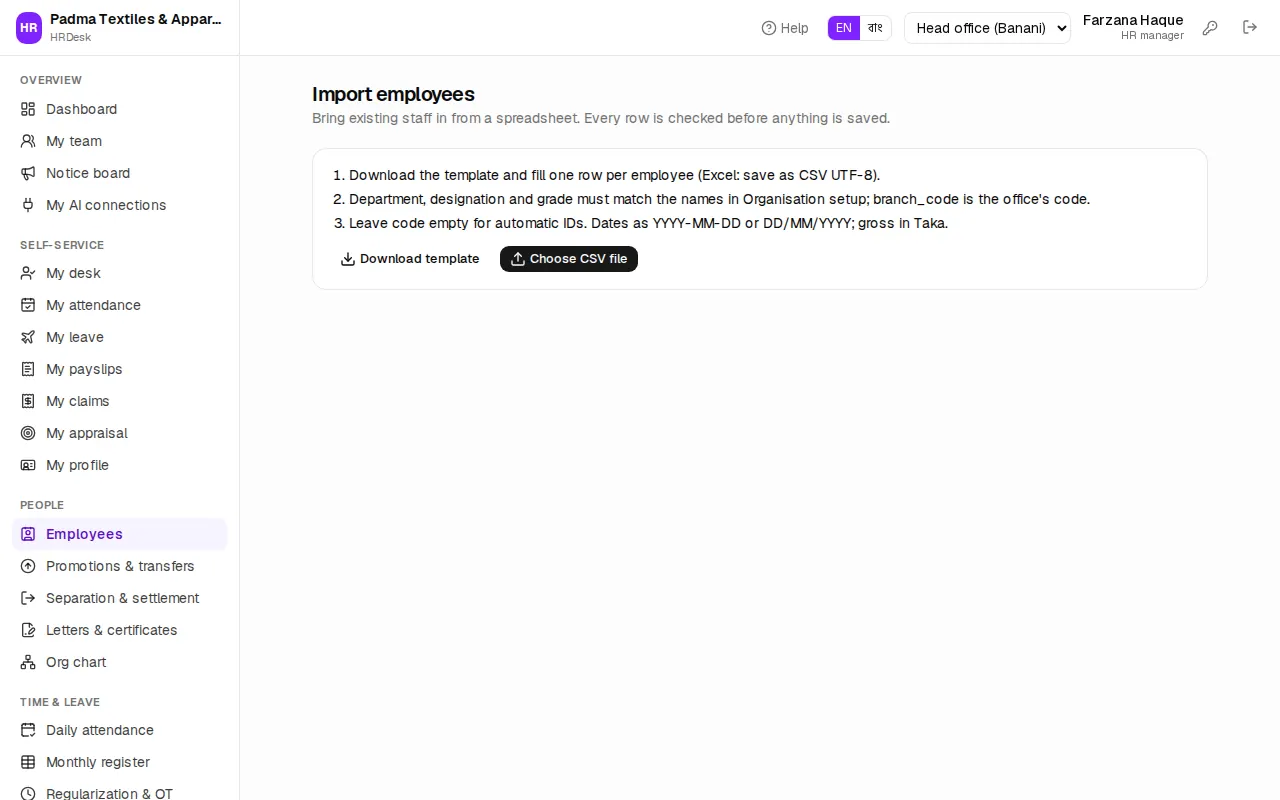
To bring everyone in from an old register or spreadsheet, press Import above the list.
- Press Download template. Fill one row per employee and save it from Excel as CSV UTF-8.
- Department, designation and grade names must match the names in Organisation setup exactly;
branch_codeis the office's code andmanager_codethe manager's employee ID. - Leave
codeempty for automatic IDs. Dates as YYYY-MM-DD or DD/MM/YYYY;grossin Taka. - Choose CSV file — every row is checked before anything is saved. Rows with problems show the reason in red; good rows show OK.
- The top shows how many rows are ready (e.g. "38 of 40 rows are ready to import."). Press Import 38 employees. Bad rows are skipped — fix them in the file and import just those again.
The employee profile
Click a name in the list. The top shows the photo (click it to change), ID, designation, department, joining date and length of service, and who they report to. Notice period or probation is shown too.
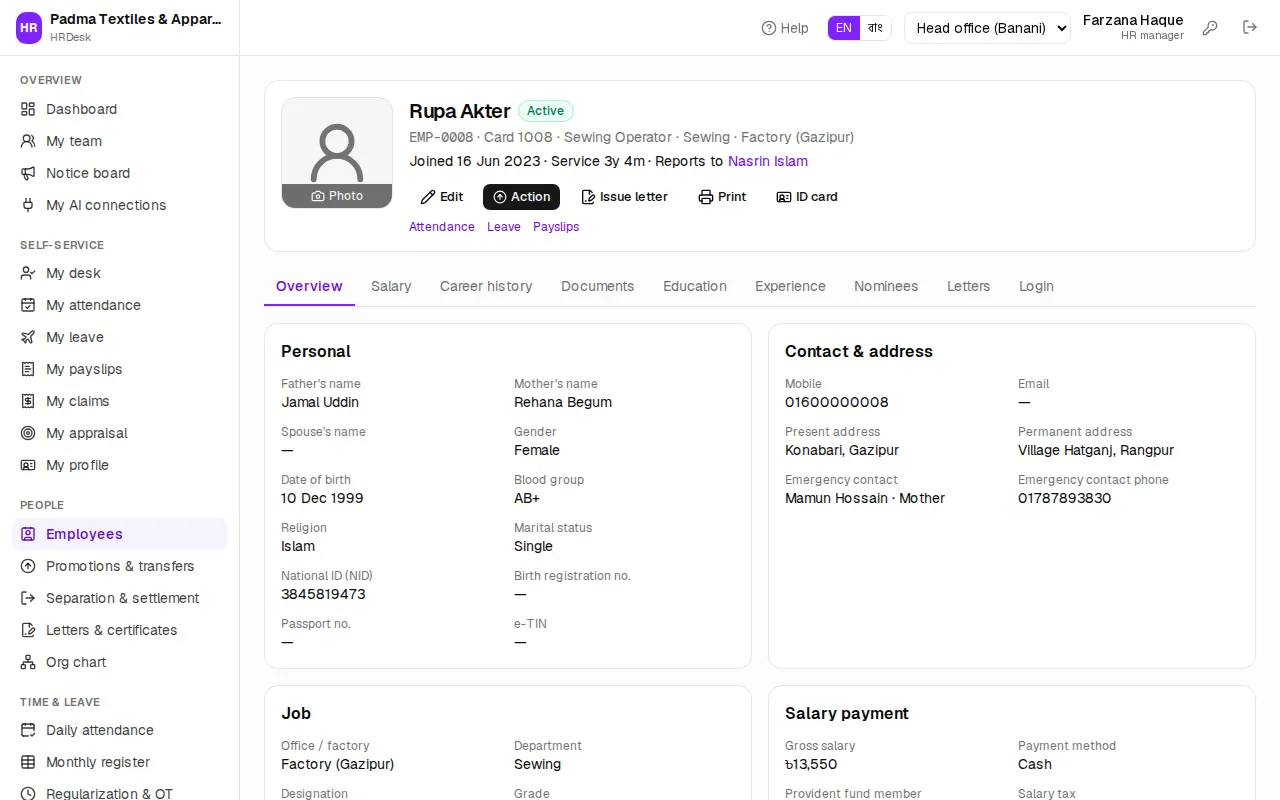
Buttons: Edit, Action, Issue letter, Print (the employee personal record), ID card. The small links below open that person's Attendance, Leave and Payslips.
The tabs:
- Overview — personal, contact, job and salary payment details; below them Notes (dated; press Add note — line managers can add notes for their own team too).
- Salary — the Current salary split and the Salary history (joining, increments, promotions …). Only for users who may see pay.
- Career history — every action since joining, what changed from what to what, and the letter number.
- Documents, Education, Experience, Nominees — see below.
- Letters — every letter given to this person; click the number to print.
- Login — the self-service login (for HR).
Edit changes personal, contact, shift, manager, card no. and salary payment details at any time.
Documents, education, experience and nominees
On the Documents tab press Upload document:
- Choose the Type — National ID, Photo, CV / resume, Certificate, Appointment letter, Contract, Medical fitness, Police verification, Passport, Work permit or Other.
- Type a Title (e.g. NID copy); empty uses the file name.
- Choose the File — PDF, Word or image, up to 5 MB.
- For passports, work permits and medical certificates set Expires on, then press Upload.
When expiry is within 60 days the date turns amber; once passed it turns red and says Expired.
On Education and Experience use Add education / Add experience to keep SSC, HSC or previous job details.
On Nominees press Add nominee and enter name, relation, NID, mobile and share (%). Nominees receive provident fund, gratuity and other dues in case of death (Labour Act s.19). Save nominees stays disabled until the shares add up to 100%.
Self-service logins
With a login, employees sign in with their mobile number to see their own payslips, leave and attendance — see Employee self-service.
- One person: on the profile's Login tab press Create login. A mobile number is needed first.
- Many people: tick them in the list and press Create self-service logins. Anyone without a mobile, with a login already, or whose number is used by another account is skipped.
Each person gets a 6-digit password by SMS. If SMS is not set up, the password is shown on screen once — give it to the employee yourself. Reset password and Disable login are on the same tab.
Someone who already signs in (for example a manager added under Users & roles): the owner or HR manager presses Link existing login on the Login tab and picks the login. The person keeps their role and also gets self-service. Unlink login removes the link (the login itself stays). A login linked to another employee cannot be picked.
Promotions, transfers and increments
Open Promotions & transfers in the sidebar. All career actions live here — every change is kept in the employee's history.
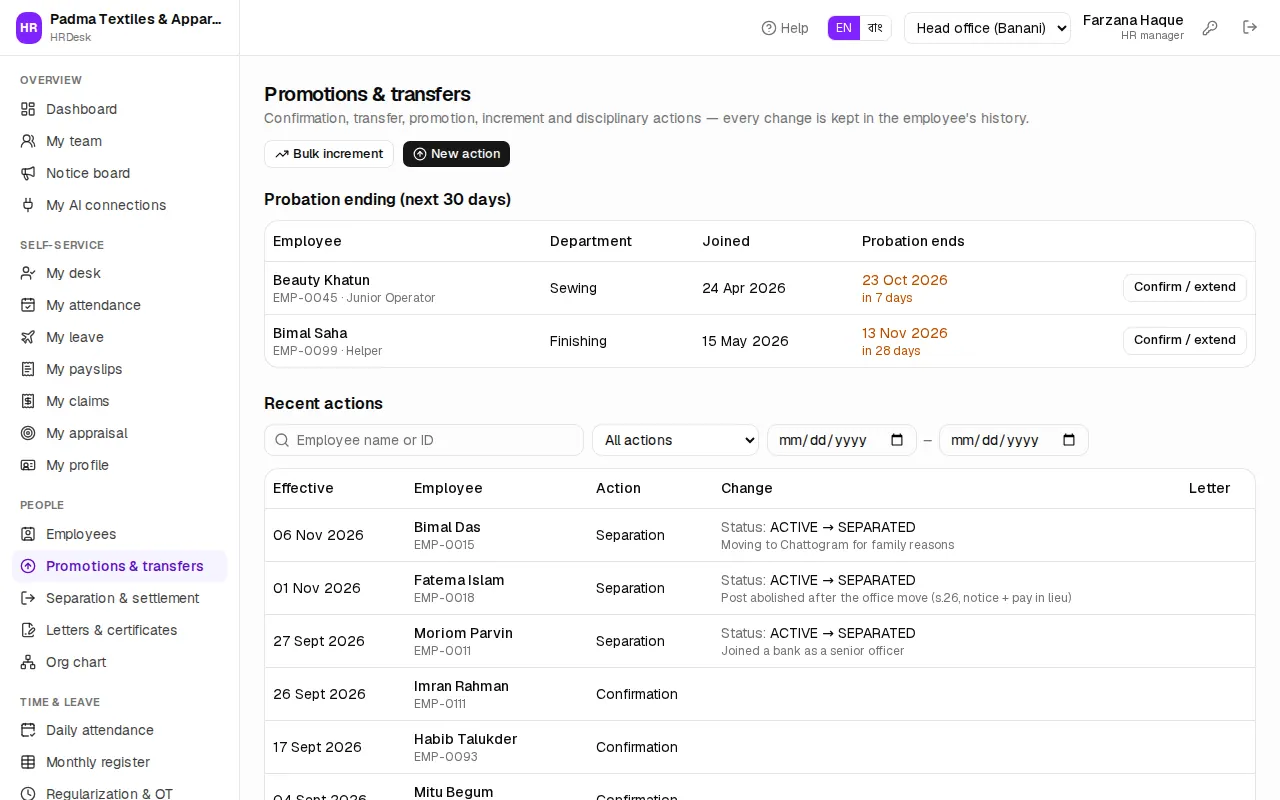
An action for one employee:
- Press New action (or Action on the profile). Search and pick the employee.
- Choose the Action: Confirmation, Probation extension, Transfer, Promotion, Increment, Demotion, Re-designation, Contract renewal, Warning, Show cause, Suspension or Reinstatement.
- Set the Effective date.
- Fields appear for the action — a transfer asks New office / factory, New department, New reporting manager; a promotion New designation, New grade. Leave empty whatever does not change.
- Salary change — pick Increase %, Increase ৳ or New gross ৳ and type the figure; the new gross shows at once. Required for an increment, optional for a promotion.
- Write Remarks. Warning, show cause, suspension and demotion need Reason / details.
- To give the letter with it tick Issue the letter now, then press Save action.
If the effective date is in the future the action stays upcoming and applies itself on that date — the salary sheet uses the new pay from then on.
The Probation ending (next 30 days) list has Confirm / extend next to each person — confirm or extend probation in one go.
Annual increment for many: press Bulk increment. Set Increase by (Percent of gross or Fixed amount (৳)), the figure and the Effective date (default: the 1st of the month). Pick a department and tick the employees — each new gross and the Extra cost per month are shown. Then press Apply increment.
Letters and certificates
Letters & certificates in the sidebar: appointment, confirmation, experience, salary certificate, NOC and more, rendered from your templates and kept on record.
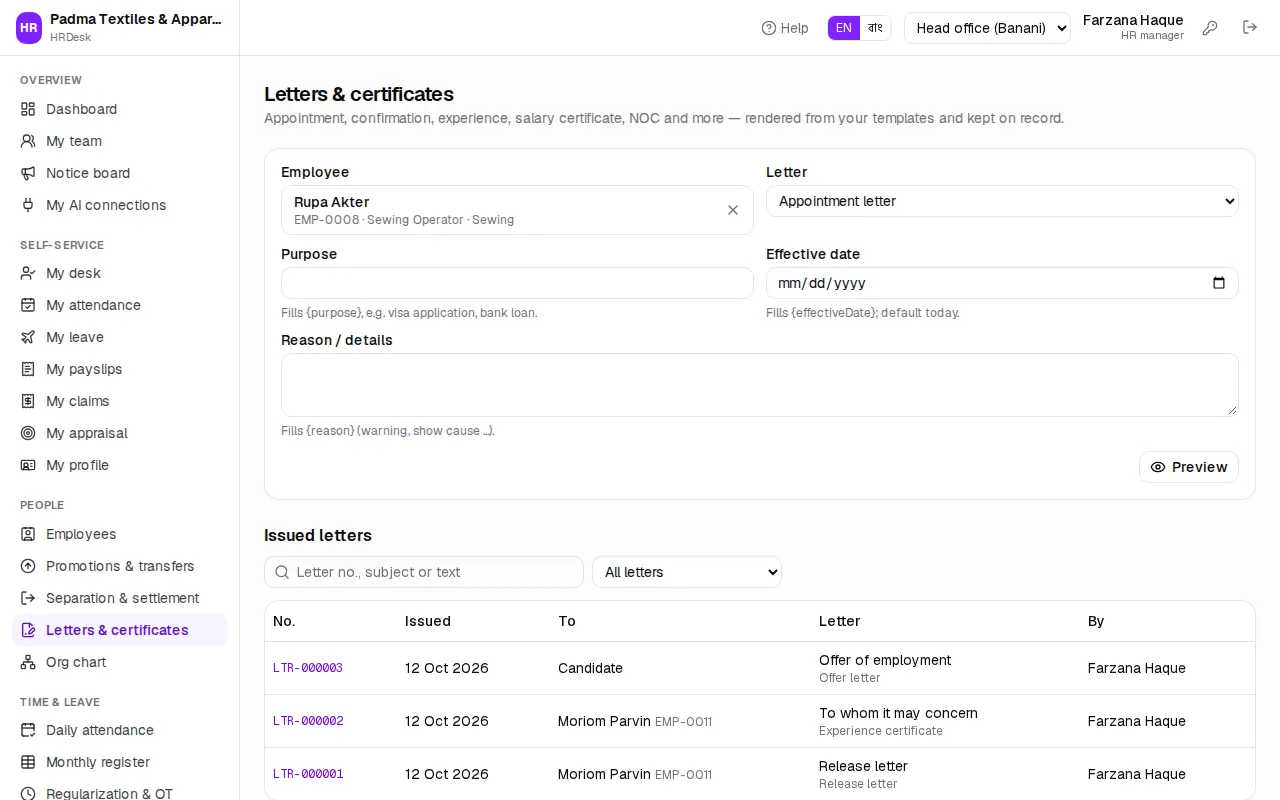
- Search and pick the Employee (pressing Issue letter on a profile picks them already).
- Choose a template under Letter. Where you have no template of your own, a "(built-in)" one is offered.
- If needed, fill Purpose (e.g. visa application), Effective date and Reason / details.
- Press Preview. You can freely edit the Subject and Letter text. If some data is missing, a "Not filled: …" warning appears.
- Press Issue letter. It gets a letter number (LTR-000004 …); press Print LTR-… to print it on the letterhead.
Below is Issued letters — search by letter no., subject or text and filter by kind.
Templates (HR manager): under Organisation setup › Letter templates press Add template — Template name, Letter kind, Language (English / বাংলা), Subject and Letter text. Words in curly braces — {name}, {designation}, {joinDate}, {gross} … — are filled from the employee's record; the full list is under Placeholders you can use. Letterhead, date, reference number and signature are added when printing. If the templates get lost, press Restore starter templates.
ID cards
- One person: ID card on the profile.
- Many: tick them in the list and press Print ID cards.
The front has the company name and logo, photo, name, designation, department, ID and blood group; the back has the emergency contact and a return address. Five card pairs fit on one A4 page — press Print, print at 100% (actual size) and cut along the borders. People who have left are not included.
Org chart
Org chart in the sidebar draws the reporting tree from each employee's Reports to field.
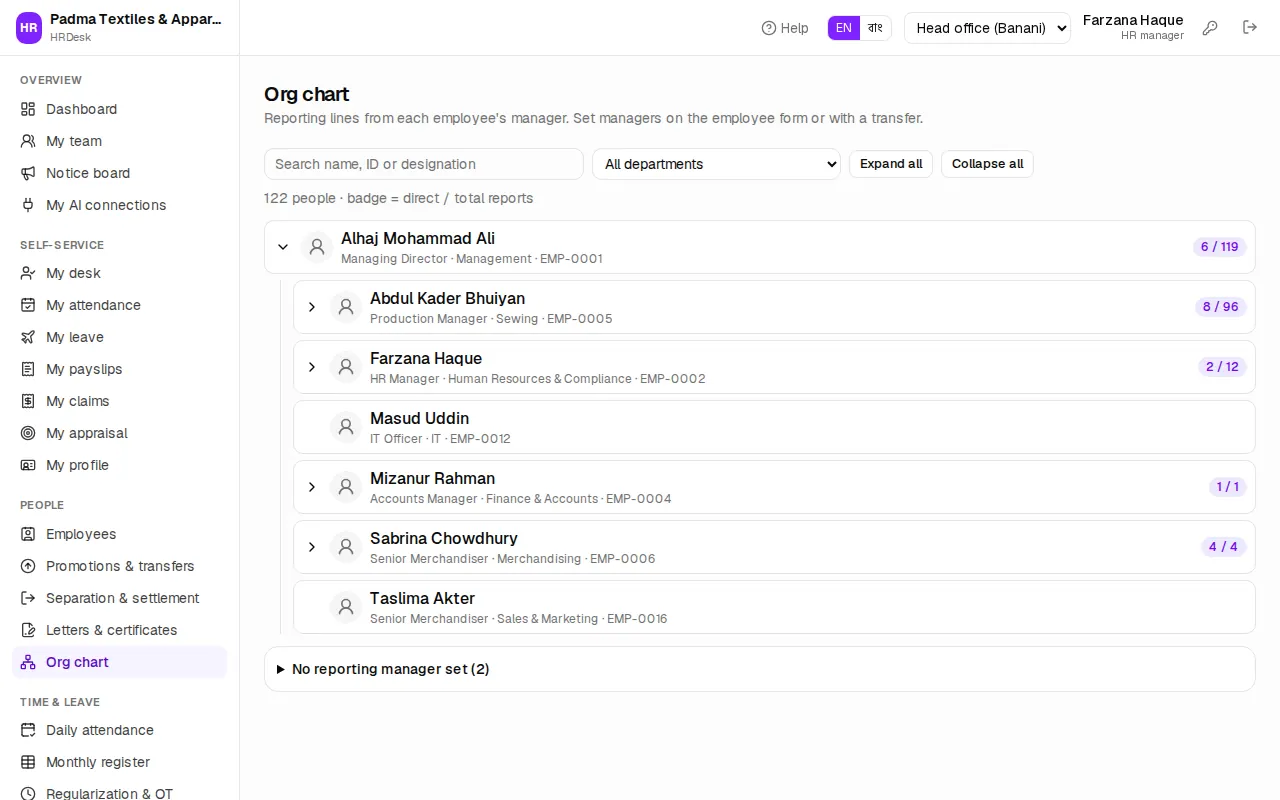
- Search by name, ID or designation, filter by department; Expand all / Collapse all.
- The badge next to a name = direct / total reports.
- At the bottom, No reporting manager set lists people without a manager — set one, or their leave requests reach no line manager.
To change a manager use the employee's Edit form or a Transfer action. When someone leaves, see Separation & final settlement.