Payroll
Loans, income tax, provident fund & expense claims
Salary advances and loans (approve, pay out, instalments), monthly income tax on salary and tax certificates, provident fund contributions, interest and statements, and approving employees' expense claims
Who it is for:Owner / MDHR managerPayroll / accountsLine manager
On this page
Everything in this chapter ends up on the monthly salary sheet — loan instalments, income tax and provident fund contributions are deducted on the payslip, and approved expense claims can be added to the salary. How the sheet itself is prepared and paid is in Salary sheets, payslips & festival bonus.
| Task | Who |
|---|---|
| Enter a loan / advance, pay it out, change the instalment, cash repayment, close | Payroll / accounts, Owner |
| Approve or reject a loan / advance | HR manager, Owner |
| Tax declarations, PF interest and entries | Payroll / accounts, Owner |
| View income tax and provident fund, print certificates and statements | HR manager, Payroll / accounts, Owner |
| First approval of expense claims (own team) | Line manager |
| Final approval and payment of expense claims | HR manager, Payroll / accounts, Owner |
Salary advances and loans
Payroll › Loans & advances holds salary advances and loans, recovered in monthly instalments from the payslip. Employees can't request a loan in the app — when a written request comes in, payroll / accounts enter it here.
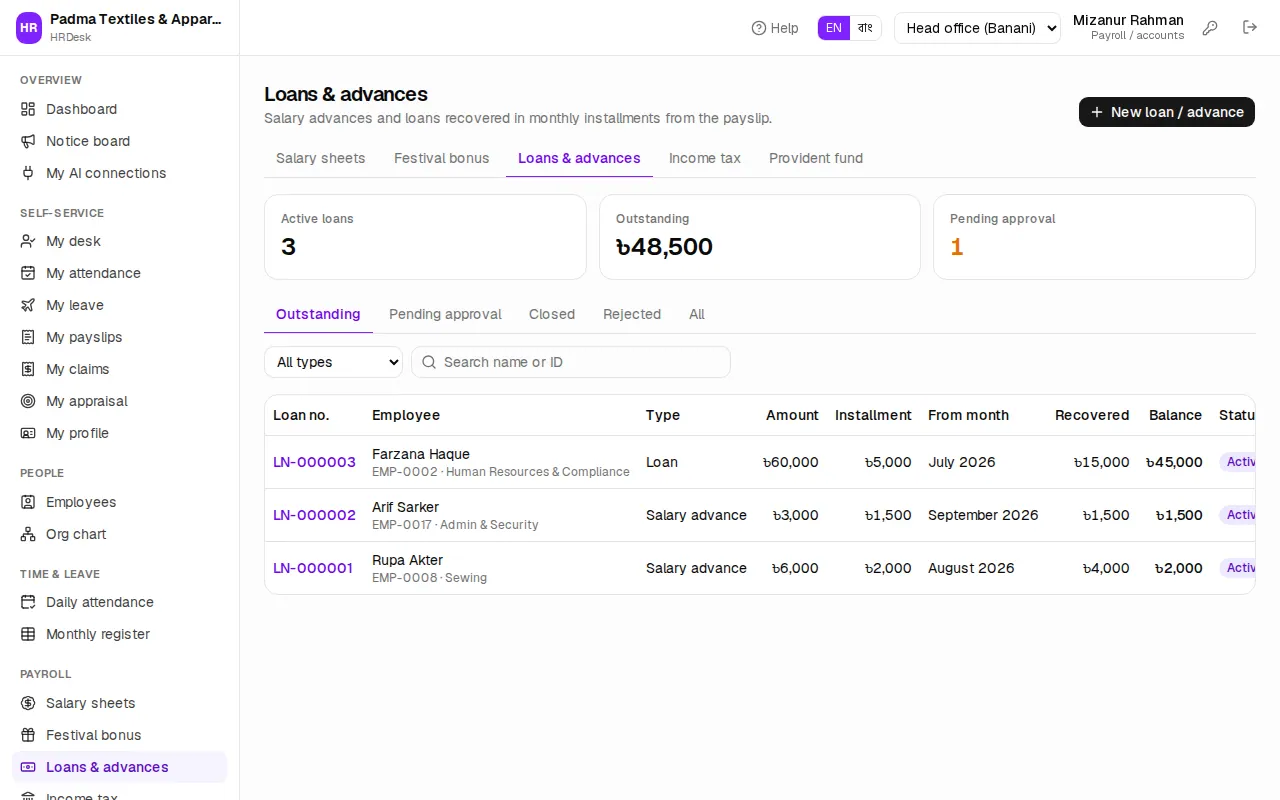
To enter an advance or loan:
- Press New loan / advance.
- Choose the Employee (search by name or ID).
- Type — Salary advance, Loan or PF loan.
- Enter the Amount, Monthly installment and First deduction month (next month by default). The instalment can't be more than the amount.
- Choose Paid out by (Cash, bKash, Bank …), write the Reason and save.
The loan starts as Pending approval. The HR manager opens it and presses Approve or Reject. Once approved its status is Active and it shows under the Outstanding tab.
The cards at the top show Active loans, the total Outstanding and how many are Pending approval. Use the tabs — Outstanding, Pending approval, Closed, Rejected, All — and the All types filter to find one.
Paying out, recovery and early settlement
Click a loan number (e.g. LN-000001, the ৳6,000 advance of sewing operator Rupa Akter) to see its details, the Repayments made and the Schedule of instalments still to come.
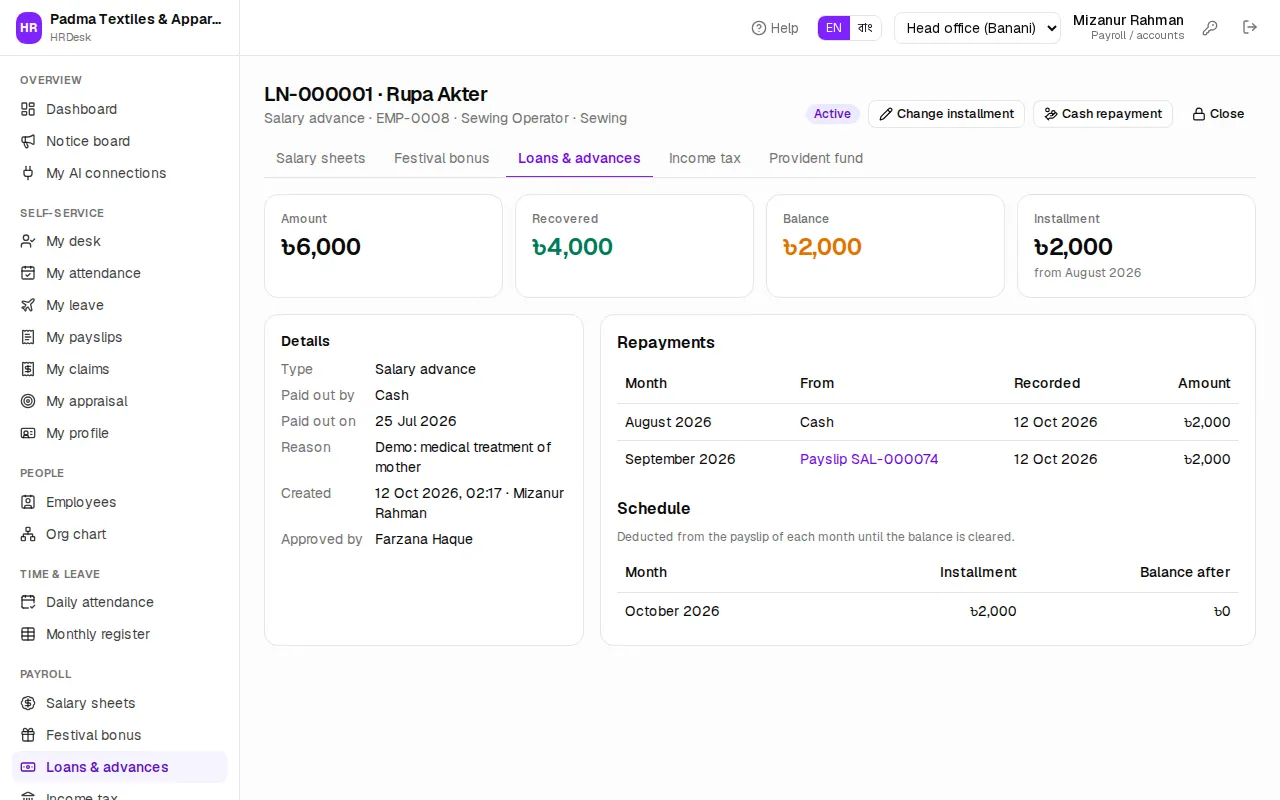
- Pay out — when the money is handed over, set the Date and Paid out by. The Paid out on date is recorded.
- Recovery is automatic: from the First deduction month, every month's salary sheet puts the instalment in the Loan column (the last one never more than the balance). When the salary is marked paid, the instalment is added to Recovered with the payslip number. When the balance reaches zero the loan is Closed by itself.
- Change installment — enter a new Monthly installment. To pause deductions for a few months (an Eid month, say), move the First deduction month forward.
- Cash repayment — when the employee pays back in cash outside the salary, enter the Month and Amount. Paying the whole balance at once (early settlement) closes the loan.
- Close — closing with a balance left writes it off and stops the deductions; give the reason in Note.
Income tax on salary (TDS)
When Deduct monthly tax from salary is on in Settings, every salary sheet puts the monthly tax deducted at source (Income Tax Act 2023, section 86) in the Tax column of taxable employees. It works over the July–June fiscal year:
- Yearly income = taxable payslip income so far + this month's income × months left + approved festival bonuses + declared other income.
- From that: the salary exemption (one-third or ৳5 lakh, whichever is less), the tax-free threshold, the slab rates, the investment rebate and the minimum tax give the tax for the year.
- Monthly tax = (tax for the year − tax paid elsewhere − deducted so far) ÷ months left.
Payroll › Income tax shows for each employee the Salary so far, Projected rest, Bonus, Taxable income, Tax for the year, Deducted and Remaining. Press Details to open the full slab-by-slab calculation.
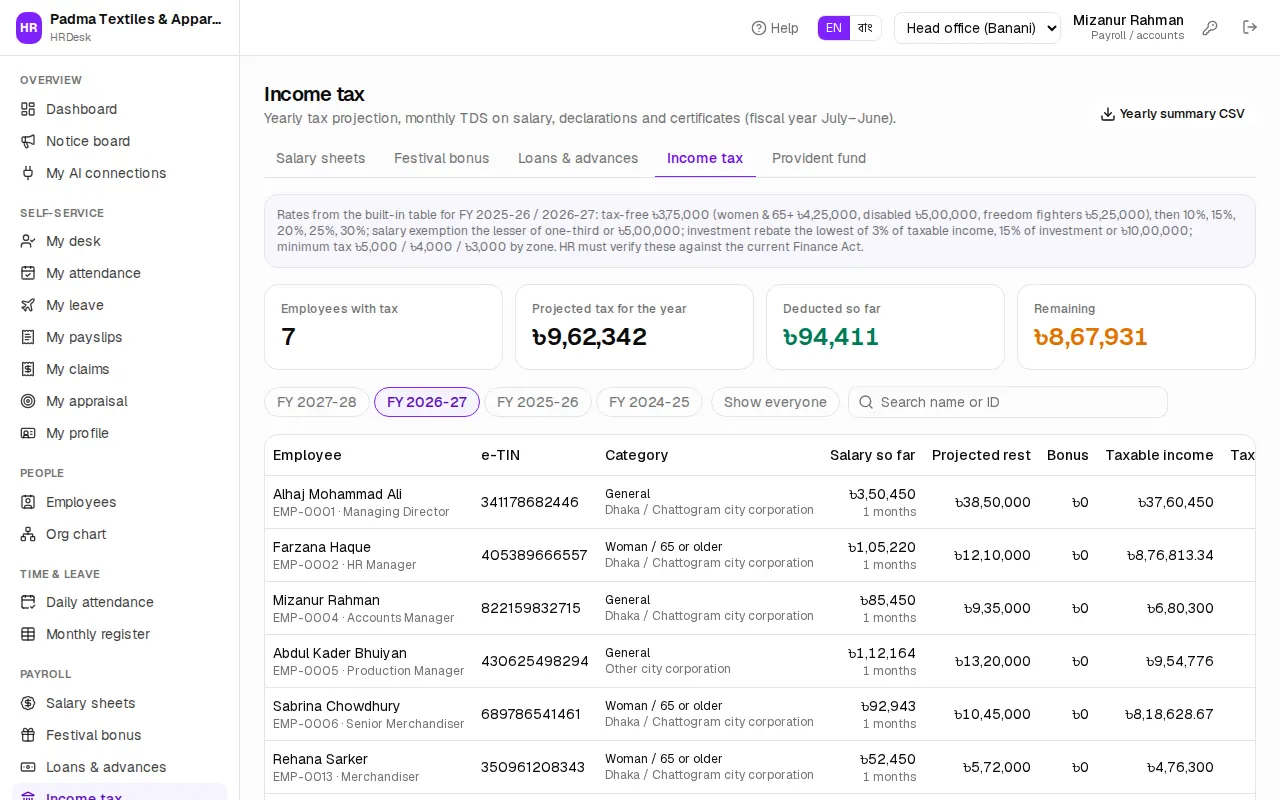
Pick the fiscal year at the top. By default only taxable employees are listed; press Show everyone for all. The violet box at the top states the built-in rates — HR must check them against the current Finance Act.
Investment declaration
Investments in savings certificates, DPS or life insurance reduce the tax. When the employee hands in the papers:
- On Income tax, press Declaration on the employee's row.
- Enter Eligible investment (৳), Other income (৳) and Tax paid elsewhere / deducted before HRDesk (৳) — if you started HRDesk in the middle of the year, put the earlier months' tax here.
- Pick the Zone (minimum tax) — Dhaka / Chattogram city corporation, another city corporation, or elsewhere.
- Leave Woman or 65 years and older on Automatic (from sex and date of birth). Tick Person with disability or Gazetted freedom fighter where it applies — these raise the tax-free threshold.
- Save.
A declaration is per fiscal year. The new monthly tax applies when the next salary sheet is recalculated.
Tax certificate and yearly summary
- Certificate — on each row: the certificate of tax deducted at source (section 86) with month-by-month salary, tax deducted, and the employer's and employee's e-TIN. Employees need it for their return, and can print their own from My payslips.
- Yearly summary CSV — at the top of the page: every employee's income, exemption, tax, rebate, deducted and remaining, for the employer's withholding return.
Provident fund: members and contributions
In Settings, under Provident fund, switch on Company has a provident fund and set the Employee share (% of basic), Company share (% of basic) and Eligible after (months). The demo uses 10% + 10% after 12 months of service.
To make someone a member, tick Provident fund member on their employee record, and optionally set the PF joining date — without it deductions start once the eligibility months are complete.
From then on it is automatic: each salary sheet deducts the employee's share in the PF column (on basic, after any absence deduction), and when the salary is marked paid both the employee's and the company's shares are posted to the fund ledger. The payslip shows the company's share separately (not deducted).
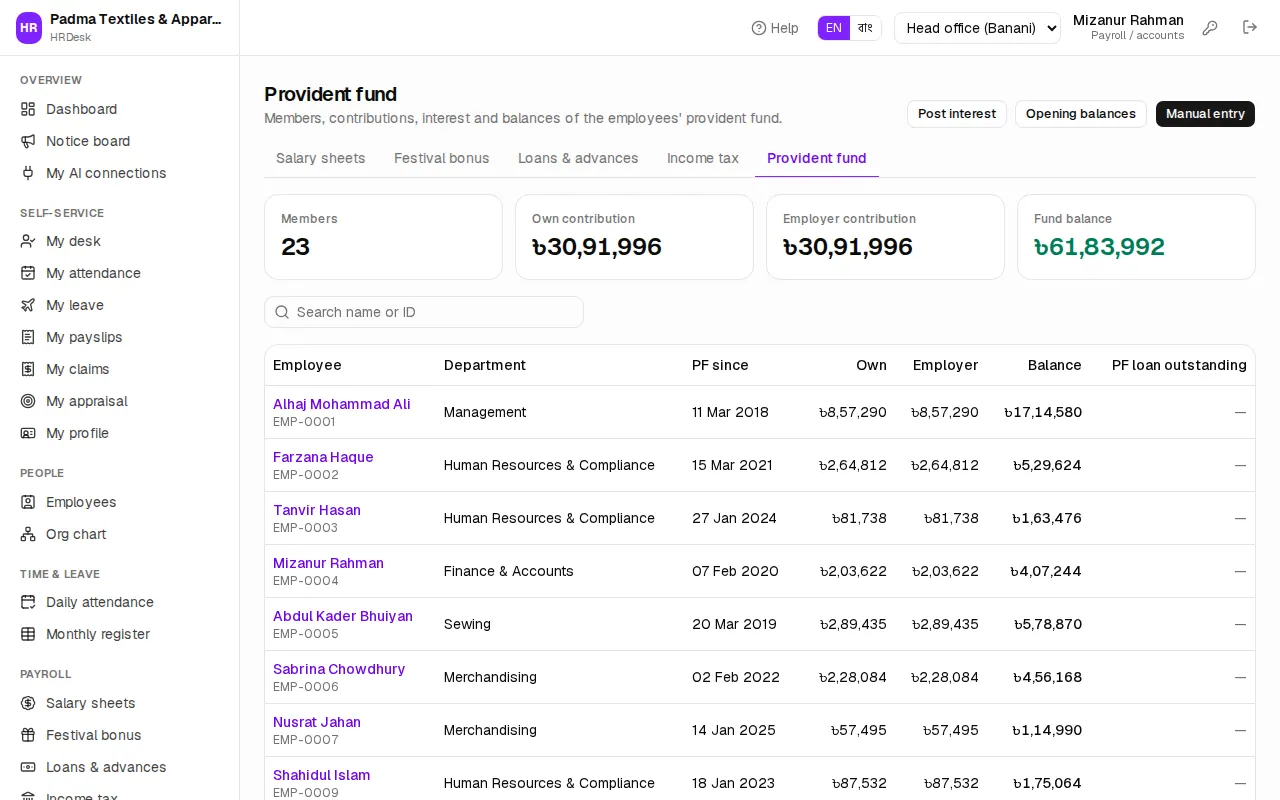
Payroll › Provident fund shows the Members, Own contribution, Employer contribution and total Fund balance, with each member's account below.
Ledger, interest and statements
Click a member's name for their PF ledger — every contribution, interest, loan and settlement, with the running balance. Print statement gives a statement to sign, with nominees.
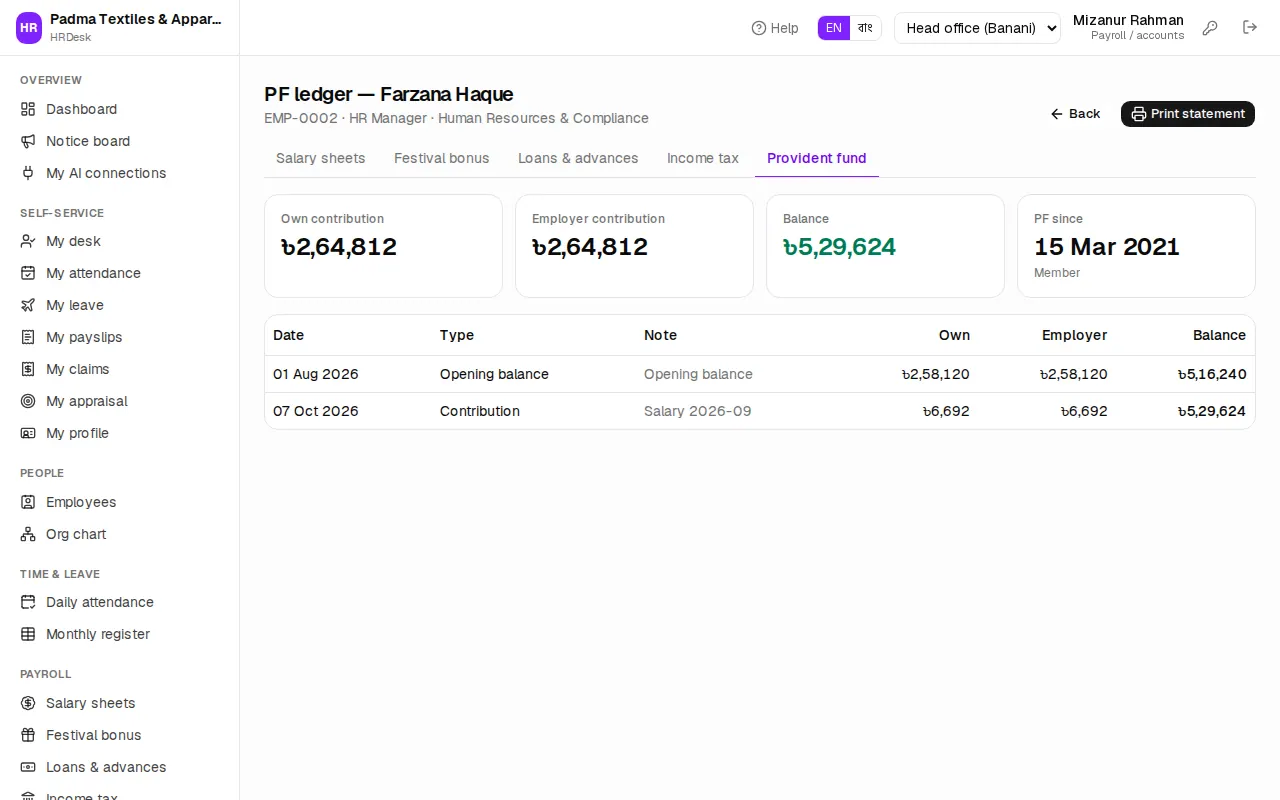
The buttons at the top of the fund page (for payroll / accounts):
- Post interest — when the trustees fix the year's rate, enter the Posting date, Balance as of, Rate (% per year) and Months. Interest is added on each member's balance on that day. The same date can't be posted twice.
- Opening balances — when moving from old books, one member per line:
employee code, own balance, employer balance(optional date). - Manual entry — a single entry: Type (PF loan, PF loan repayment, Settlement, Interest, Opening balance, Contribution), Own part (৳), Employer part (৳). Use a minus sign for money paid out of the fund.
Approving and paying expense claims
Employees submit travel, food, mobile and other expenses with receipts from My claims — see Employee self-service. The claims then arrive under Payroll › Expense claims.
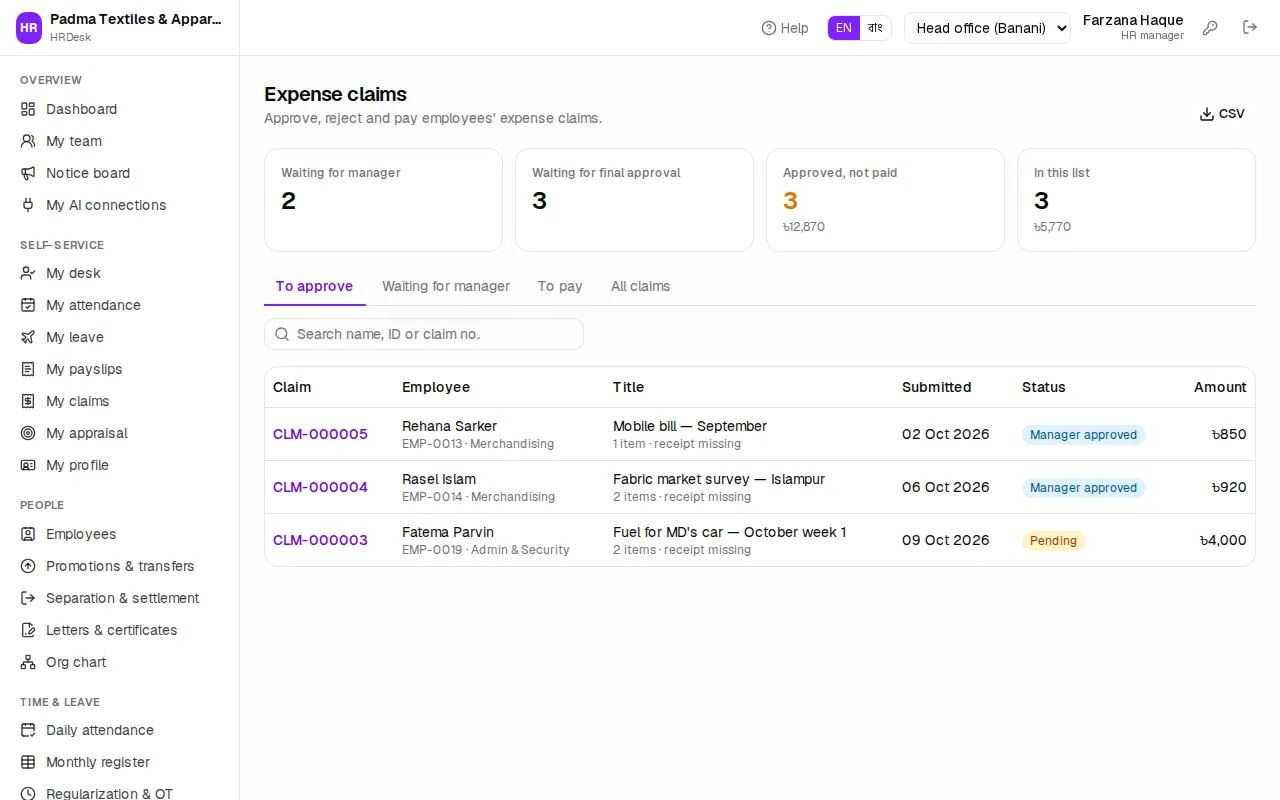
The steps: Pending → (line manager) Manager approved → (HR / accounts / owner) Approved → Paid; or Rejected. If the employee's manager does not log in with the line-manager role, the claim goes straight to final approval.
As a line manager: the To approve tab shows only your team's claims. Open a claim, look at the receipts, and press Approve (manager) or Reject.
As HR manager or payroll / accounts: the tabs are To approve, Waiting for manager, To pay and All claims.
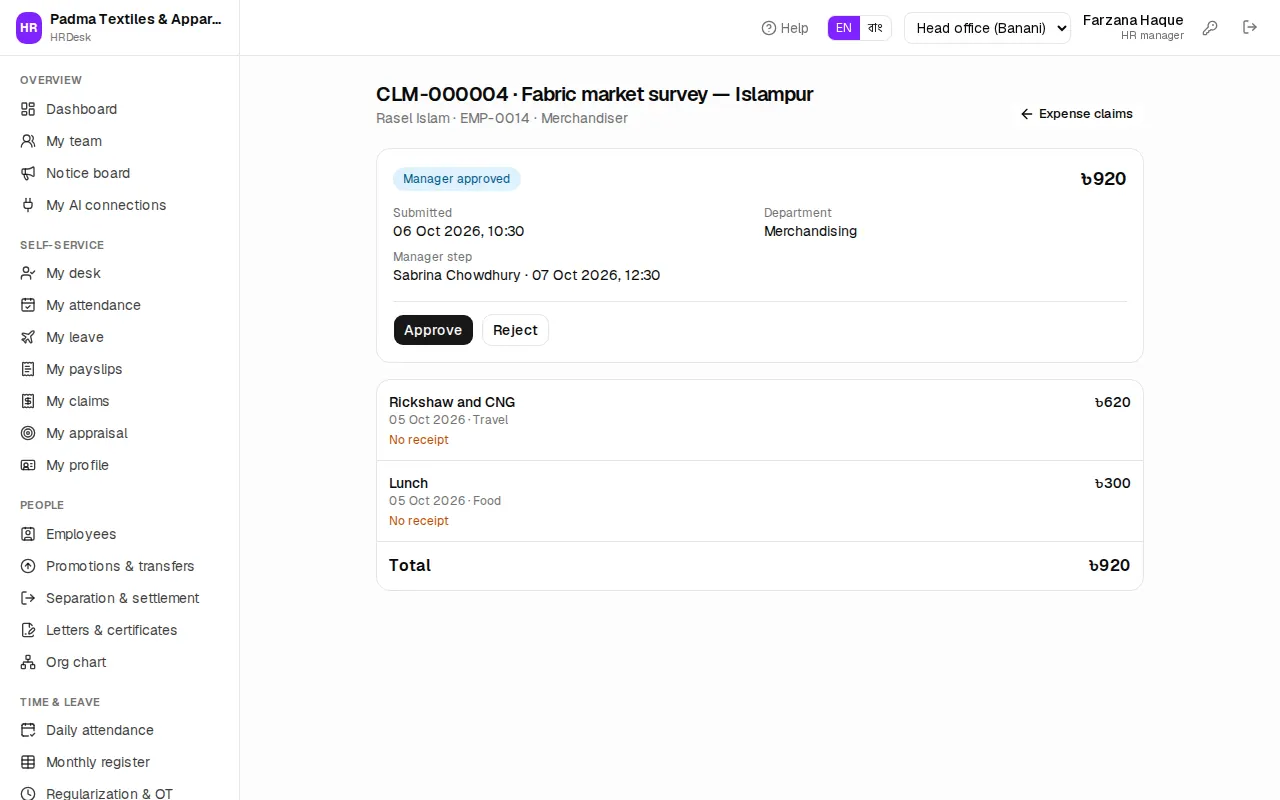
- Open the claim. Check each item's date, category, description, amount and Receipt; No receipt shows where one is missing.
- Press Approve and choose Pay via — With salary (payroll), Cash, Bank transfer or bKash — with a Note (optional).
- To turn it down press Reject; the Reason is required and the employee sees it.
Final approvers may approve directly without waiting for the manager step. Nobody can approve their own claim.
Paying:
- With salary (payroll) — the claim is added as a non-taxable line under other earnings on the salary sheet of the month it was approved, and turns Paid when that salary is paid. The claim says Will be paid with the next salary.; to pay sooner press Pay now instead.
- Cash, bank or bKash — open the claim from the To pay tab, hand over the money and press Mark paid.
The CSV button at the top downloads the current list.