Notices & reports
Notice board, SMS & WhatsApp
Posting notices, policies and events, choosing who sees them, pinning, tracking acknowledgements, and sending SMS/WhatsApp to employees with the message log.
Who it is for:Owner / MDHR managerHR officerPayroll / accountsLine managerEmployee
On this page
Instead of pinning paper on the factory wall, post it on HRDesk's Notice board — everyone sees it on My desk on their own phone. When it is urgent, an SMS goes out too. The SMS & WhatsApp page keeps a record of every message the company sends.
| Task | Who can do it |
|---|---|
| Read the notice board, acknowledge policies | Everyone |
| Post, edit, pin, take down and delete notices, see who acknowledged | HR manager, HR officer, owner |
| See the SMS & WhatsApp log and send messages | HR manager, HR officer, owner |
| Set up the SMS gateway, WhatsApp API and automatic messages | Owner only |
Reading the notice board
Open Overview › Notice board in the sidebar. The tabs at the top are All, Notices, Policies and Events. Pinned notices stay on top.
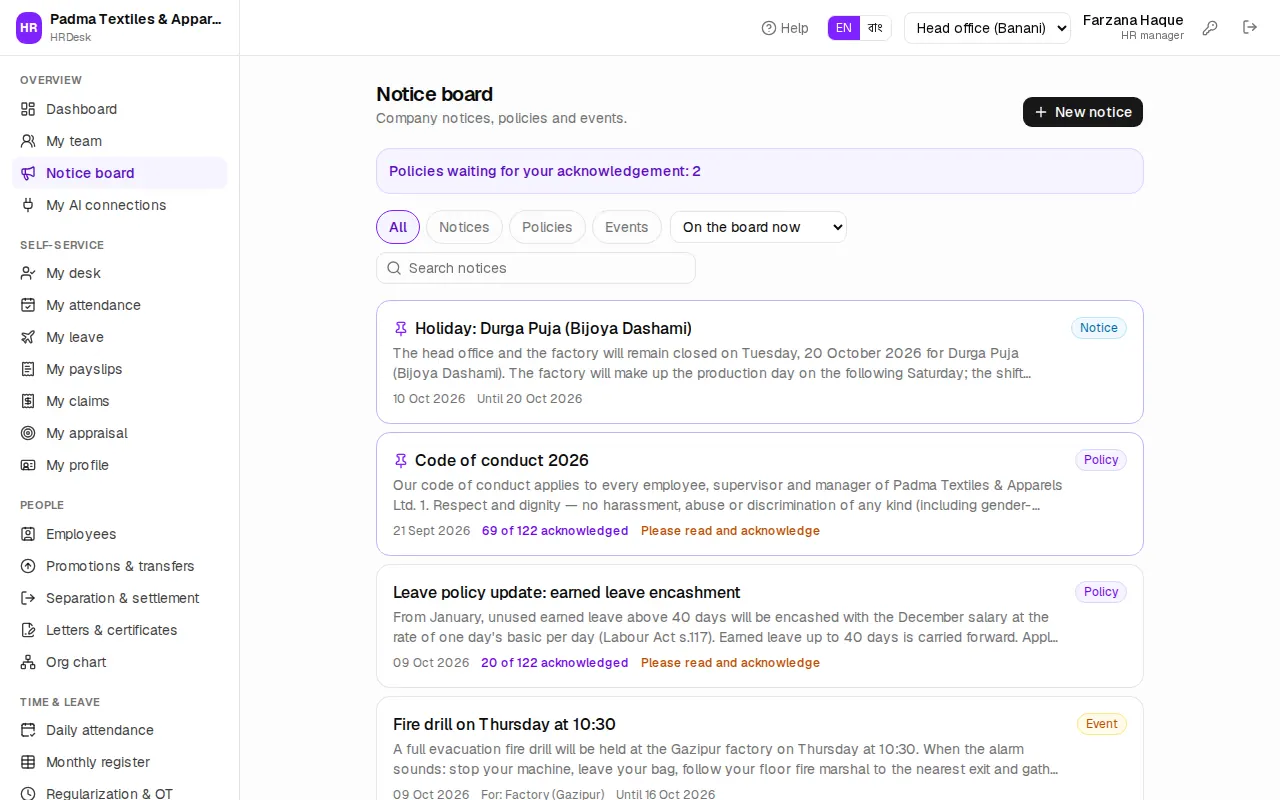
Each notice shows its date, who it is for (e.g. Factory (Gazipur)), how long it stays up and, for a policy, the acknowledgement status. People only see notices for their own office and department — New line layout in the sewing section, for example, is seen only by the Sewing department.
How an employee reads and acknowledges a policy is in the My desk chapter.
Posting a new notice
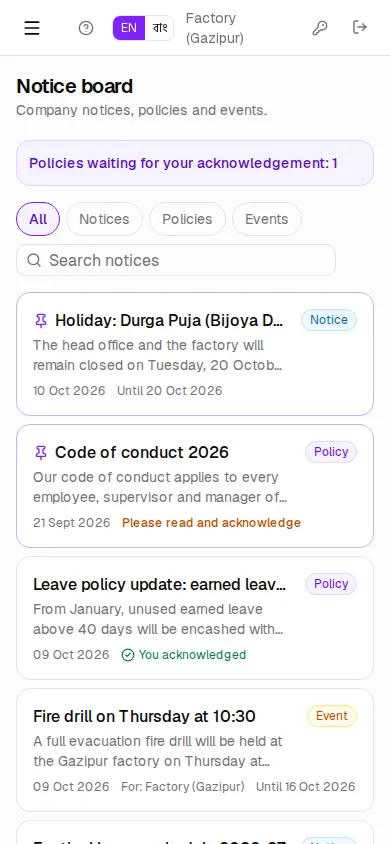
- On Notice board, click New notice.
- Enter the Title (e.g. Holiday: Durga Puja (Bijoya Dashami)).
- Write the Notice text — in Bangla or English, whatever everyone understands.
- Choose the Kind — Notice, Policy or Event. A policy asks every reader to confirm they have read it.
- Show until — the last day. Leave it empty to keep it on the board.
- Who it is for: Office / factory (empty = Everyone (all offices)) and Department (empty = All departments).
- Add an Attachment if needed — PDF, Word or image, up to 5 MB.
- Tick Pin to the top of the board for something urgent.
- Tick Also send an SMS to the employees it is meant for to reach everyone's phone.
- Click Publish notice. It goes on the board and onto everyone's My desk straight away.
Editing, pinning and taking down
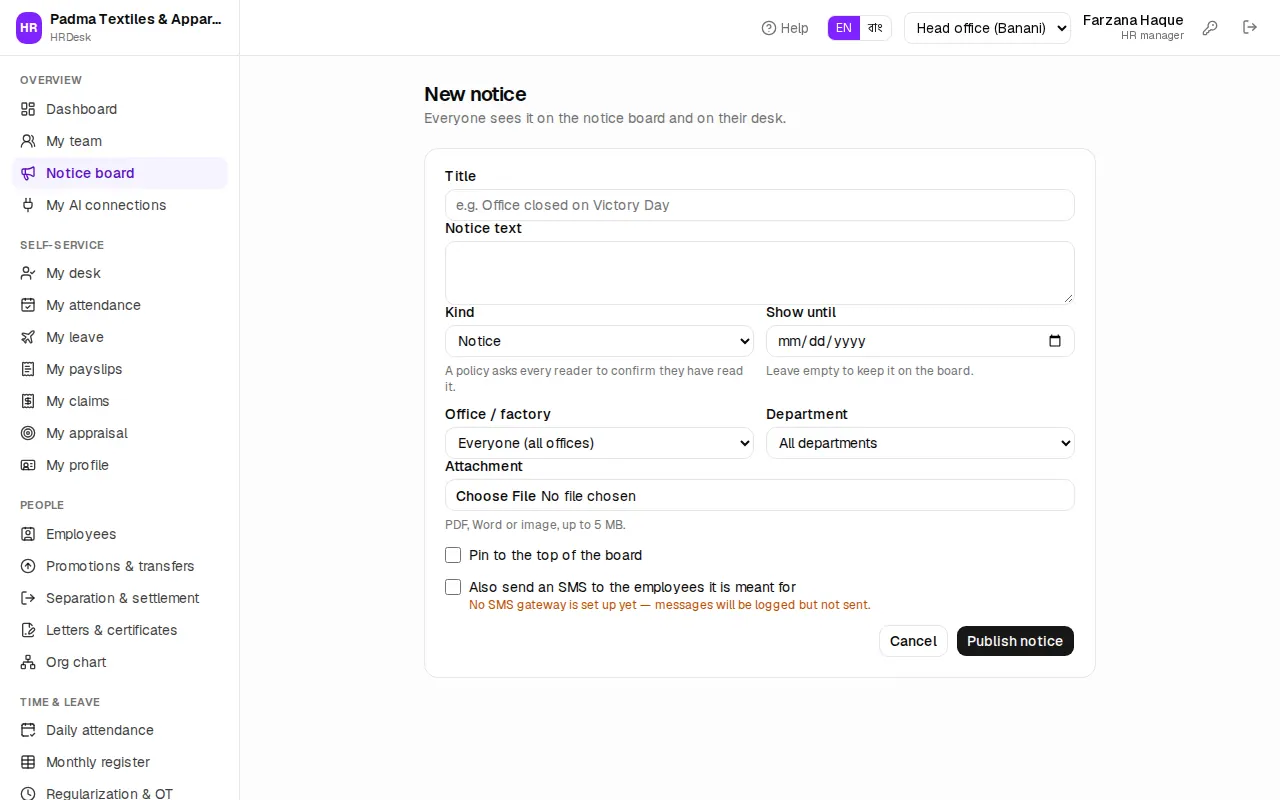
Open a notice to see HR's buttons at the bottom:
- Edit — change the text, kind, date, office/department or attachment, then Save changes.
- Pin / Unpin — keep it on top of the board, or not.
- Take down — removes it from the board now (it expires) but keeps the record.
- Delete — removes the notice and all its acknowledgements for good.
Use the board's filter — On the board now, Expired, Drafts (not published) and All, including expired — to find older notices.
Draft notices come from the AI assistant — nobody sees a draft until HR opens it and clicks Publish.
Tracking acknowledgements
For a policy (e.g. Code of conduct 2026) you can see who has read it and who hasn't.
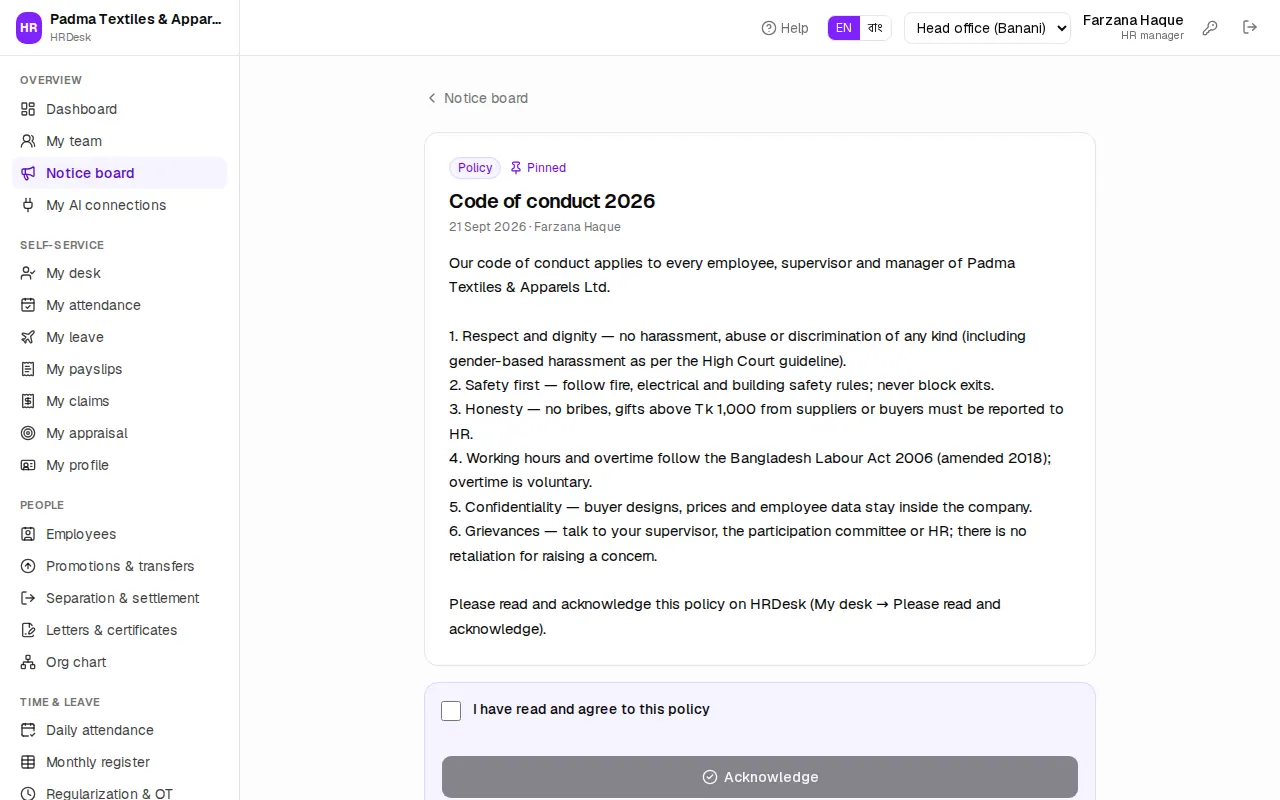
- On the board, a policy shows a count such as "85 of 120 acknowledged".
- Open the policy: the Acknowledgements section has a progress bar and two tabs, Not yet and Acknowledged.
- Not yet lists each person's name, code, department and mobile number. Ask the line supervisor to remind them, or give them a call.
- Acknowledged shows the date and time each person acknowledged.
Until someone acknowledges, a yellow "Please read and acknowledge" box stays on their My desk.
The SMS & WhatsApp log
Admin › SMS & WhatsApp lists every message the company sends — salary, leave decisions, absences, recruitment, notices and messages typed by hand.
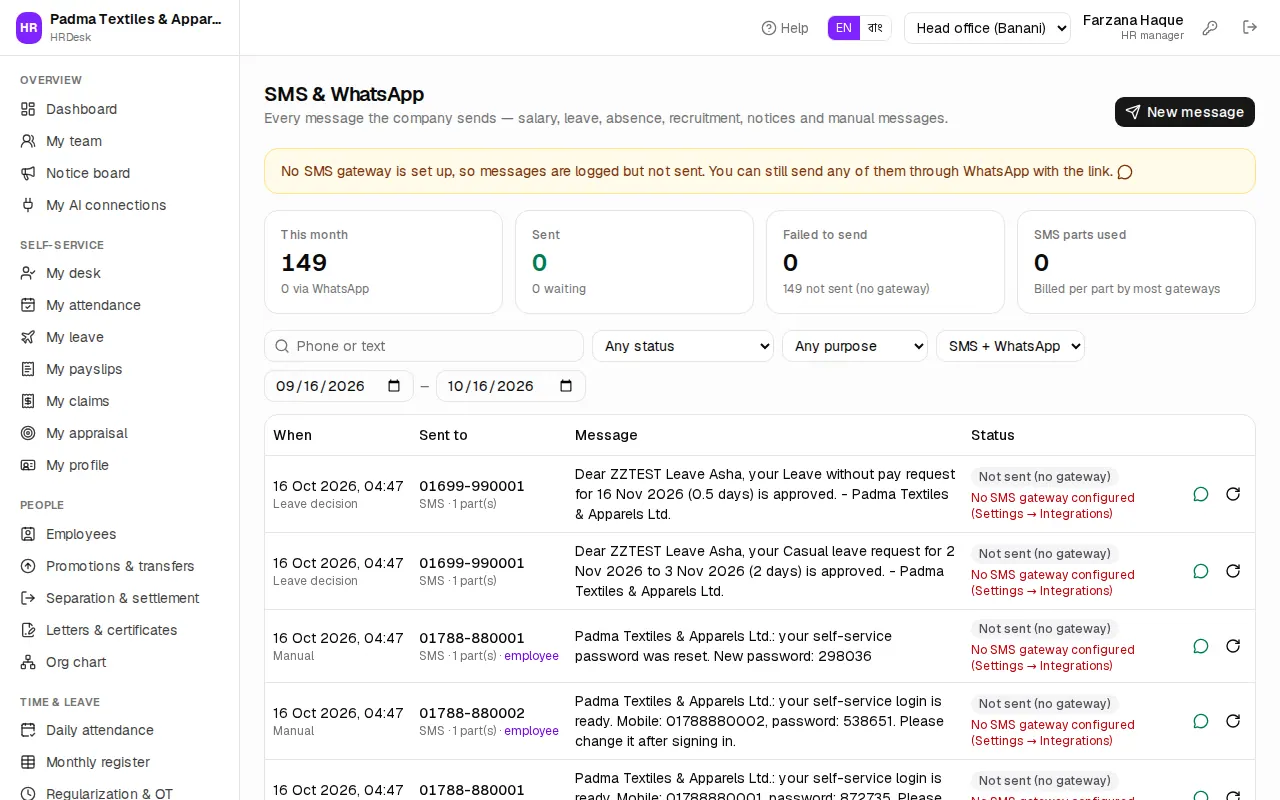
At the top are this month's figures: This month (total), Sent, Failed to send and SMS parts used. The list shows When, Sent to, Message and Status:
| Status | Meaning |
|---|---|
| Queued / Sending | Goes out shortly |
| Sent | Accepted by the gateway |
| Failed to send | Gateway error — the reason is in red; it is retried automatically a few times |
| Not sent (no gateway) | No SMS gateway is set up, so it is only logged |
Search by phone number or text; filter by status, purpose (e.g. Leave decision, Recruitment, Notice), channel and date. Each row has a green WhatsApp icon on the right — it opens WhatsApp on your phone or computer with the text filled in, for you to send. Next to a failed message, the circular arrow (Retry now) sends it again at once.
Sending a message to one person
- Click New message.
- Choose Employee and type a name or code — the Mobile number fills in by itself. For someone outside, choose Any number.
- Write the Message (English or Bangla). Below it you see how many characters and SMS parts it takes.
- If the WhatsApp API is on, choose SMS or WhatsApp (API).
- Click Send. Or click Open in WhatsApp to send it from your own WhatsApp — no gateway needed.
Understanding the cost: most gateways charge per SMS part. In English one part holds 160 characters (153 per part when longer). In Bangla one part holds only 70 (67 when longer) — so keep Bangla messages short. The SMS parts used card gives a rough idea of the month's bill.
Automatic messages and the gateway (owner)
Which events send a message automatically — Salary paid, Leave decisions, Absence alerts, Recruitment — and the Message language (English or Bangla) are set by the owner on the Integrations page. The message texts are built into HRDesk; names, months and amounts are filled in automatically.
Connecting an SMS gateway (SSL Wireless, BulkSMSBD or another) and the WhatsApp API is also owner-only. Without a gateway, a yellow box at the top of the log explains that messages are logged but not sent. Setup steps: Licence, payments & AI.