For employees & managers
For employees: My desk (self-service)
Signing in on a phone, check-in/check-out, your attendance, applying for leave, payslips, expense claims, your appraisal, your profile and acknowledging notices.
Who it is for:EmployeeLine managerHR officerHR managerPayroll / accountsOwner / MD
On this page
This chapter is for every employee. From a machine operator to office staff, everyone can open HRDesk on their own phone to see their attendance, leave and salary. There is no app to install; it works in the phone's browser.
What you can do here:
| Task | Where |
|---|---|
| Today's attendance, leave left and the last payslip at a glance | My desk |
| Check in / check out on the phone, the month's attendance | My attendance |
| Apply for leave and follow it | My leave |
| View and print payslips | My payslips |
| Claim back work expenses | My claims |
| Your own appraisal (self review) | My appraisal |
| See your own record | My profile |
Signing in on a phone
- Open Chrome on the phone and type your company's HRDesk address. HR gives you the address.
- Type your 11-digit number in Mobile number.
- Type your Password. HR sends the first password by SMS or hands it to you.
- Tap Sign in. My desk opens straight away.
Tap EN | বাং at the top to change the language. After the first sign-in, tap the key icon and Change password (at least 6 characters).
More about signing in: Getting started.
My desk
My desk is the first page after sign-in. At the top: your name, designation, department and employee code (e.g. Rupa Akter · Sewing Operator · Sewing · EMP-0008).
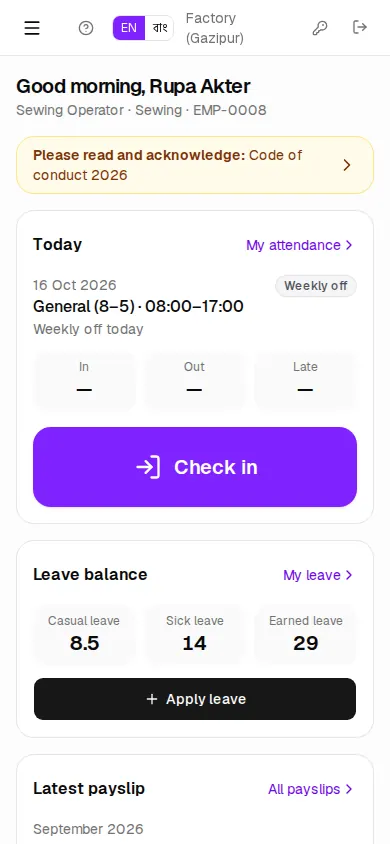
Below it, one card after another:
- Today — today's shift, In, Out, Late and the check-in button.
- Leave balance — how many days of each leave are left, with an Apply leave button.
- Latest payslip — last month's net pay, with Print.
- My pending requests — leave, claims or corrections not decided yet.
- Upcoming holidays and Notices.
At the bottom, big buttons link to every page. A yellow box saying Please read and acknowledge means you should open that notice and read it (see Acknowledging notices below).
Checking in and out on the phone
When the company allows phone attendance, the Today card has a big purple Check in button.
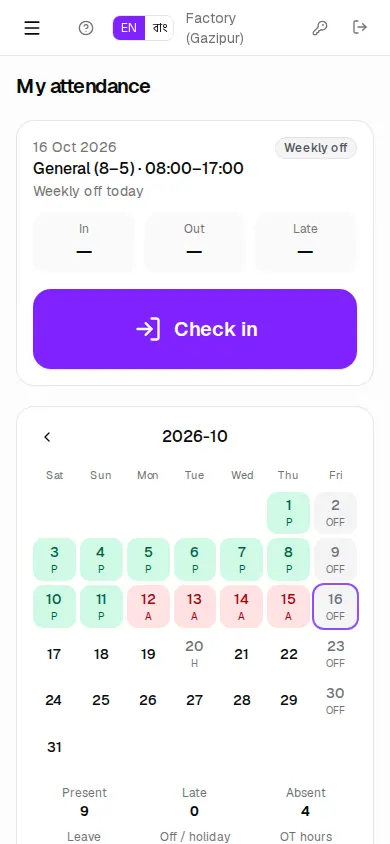
- When you arrive, tap Check in.
- If the phone asks for your location, tap Allow.
- "Checked in" appears and the time shows under In.
- When you leave, tap the green Check out button in the same place.
Some companies require the location. Then the button says "Your location is checked against the office". Outside the set distance of the factory or office (e.g. 300 m) the check-in is refused.
| Message | What to do |
|---|---|
| Turn on location to check in — your company requires it | Switch on Location, allow the browser, tap again |
| You are about … from … | Come inside the gate and tap again |
| Already recorded a minute ago | You tapped twice — nothing to do |
My attendance
My attendance shows the whole month as a calendar. Each day has a colour and a code: P present, L late, A absent, HD half day, LV leave, H holiday, OFF weekly off. Use the arrows to see earlier months.
Below are the month's totals: Present, Late, Absent, Leave, Off / holiday, OT hours.
Forgot to punch?
- In My requests, tap Request correction.
- Pick the Date (within the last 60 days).
- Choose What happened? — Missed punch, Outdoor duty, Work from home or Overtime claim.
- Enter In time / Out time and the Reason.
- Tap Send request. It goes to your manager.
Until it is decided you can cancel it with the ✕ next to it.
Applying for leave
At the top of My leave there is a box for each leave type: days left, the total and how many you used (e.g. "of 10 · used 2").
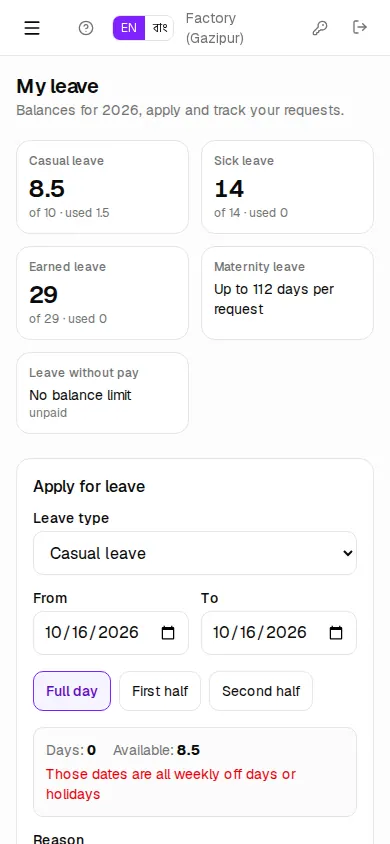
- In Apply for leave, choose the Leave type.
- Set From and To. For a single day you can pick Full day, First half or Second half (for leave types that allow half days).
- The grey box shows the Days needed and how many are Available. Red text must be fixed first — the button stays off until then.
- Write a Reason (optional).
- For sick leave, if "Medical certificate (required)" appears, add a photo of the doctor's paper.
- Tap Apply for leave.
The My requests list below shows each request's status:
| Status | Meaning |
|---|---|
| Waiting for manager | Your line manager hasn't decided yet |
| Waiting for HR | Your manager agreed; HR gives the final yes |
| Approved | Leave granted — attendance is marked "leave" automatically |
| Rejected / Cancelled | Not granted, or you withdrew it; see the Note |
A pending request can be withdrawn with Cancel leave. Leave rules in detail: Leave.
Payslips: view and print
My payslips shows the year's total Earnings, Deductions, Net pay and Tax / PF. Switch the year at the top.
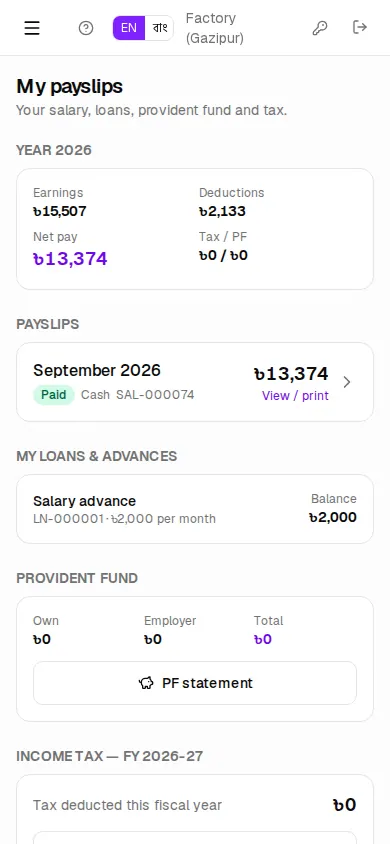
- In Payslips, tap the month (it says View / print on the right).
- The payslip opens in a new tab. Choose A5 / A4 and English / বাংলা at the top.
- Tap Print for paper; on a phone you can pick "Save as PDF" to keep it.
A payslip appears only after the month's salary sheet is approved. Approved — payment pending means the money has not been paid yet; once paid it shows Paid.
The same page shows My loans & advances (balance, monthly cut), Provident fund (own + employer, PF statement) and Income tax (Tax certificate).
Expense claims
Spent your own money on travel, food, mobile bills and the like for work? Claim it back from My claims.
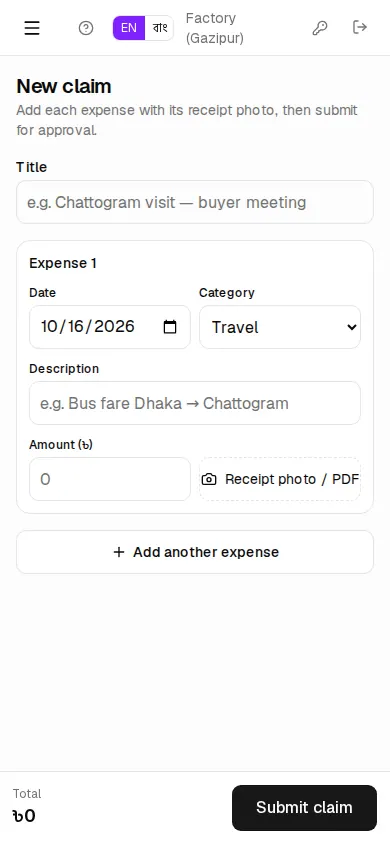
- Tap New claim.
- Give it a Title (e.g. Gazipur to Banani office — submitting papers).
- For each expense: Date, Category (Travel, Food, Lodging, Mobile, Fuel, Other), Description, Amount (৳).
- Tap Receipt photo / PDF and photograph the receipt.
- More expenses? Tap Add another expense.
- Check the Total at the bottom and tap Submit claim.
A claim is usually approved first by your line manager, then by HR or accounts. Status: Pending → Manager approved → Approved → Paid. The money may come in cash, by bank, bKash or With salary (payroll) — open the claim to see Paid via. Only a pending claim can be withdrawn with Cancel claim.
My appraisal (self review)
Once a year (or as your company decides) HR starts an appraisal cycle. If you are in it, it shows on My appraisal, and My desk says "Your self review is due".
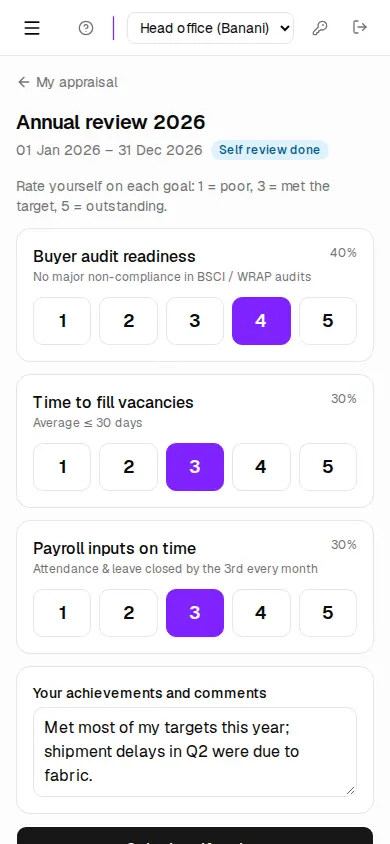
- Tap the cycle name (e.g. Annual review 2026).
- Under each goal there are buttons 1 to 5: 1 = poor, 3 = met the target, 5 = outstanding. Pick one honestly.
- In Your achievements and comments, write what you did well.
- When every goal has a score, tap Submit self review.
Until your manager reviews you, you can change it and submit again. When HR finalises it, the Final rating and your manager's comment appear here.
"Self review opens when HR moves the cycle to review." means it is not time yet — read your goals meanwhile. The full process: Performance, training & assets.
My profile
My profile shows your whole record, read-only:
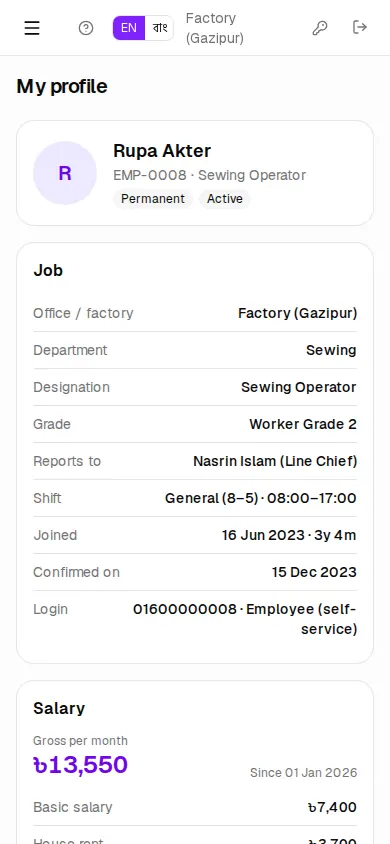
- Job — office / factory, department, designation, grade, who you Reports to, shift, joining date.
- Salary — Gross per month and its parts, how you are paid.
- Personal, Nominees, Education.
- My documents (download), Letters issued to me (print), Training, Company assets with me.
Nothing can be changed here. To change your address, mobile, bank account or nominee, tap an HR number under Something wrong or changed? to call them.
Acknowledging notices
The Notice board has company notices, policies and events. You only see notices meant for your office or department.
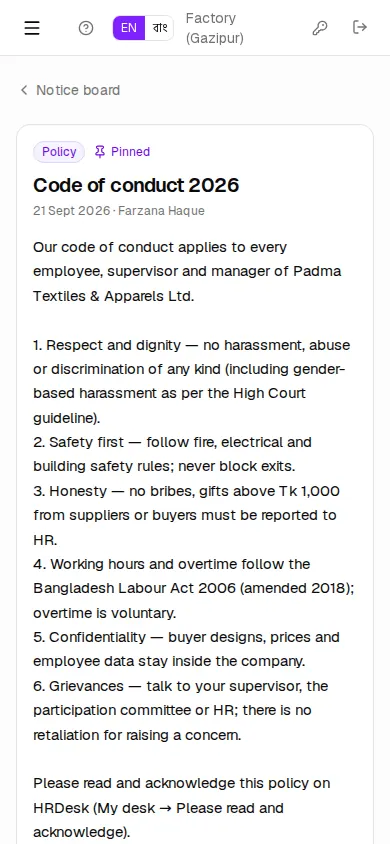
A policy (e.g. Code of conduct 2026) must be acknowledged:
- Open it and read it all. Open the attachment too, if there is one.
- Tick I have read and agree to this policy at the bottom.
- Tap Acknowledge.
A green box then says "You acknowledged this policy on …". HR can see who has acknowledged. Running the notice board: Notices & SMS.