Owner & setup
Owner setup
Company profile, HR policy and company policies (which leave, deductions, benefits and modules the company offers), offices and factories, departments, designations, grades, holidays, and users and roles
Who it is for:Owner / MDHR manager
On this page
Before the first salary sheet a few things are set up once: the company's name and address, offices and factories, departments and designations, holidays, the HR policy and staff logins. This chapter walks through each of them. The licence, online payments, the SMS gateway and AI assistants are in Licence, payments & AI.
Who can do what:
| Page | Owner | HR manager |
|---|---|---|
| Settings, Offices & factories | ✓ | ✓ |
| Organisation setup (departments, designations, grades, holidays …) | ✓ | ✓ |
| Users & roles | ✓ | ✓, but cannot make anyone an owner or change an owner's account |
| Integrations, Online payments | ✓ | — |
First-day checklist
- In Settings, fill in the company profile and the HR policy (below).
- Add every office, factory and warehouse in Offices & factories; set a location if you want phone check-in (below).
- Check departments, designations and grades in Organisation setup (below).
- Fix this year's Eid and Puja dates on Holidays (below).
- Look over shifts, leave types and the salary structure (where the other rules live).
- Add your employees (Employees), then give staff their logins (below).
Company profile
Open Admin › Settings in the sidebar.
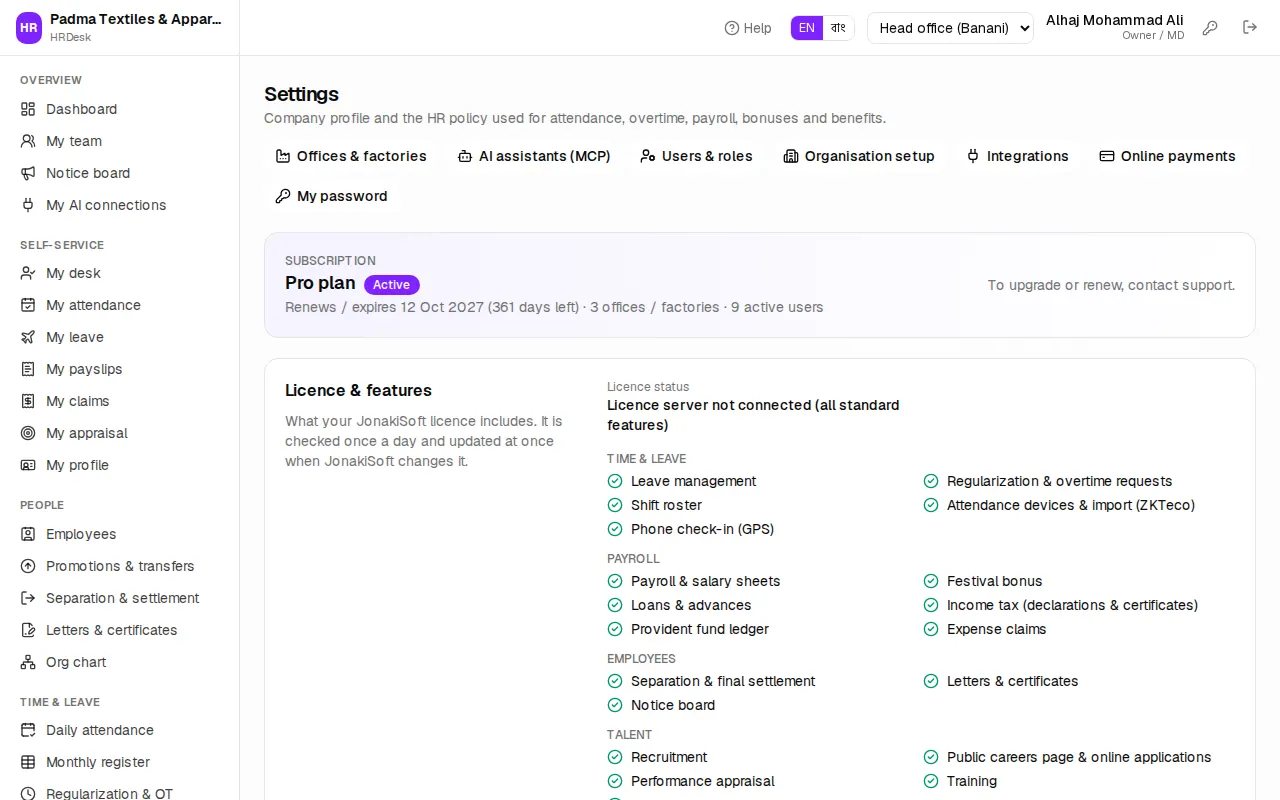
The buttons at the top open Offices & factories, AI assistants (MCP), Users & roles, Organisation setup and My password (the owner also sees Integrations and Online payments). Below them the Subscription box shows the plan, expiry, number of offices and active users, followed by Licence & features (see Licence, payments & AI).
The Company profile is printed on payslips, letters, ID cards and the careers page.
- Fill in Company name (required) and, if you like, Company name in Bangla.
- Type of business, Phone, Email, Website, Address.
- Trade licence no., Company e-TIN (printed on salary TDS certificates) and VAT registration (BIN).
- Press Save profile.
HR policy
The sections below the profile decide how attendance, overtime and pay are calculated and what your company offers at all. Each field names the Labour Act section it follows. Press Save settings when done.
Work week & salary month: Weekly off days (for example just Fri; an employee's own off day, set on their record, overrides this), Salary month starts on day (1 = calendar month, 21 = 21st to 20th) and the Payslip footer.
Company policies — one switch for everything a Bangladeshi company may or may not give. Switch off what you do not offer: its menu entry disappears and nobody can add anything new there, but nothing is deleted — existing records (old loans, past bonus runs, claims, letters …) stay, and switching it on again brings everything back. The amount fields of a switch only show while it is on.
- Leave — one switch per leave type: Casual, Sick, Earned, Maternity, Paternity, Leave without pay and any type you added. "We do not give earned leave" is one click: earned leave then accrues nothing, cannot be applied for, shows no balance and is not paid out on leaving. Leave encashment — pay unused earned leave in cash (salary sheet or final settlement).
- Attendance — Phone check-in (with Only at the office (geofence) inside it), Deduct for late arrival with Late days per one day's deduction (3 = every 3 late days deduct one day's basic).
- Payroll & deductions — Deduct for absence with One absent day deducts (a day's basic or gross; leave without pay is always deducted), Pay overtime with its rate, divisor and daily cap (only employees marked "overtime eligible" get it), Deduct monthly tax from salary (TDS — each employee's investment declaration reduces it, see Loans, tax & PF), Salary advances & loans, Expense claims.
- Benefits — Company has a provident fund with the employee and company shares and Eligible after (months), and PF loans inside it; Pay gratuity on separation with the days per year and minimum years; Festival bonus with the % of basic, service needed and pro-rata; Attendance bonus with the amount.
- Modules — Recruitment (with Show the careers page, Recruitment), Performance appraisal, Training, Company assets, Notice board, Letters & certificates.
A switch marked Not in your plan belongs to a module your JonakiSoft licence does not include: it stays off whatever you choose here. A company switch can only turn things off, never add something the plan leaves out.
What "off" does to pay: absence or late arrival is no longer deducted, the attendance bonus and overtime are not paid, no PF is cut, no tax is deducted, and the final settlement has no gratuity, provident fund or leave encashment line (when PF is off and the employee still has a PF balance, the settlement notes the amount so it can be paid through the PF trust). Loans already paid out keep being recovered from the salary even when loans are switched off — that money is owed.
Probation & notice: the default Probation (months) for new joiners and Resignation notice (days).
Language: everyone's Default language. Each person can still pick their own.
The demo company Padma Textiles uses: Friday off, one day's basic deducted per 3 late days, overtime at double rate capped at 2 hours a day, ৳450 attendance bonus, festival bonus 100% of basic, provident fund 10% + 10%.
Offices & factories
Open Admin › Offices & factories. Each office has its own employees, attendance and salary sheet; departments, grades and policies are shared.
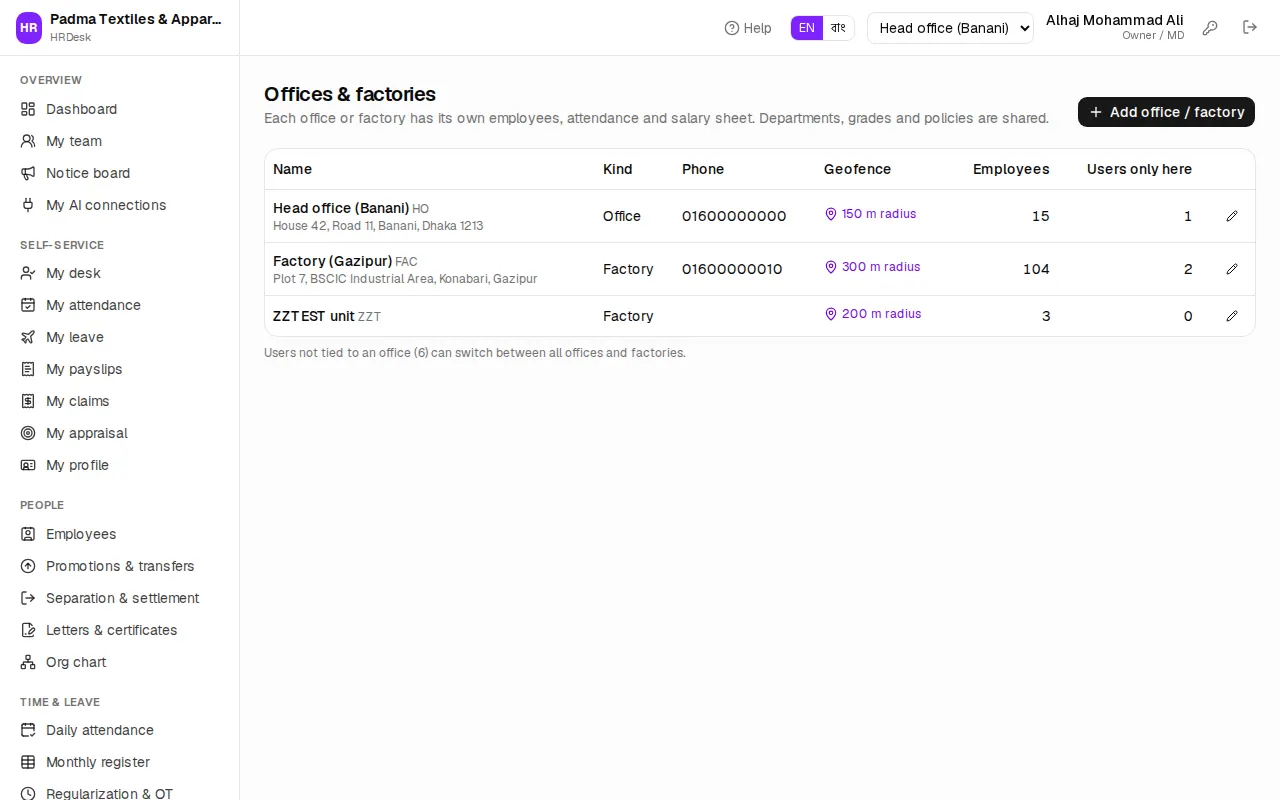
- Press Add office / factory.
- Enter the Name (for example Factory (Gazipur)) and a Code of 2–6 letters or digits (for example
GZP). - Pick the Kind — Office, Factory, Warehouse, Project site or Outlet / shop — then Phone and Address.
- Phone check-in area (geofence): stand at the office gate and press Use my current location, or paste the Latitude and Longitude from Google Maps. Radius (m) is 20 to 5000; the default is 200. Leave blank for no geofence.
- Press Save.
The list shows each office's employees, its Geofence (click to open Google Maps) and Users only here. Use the pencil icon to edit.
To close an office, edit it and untick Active. HRDesk refuses until every employee has been transferred out and the users tied only to that office have been moved; at least one office must stay active.
Organisation setup
Admin › Organisation setup is a hub. Each card shows how many entries it has: Departments, Designations, Grades, Salary structure, Shifts, Leave types, Holidays, Letter templates and the Org chart. The HR policy settings link at the top goes to Settings.
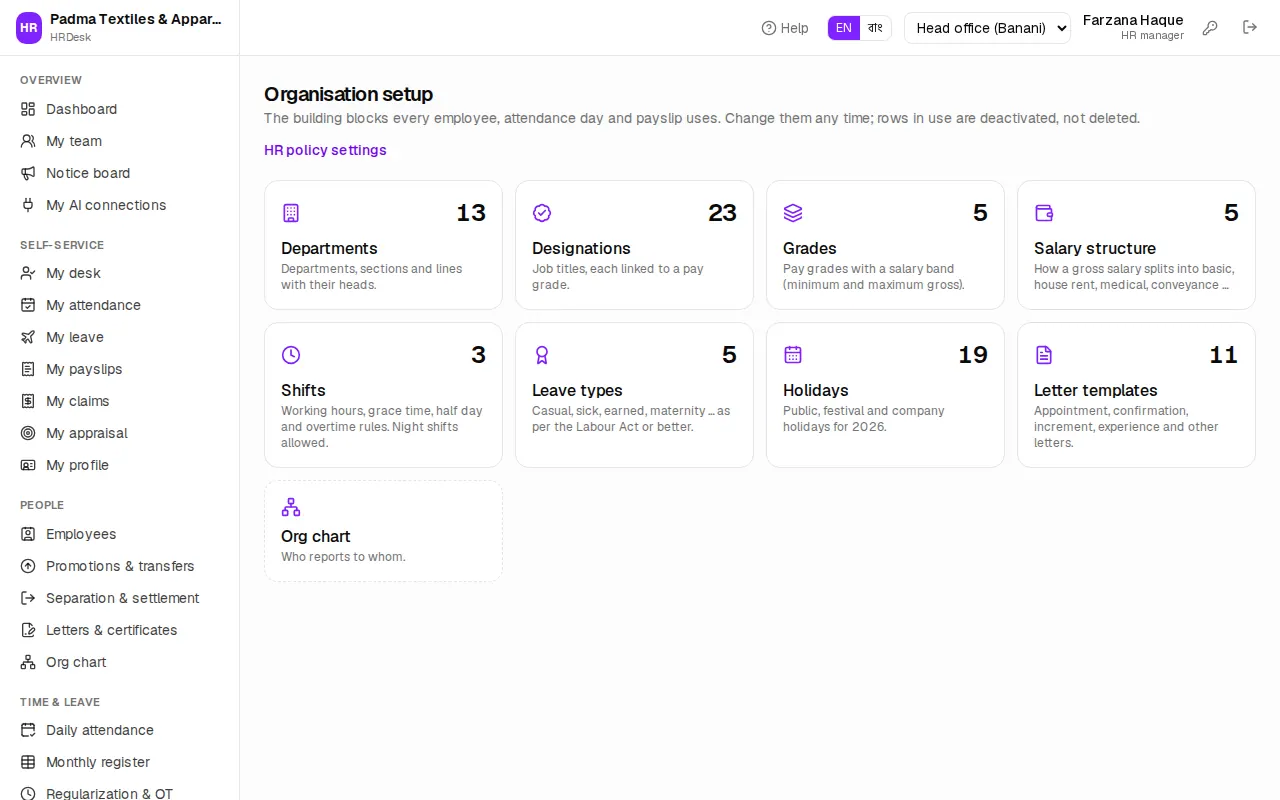
One rule for all these lists: pressing Remove on a department, designation or grade that an employee uses deactivates it instead of deleting it ("… is in use, so it will be deactivated"). Inactive entries are hidden from new selections but stay on old records.
Departments
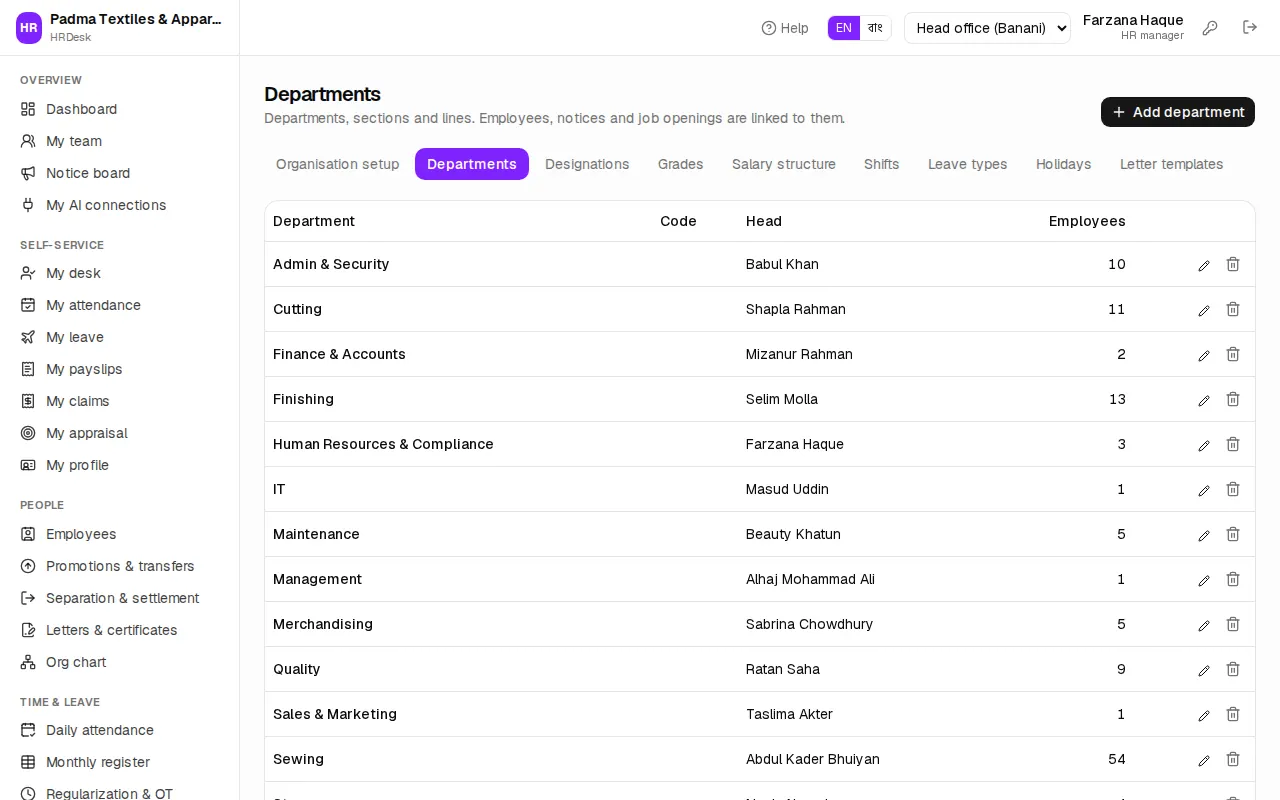
- Open Departments and press Add department.
- Enter the Department name, Code and Name in Bangla.
- For a section or production line, choose Under (parent department) — for example Line 3 under Sewing.
- Head of department: search for and pick the employee. They approve leave for employees in this department who have no reporting manager.
- Press Save.
Designations and grades
In Grades, each grade has a Minimum gross (৳) and Maximum gross (৳) (0 or blank = no ceiling). For garments, the minimum is the grade's minimum wage — Worker Grade 4 is ৳12,500. Order sets the sort order.
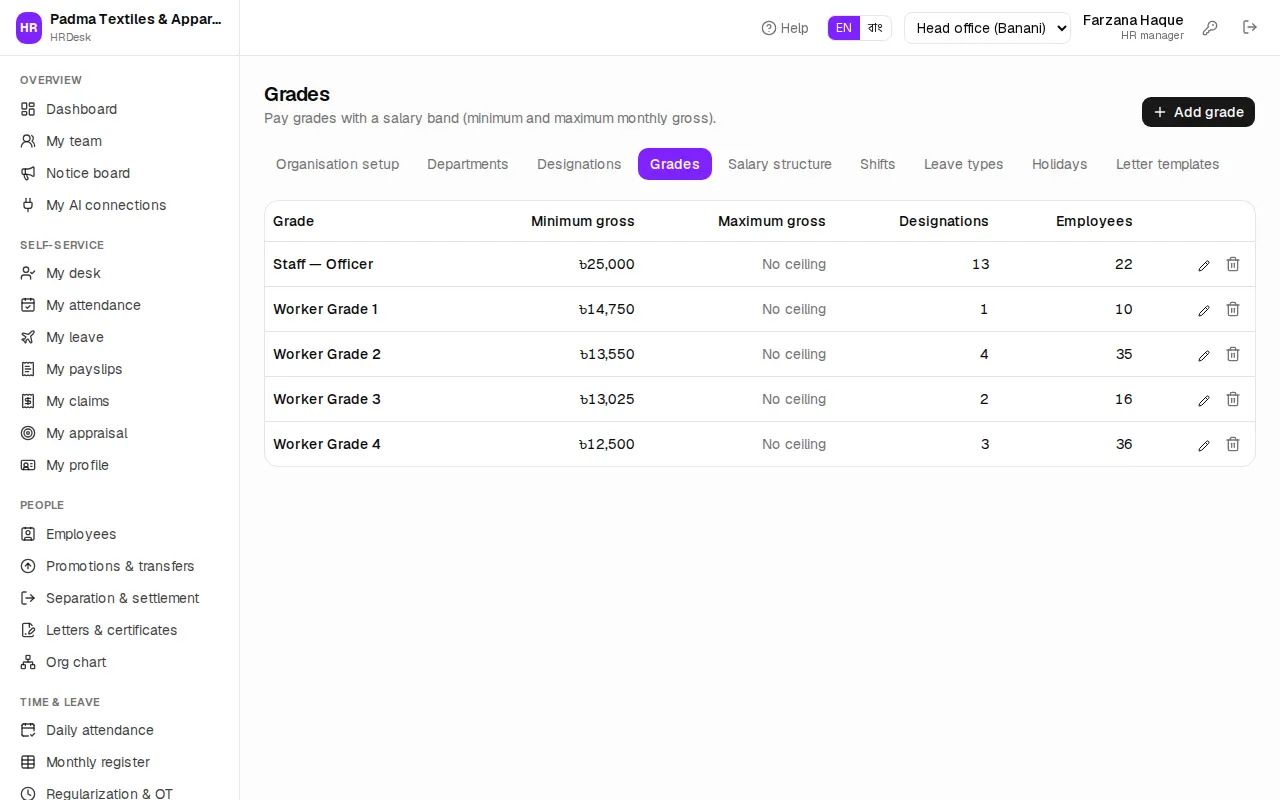
In Designations, press Add designation, enter the name (for example Sewing Operator), Name in Bangla and Grade. New employees with this designation start in that grade. Designations are printed on employee records, ID cards and letters.
Holidays
Organisation setup › Holidays lists the paid holidays. Attendance marks these days as holidays, and work on them counts as holiday duty.
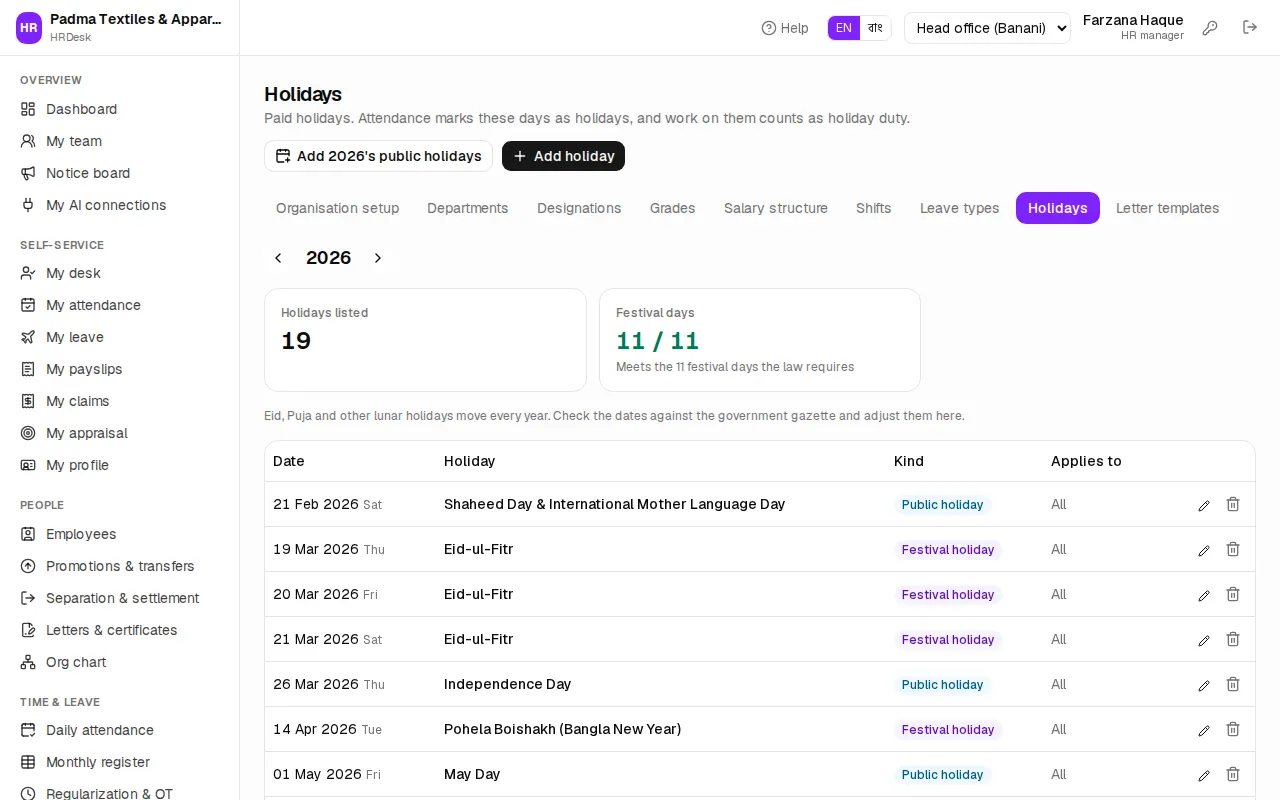
- Choose the year with the arrows.
- At the start of the year press the Add 2027's public holidays button (it names the year you are looking at). Holidays already listed are skipped.
- Add the rest with Add holiday: Date, Kind (Public holiday, Festival holiday, Company holiday), Holiday (the name) and Applies to (all offices, or just one).
- For a holiday of several days (such as 3 days of Eid), add one row per day.
The Festival days tile shows how many of the 11 festival days the Labour Act requires (s.118) you give; it turns yellow when short. The dashboard's Festival bonus panel uses these festival days too.
Users & roles
Admin › Users & roles lists everyone who can sign in: mobile, role, office, linked Employee record, language and Last sign-in.
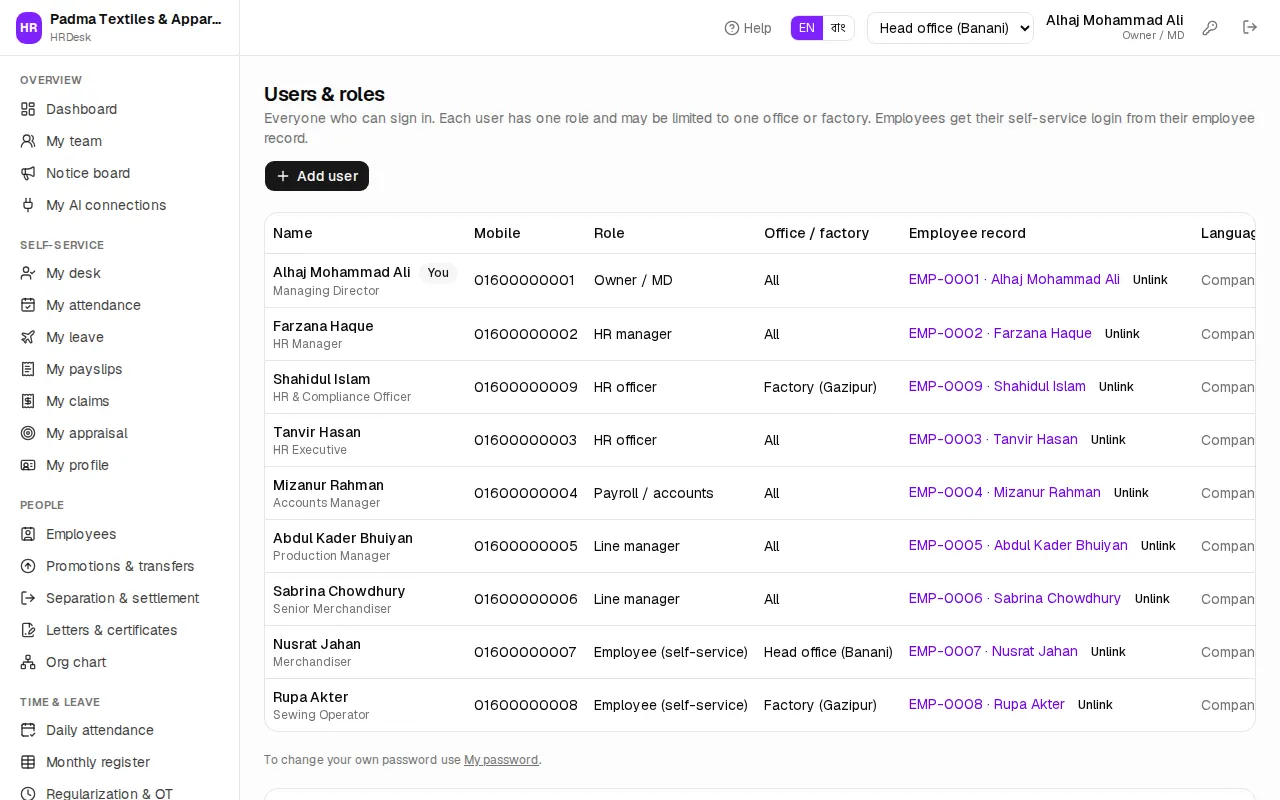
A new staff login:
- Press Add user.
- Enter Full name, Mobile (login) and optionally Email.
- Choose the Role, for example HR officer or Payroll / accounts.
- Office / factory: leave blank for all offices, or pick one to restrict the user to it.
- Language: blank = the company default.
- Designation / signature lines: printed under the signature on letters and certificates (one line each).
- Enter a Password (at least 6 characters) and press Save. Share the password with the user privately.
On each row: the pencil (edit; a role or office change applies from their next click), the key (type a New password and press Set password; the user is signed out everywhere) and Deactivate / Activate. Your own password is not changed here — see Changing your password.
Linking a staff login to an employee record
Staff are employees too, with attendance, leave and payslips. Link their login to their employee record — from either side (owner or HR manager):
- In Users & roles, press Link to employee in the Employee record column, pick the employee and press Link. Unlink removes the link; the login stays.
- Or on the employee's Login tab, press Link existing login and pick the login.
The person keeps their role (for example Line manager) and also gets self-service. An employee who already has a login, or a login already linked to someone else, is refused — unlink it first.
Rules and limits:
- An HR manager cannot make anyone Owner / MD, and cannot edit, reset the password of or deactivate an owner.
- The company needs at least one active owner; you cannot remove your own owner role or deactivate yourself.
- One mobile number = one account.
- Open What each role can do at the bottom of the page for the full permission grid.
Where the other rules live
Some rules are not on Settings but on their own pages:
| What | Where | Chapter |
|---|---|---|
| Leave types: days a year, carry forward, encashment, documents | Organisation setup › Leave types | Leave |
| Shifts: working hours, grace minutes, half day, night shifts | Organisation setup › Shifts | Attendance |
| How gross splits into basic, house rent, medical … | Organisation setup › Salary structure | Payroll |
| Text of appointment letters, experience certificates … | Organisation setup › Letter templates | Employees |
| Who gets overtime, who is a PF member, personal weekly off | Each employee's record | Employees |
| SMS / WhatsApp gateway and automatic messages | Integrations (owner only) | Licence, payments & AI |