Attendance & leave
Leave
Labour Act leave types and rules, applying on an employee's behalf, two-step approval (line manager → HR), leave balances, carry forward and encashment — and how leave reaches attendance and payroll
Who it is for:Owner / MDHR managerHR officerLine manager
On this page
Employees apply from their phone under My leave (see Self-service). An application goes to the line manager first, then to HR for the final approval. Approved leave marks attendance On leave by itself and comes off the balance.
Who can do what:
| Task | Who |
|---|---|
| View Leave requests, approve / reject | Owner, HR manager, HR officer (final step); Line manager (first step, own team only) |
| Apply on behalf, cancel approved leave, Leave balances, adjust, encash, carry forward | Owner, HR manager, HR officer |
| Leave types and rules (Organisation setup › Leave types) | Owner, HR manager |
Leave types and rules
Open Admin › Organisation setup and pick Leave types in the tabs at the top. A new company already has the Bangladesh Labour Act 2006 leave types; if one was removed, press Add missing Labour Act types.
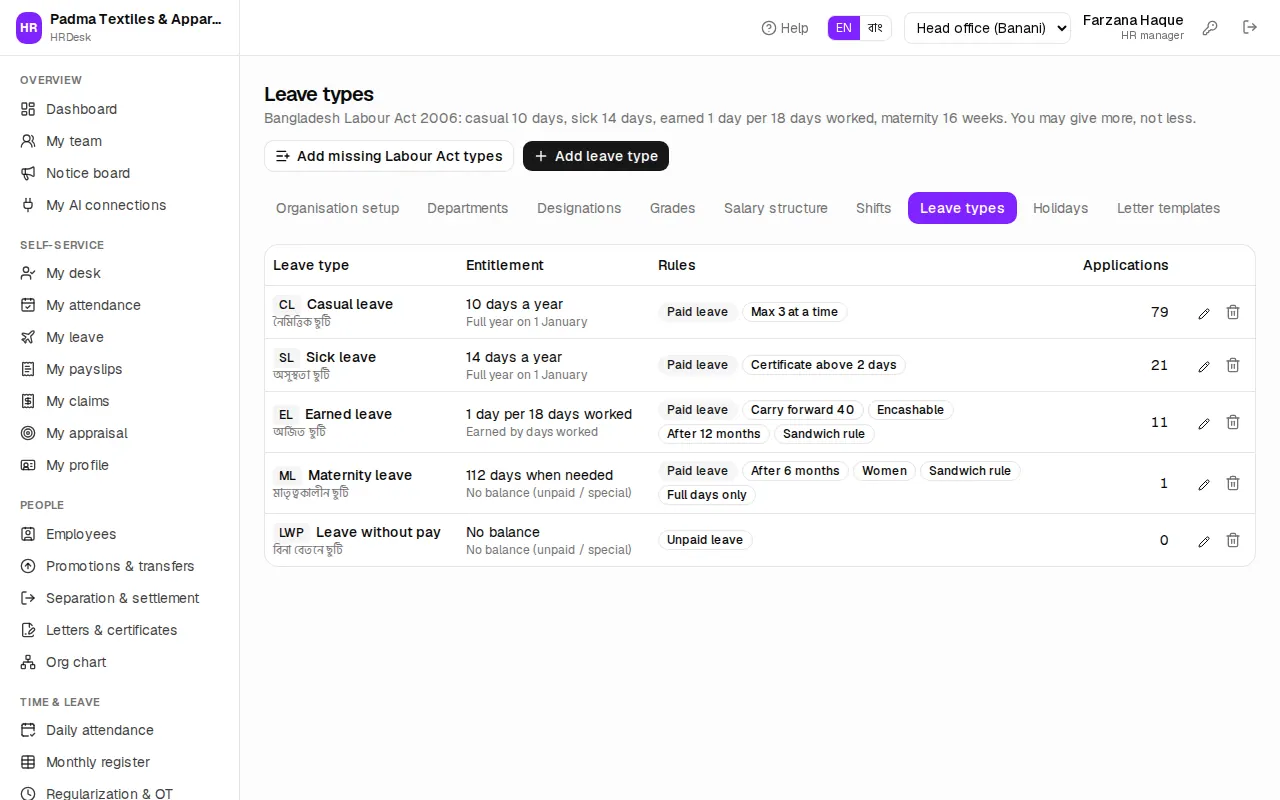
| Leave | Default rule |
|---|---|
| CL — Casual leave | 10 days a year, at most 3 days in one application |
| SL — Sick leave | 14 days a year, medical certificate above 2 days |
| EL — Earned leave | 1 day per 18 days worked, after 12 months' service; up to 40 days carry forward; encashable |
| ML — Maternity leave | 112 days (16 weeks), women only, after 6 months' service, full days only |
| LWP — Leave without pay | no balance, salary is cut |
Press the pencil to change a type, or Add leave type for a new one. The main fields:
- How the balance builds up — Full year on 1 January (joiners get a pro-rata share), Monthly (1/12 each month), Earned by days worked or No balance (unpaid / special).
- Days per year, 1 day per … days worked, Carry forward up to (days) (0 = lapses at year end).
- Most days in one application, Medical certificate above (days), Service needed (months), Only for.
- Ticks: Paid leave (unticked = salary is cut), Half day allowed, Encashable, Holidays inside count as leave (sandwich rule).
Viewing and approving leave
Time & leave › Leave requests has three tabs: Pending my approval, All requests and Calendar.
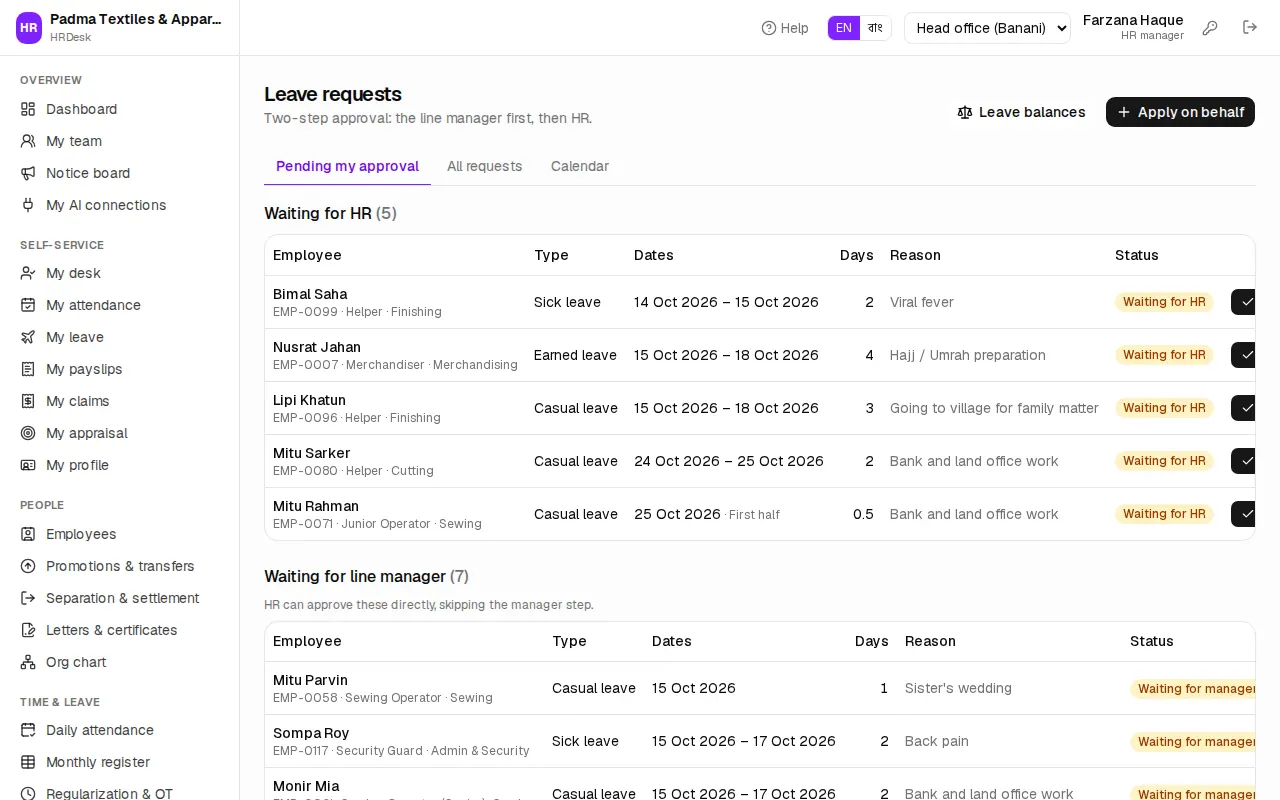
Approval has two steps:
- Line manager — the person in Reports to on the employee's profile (or the department head if empty). Pressing Approve (to HR) sends the request on to HR; a rejection ends it. Without any manager the request goes straight to HR. The manager's side: Line managers.
- HR — final Approve or Reject under Waiting for HR. HR can also approve requests still Waiting for line manager directly — the manager step is skipped.
Each button opens a small box — a note is optional when approving; give the reason when rejecting. Nobody can decide their own leave.
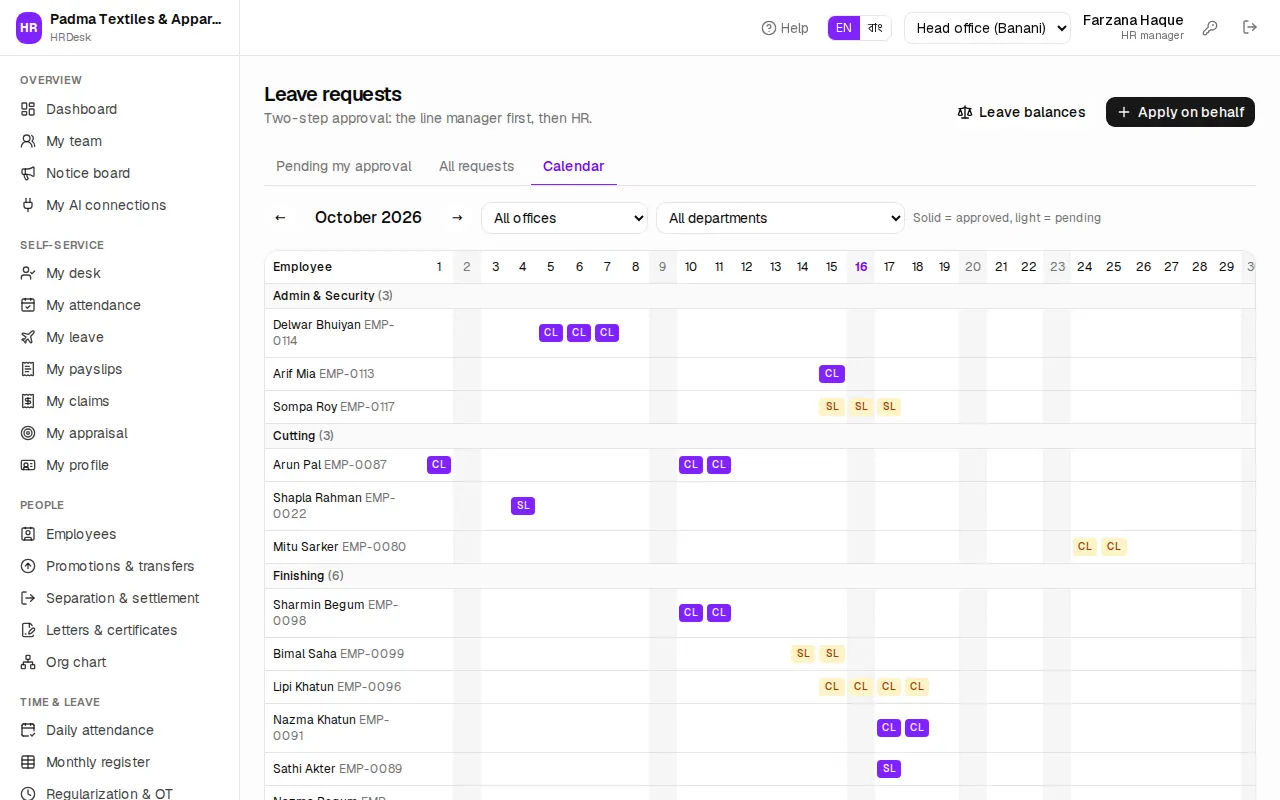
All requests filters by status, leave type, office, department and dates. Calendar shows who is away on which day of the month, by department — solid = approved, light = pending. Check here before Eid whether too many people from one line are off together.
Applying on an employee's behalf
When someone hands in a paper application or calls in, HR can enter the leave.
- On Leave requests press Apply on behalf.
- Search and pick the Employee (e.g. Rupa Akter).
- Choose the Leave type, From and To. For a single day (if the type allows it) choose Full day, First half or Second half.
- The grey box shows at once how many Days count and how many are Available. If a rule is broken (no balance, overlaps another leave, not eligible yet) a red line appears and the button stays off.
- Write the Reason. Sick leave above 2 days needs a Medical certificate (required) — attach a photo or PDF.
- If it was already approved on paper, tick Approve now — the manager step is skipped.
- Press Save leave.
Weekly off days and holidays inside the dates are not counted — except for types with the sandwich rule (earned and maternity). Balances run per calendar year, so split a leave running from December into January into two applications.
Request detail and cancelling
Click the employee's name in a list to open the request.
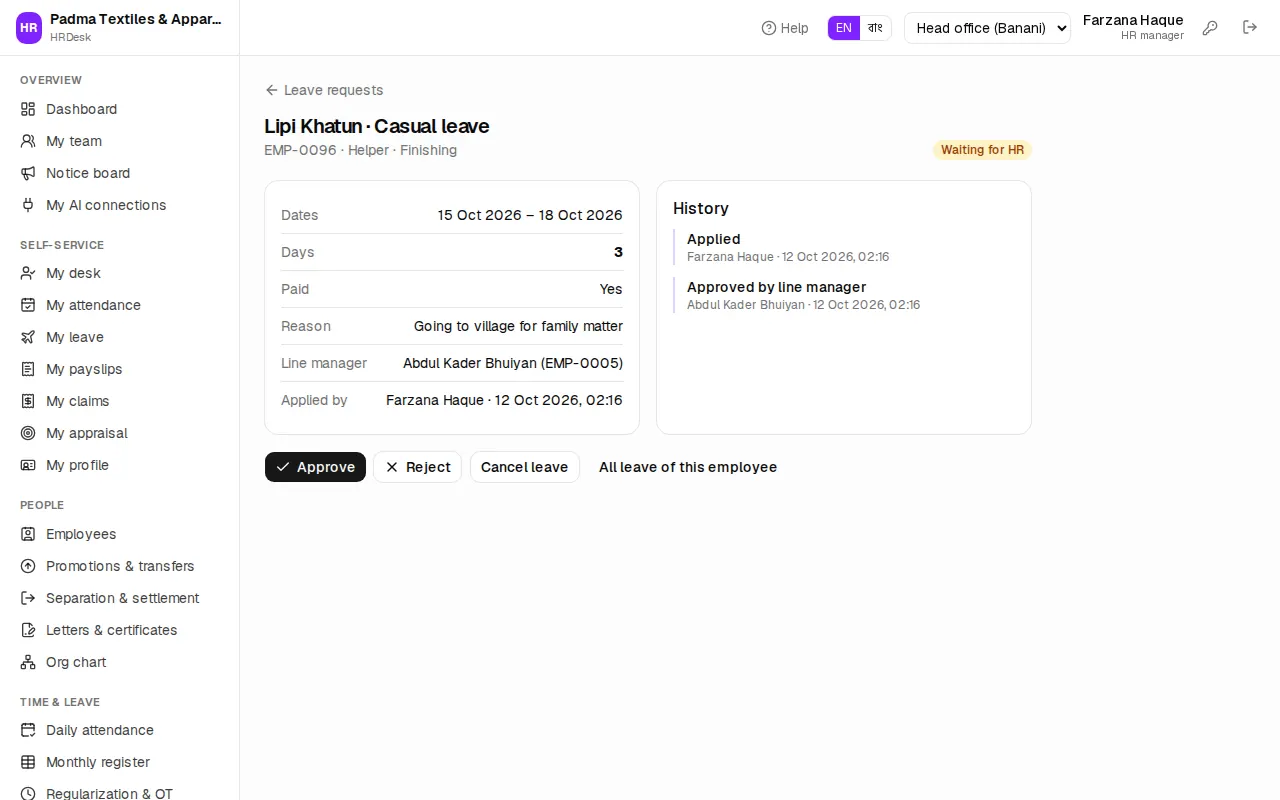
On the left: dates, days, half day, whether it is paid, reason, Line manager, Applied by, Decided by, Decision note and the attached Certificate. On the right, the History — who applied, approved or rejected and when. Below are the decision buttons and All leave of this employee.
To cancel an approved leave (e.g. the employee came back early) press Cancel leave and give the reason. The balance is restored and attendance for those days is recalculated. Employees can only cancel their own pending requests; approved leave can only be cancelled by HR.
Leave balances
Time & leave › Leave balances shows a cell per employee and leave type: available / entitled this year, with the days used below. Hover for the full sum — opening + accrued + adjusted − used − encashed; days in pending requests are held back from the available balance.
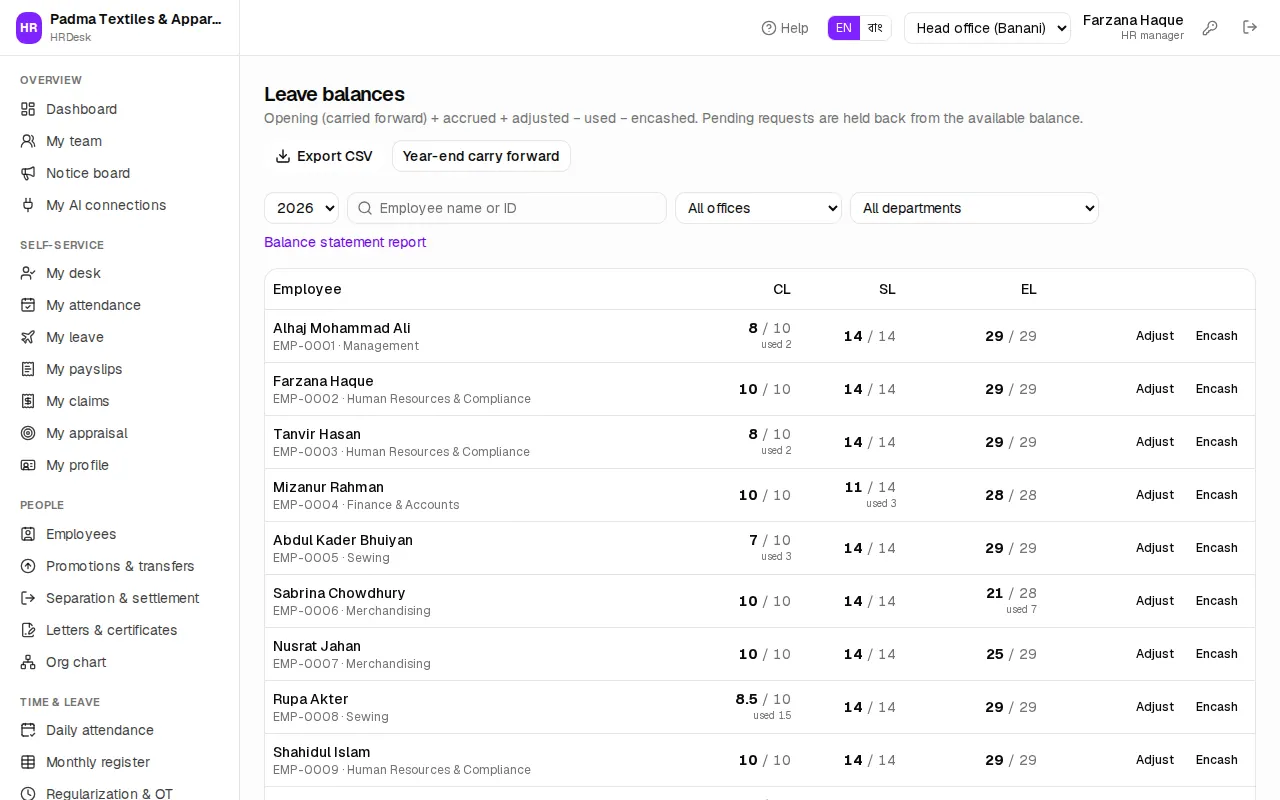
- Adjust — choose the leave type, Days (+ add, − deduct) and the Reason. Useful to bring in balances from before HRDesk or to grant special leave.
- Encash — records days of an encashable type (earned leave) paid out instead of taken, and takes them off the balance. Choose Pay with the salary of (the salary month). The amount is days × gross ÷ 30; payroll adds it to that month's salary sheet as a Leave encashment earning (taxable) — or to the next sheet if that month's sheet was already approved — and marks it paid when the sheet is approved (Payroll). Unused earned leave of someone who leaves is paid in the final settlement (Separation).
- Leave encashments (below the table) — each encashment of the year with its days, salary month and status (Waiting for payroll / Paid with salary / Cancelled); the amount is shown to those who may see salaries. Cancel an unpaid one to give the days back.
- Export CSV — the whole list for Excel. For a detailed statement use Balance statement report.
Year-end carry forward (early January):
- Press Year-end carry forward and set From year (e.g. 2026 → 2027).
- Press Preview — everyone's closing balance, what carries over and the current opening.
- Press Run carry forward and confirm. Running it again sets the same numbers afresh; nothing is doubled.
How leave reaches attendance and payroll
- As soon as leave is finally approved, those days become On leave in attendance — never absent. Cancelling recalculates the days from the punches again.
- Paid leave days are not deducted. Leave without pay (LWP) is deducted like an absence.
- If the employee has a phone number and leave SMS is on, they get an SMS with the final decision.