Help
Troubleshooting
Answers to common problems — can't sign in, "No access", a feature switched off, licence locked, device punches not arriving, phone check-in refused, wrong late/absent marks, salary sheet locked, leave balance, SMS, printing, slow internet and language.
Who it is for:Owner / MDHR managerHR officerPayroll / accountsLine managerEmployee
On this page
- Can't sign in / forgot the password
- The "No access" page
- "… is not part of your plan" — a feature switched off
- Licence expired / licence locked
- Device punches are not arriving
- Phone check-in refused
- Wrong late or absent marks
- Salary sheet locked / wrong figures
- Leave balance looks wrong
- SMS not sent
- Printing and PDF
- Slow internet
- Switching the language
When something gets in your way, look here first. Each part says what you see, why it happens and who can fix it. The Help button in the header opens the chapter for the page you are on.
Can't sign in / forgot the password
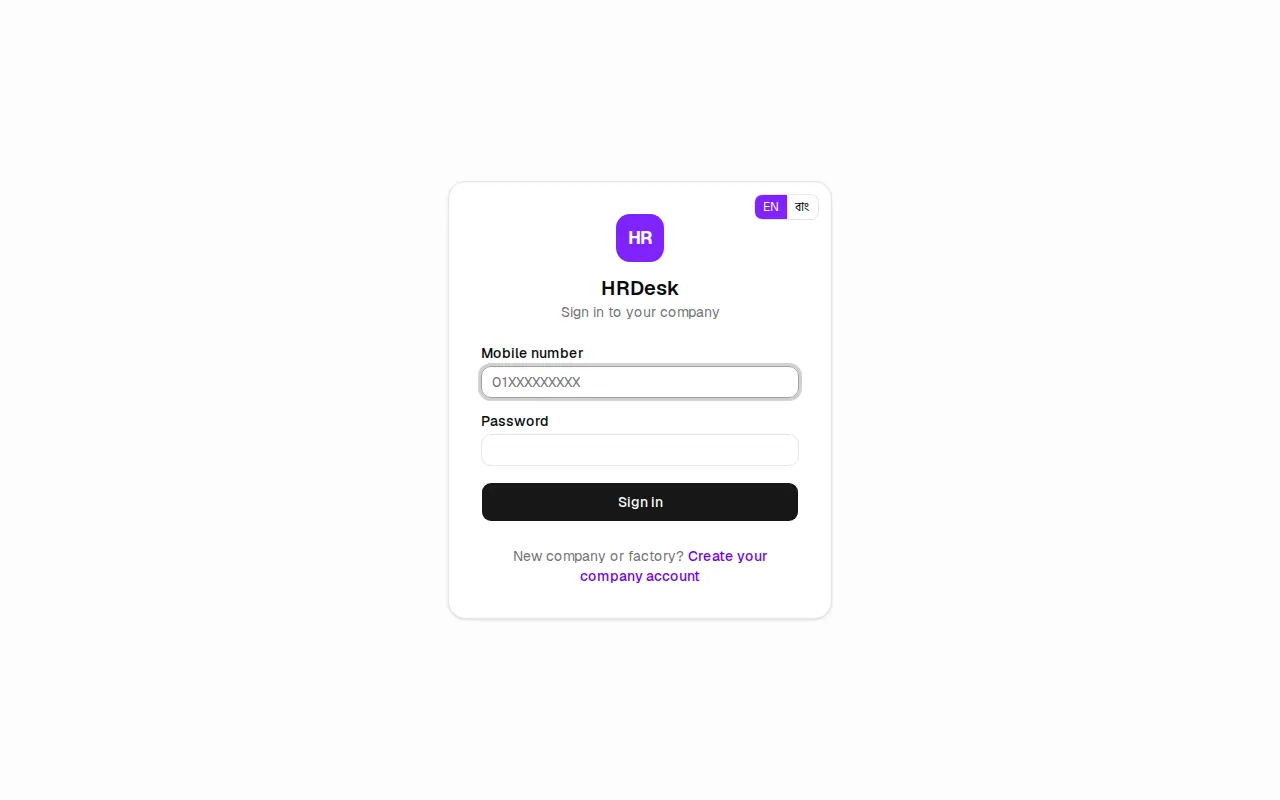
You sign in to HRDesk with your Mobile number (01XXXXXXXXX) and Password.
| What you see | Cause and fix |
|---|---|
| Wrong phone number or password | The number or password is wrong. Check the leading 0 of the number and that Caps Lock is off. |
| Too many attempts. Wait 15 minutes and try again. | 10 wrong tries within 15 minutes. Wait, or have the password reset. |
| "This account is disabled…" | Your login has been deactivated, or the company account is closed. Ask HR or the owner. |
Who resets a forgotten password:
| Whose password | Who resets it | Where |
|---|---|---|
| An employee's self-service login (e.g. Rupa Akter) | HR manager, HR officer, Owner | Employee record › Login tab › Reset password — the new password goes by SMS and is shown once on screen |
| An office user (HR, payroll, line manager) | HR manager, Owner | Users & roles › key icon next to the user › New password › Set password |
| An owner | Only another owner | Users & roles; if the company has no other owner, contact JonakiSoft support |
After a reset the old password stops working and that user is signed out on every device. If you know your password you can change it yourself: the key icon in the header › Change my password — Current password, New password (at least 6 characters), Repeat new password.
The "No access" page
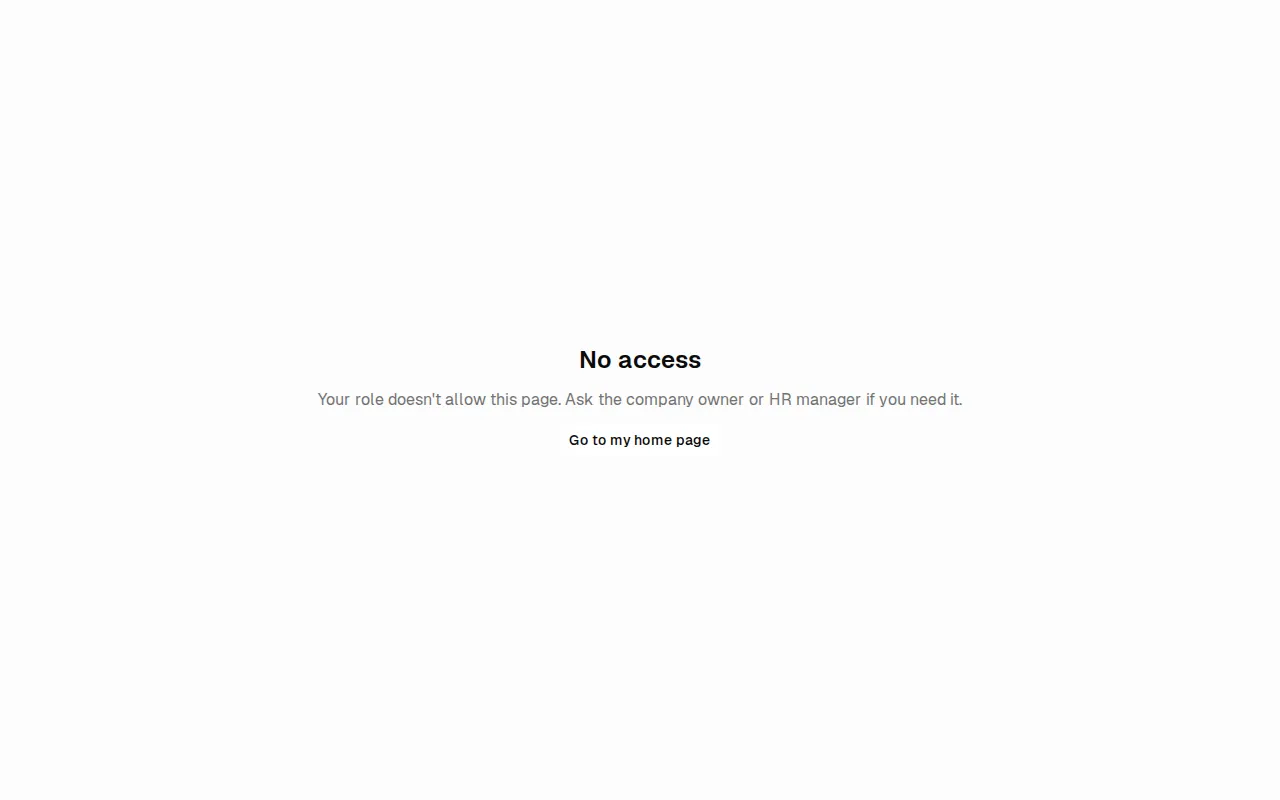
No access appears when your role isn't allowed on a page — for example an HR officer opening the Audit log, or an employee following a link to Salary sheets. It is not an error: every role has its own rights (Getting started).
- What you see in the sidebar is your work. If you need more, ask the HR manager or owner — they can change your role in Users & roles.
- Line managers see only the employees in their own team; pages of people in other departments don't open.
- The page's Go to my home page button takes you to your own start page — the dashboard, My team for line managers, My desk for employees, Salary sheets for payroll / accounts.
- Users tied to one office or factory cannot open a few company-wide reports either.
"… is not part of your plan" — a feature switched off
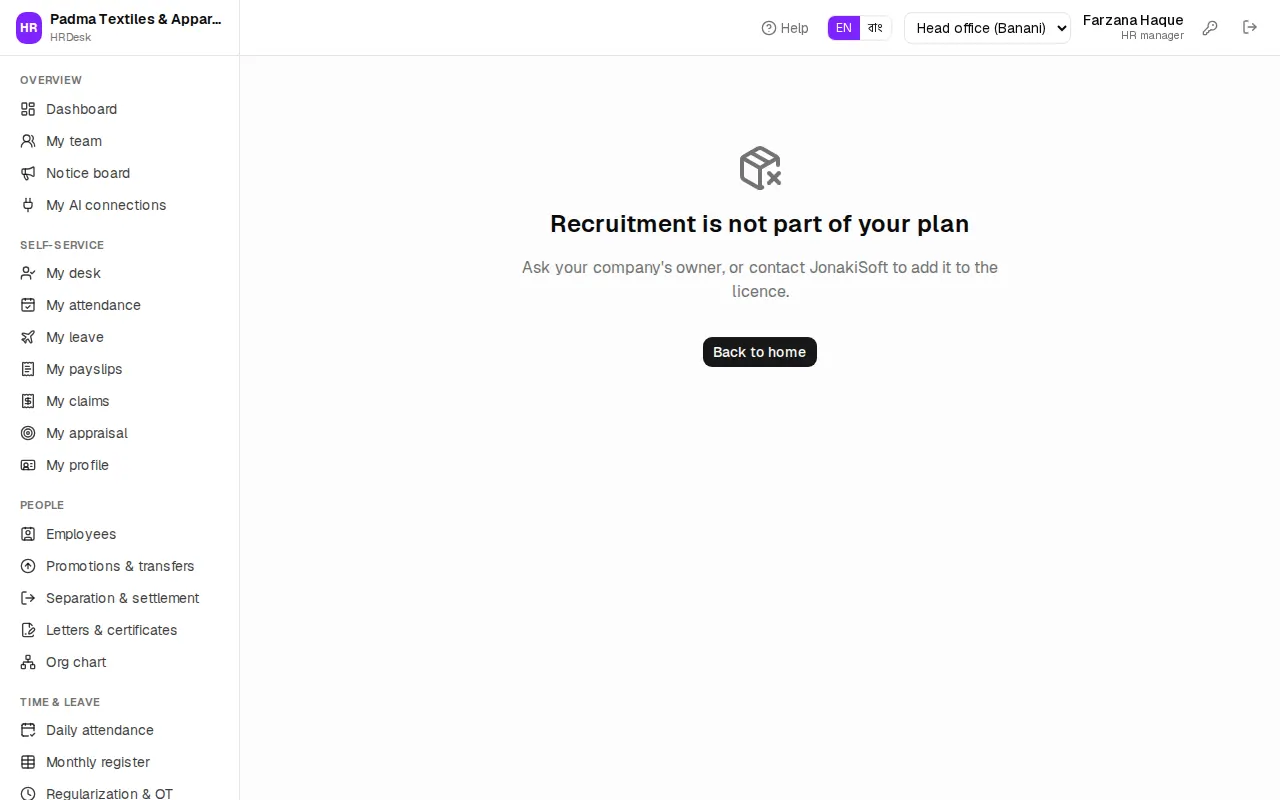
JonakiSoft decides which parts of HRDesk your company's licence includes. A part that is switched off disappears from the sidebar, and a direct link shows {name} is not part of your plan (for example "Recruitment is not part of your plan").
Parts that can be switched on or off: leave, regularization & overtime requests, shift roster, attendance devices, phone check-in, payroll, festival bonus, loans & advances, income tax, provident fund, expense claims, separation, letters & certificates, notice board, recruitment, careers page, performance appraisal, training, assets, employee self-service, SMS & WhatsApp, and the AI assistant connector (MCP — off by default).
- Owner: contact JonakiSoft by the phone, WhatsApp or email shown on the page to add it to the licence. Everything else keeps working.
- Everyone else: tell the owner.
- Switching a part off never deletes its data and never changes pay maths (overtime, tax, PF, gratuity) — it only hides the screens.
Licence expired / licence locked
Expired, but in grace: a yellow strip on top of every page — "Your licence has expired. HRDesk keeps working until {date}; please renew." Everything works normally meanwhile. Details shows the contact information, Continue takes you back to work.
Licence locked: after the grace days, or when the licence is suspended or revoked, every page leads to the licence page — Your licence has expired, Your licence is suspended, Your licence has been revoked or No licence found for this company.
- All employee, attendance, leave and payroll records are kept. Everything opens again as soon as the licence is active.
- While locked, employee self-service and the careers page are paused. The server refuses attendance-machine punches, but the machine keeps them and sends them again later — nothing is lost.
- The owner renews by contacting JonakiSoft; others Sign out and tell the owner. Renewal and online payment are covered in Licence, payments & AI.
Device punches are not arriving
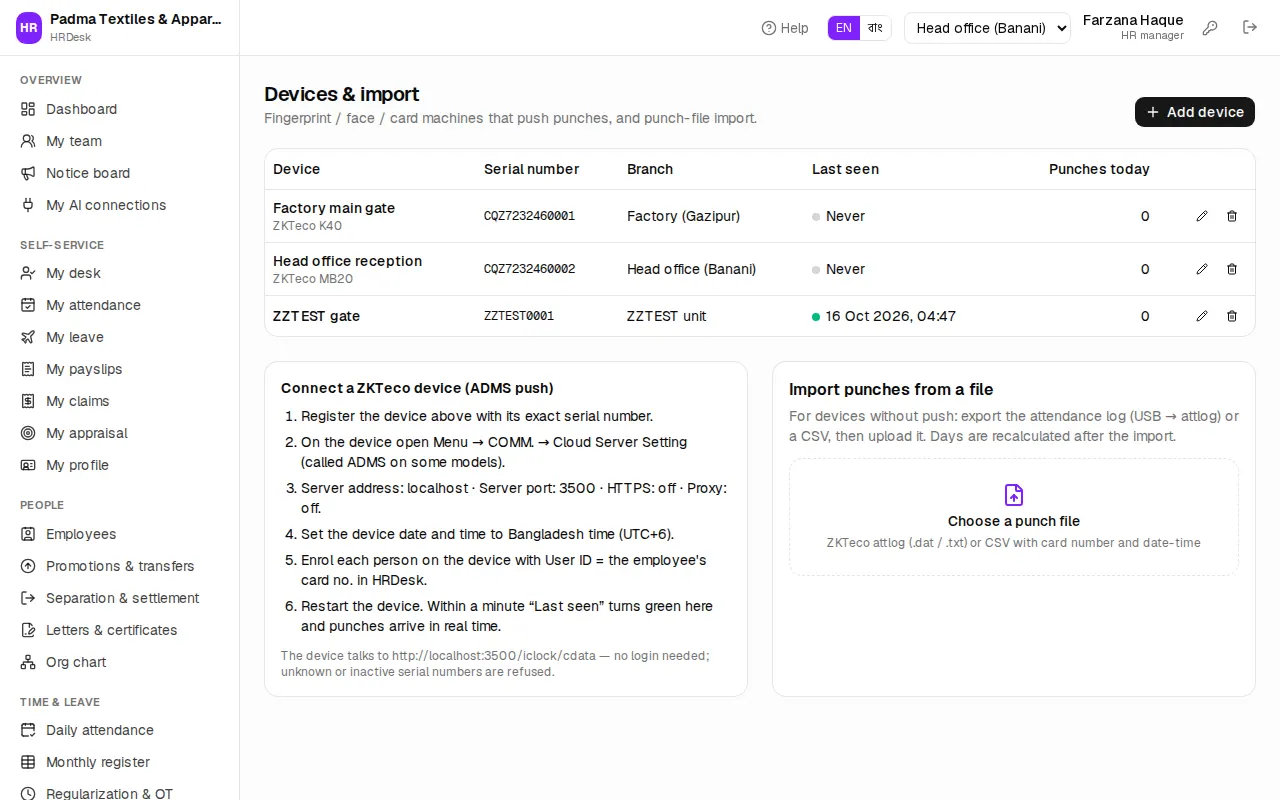
Open Attendance › Devices & import (HR manager, HR officer, Owner) and look at each machine's Last seen and Punches today.
Last seen says "Never" or is long ago: the machine cannot reach the server.
- Check the Serial number matches the machine exactly (on the machine: Menu → System info → Device info). Unknown serial numbers are refused.
- Check the machine is not inactive — Active must be ticked when you edit it.
- In the machine's Cloud Server / ADMS settings enter the server address, port and HTTPS exactly as shown under Connect a ZKTeco device (ADMS push) at the bottom of the page.
- Check the machine's network (LAN cable / Wi-Fi), then restart it.
- A locked licence or a switched-off "attendance devices" feature also makes the server refuse punches (see above).
Connected, but one person's punches are missing: the person's User ID on the machine must equal their Card no. in HRDesk (for example Rupa Akter's card no. must be her User ID on the machine). Otherwise the punch is skipped.
Times are wrong: set the machine's date and time to Bangladesh time (UTC+6). Punches more than a day in the future are dropped.
Phone check-in refused
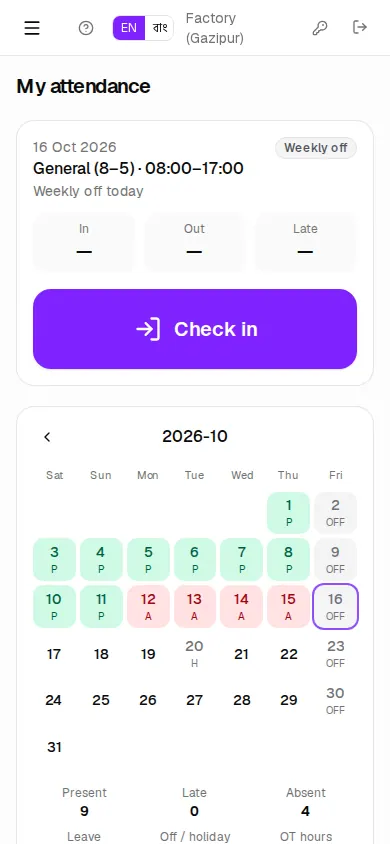
Employees check in with the big Check in / Check out button on My attendance (or My desk).
| What you see | Cause and fix |
|---|---|
| No button, only "Use the attendance machine at the gate to punch in and out." | Phone check-in is off for the company. The HR manager turns it on in Settings › Work week & attendance › Phone check-in (and the "phone check-in" feature must be in the licence). |
| Turn on location to check in — your company requires it | The phone's location (GPS) is off, or the browser was not allowed to use it. Turn location on in the phone's settings, allow location for the site (lock icon in the address bar), and press again. |
| You are about … from {branch}. Check-in works within … m of the office. | You are outside the office geofence. Come closer to the gate and try again. GPS is weak indoors — step near a window or outside. |
| Already recorded a minute ago | You tapped twice; the first tap was recorded. |
| Your login is not linked to an employee record | Ask HR to link your login to your employee record. |
For HR: the geofence is switched on with Settings › Only at the office (geofence), and each office's location and radius are set under Offices & factories (stand at the office gate, press Use my current location, then set Radius (m)). An office with no location set is not distance-checked — that page also shows a warning. A very small radius (20–30 m) leaves many people "outside" because of GPS error; 100–200 m is safer for a factory.
Wrong late or absent marks
Attendance is worked out automatically from punches, shifts, rosters, holidays and approved leave. A wrong mark usually means one of these is wrong:
- Wrong shift — check the employee's shift or roster. After the shift start + Grace time (minutes) the day is Late; worked less than Half day below (minutes) is a Half day.
- Holiday missing — without the public holiday or the employee's own weekly off day, that day shows Absent.
- One punch missing — with only an in- or only an out-punch the day shows Missing punch.
- Machine time or card no. wrong — see the device part above.
How to fix it:
- The employee: My attendance › Request correction — date, What happened?, in/out time and the reason. When the line manager or HR approves it on Regularization & OT, the day is corrected.
- HR: on Daily attendance press the pencil on the employee's row and change the status and times.
- After fixing shifts, rosters or holidays, use Daily attendance › Reprocess to recalculate those days. Days edited by HR, regularized or locked by payroll are kept.
The full rules are in the Attendance chapter.
Salary sheet locked / wrong figures
A salary sheet goes Draft → Approved → Paid.
- While Draft, Payroll presses Recalculate to pick up attendance, salary structure, loans and tax afresh.
- The HR manager or owner Approves it. The figures and the month's attendance are then locked; any change shows This salary sheet is approved — reopen it to recalculate.
- Reopen — HR manager or owner, only while no salary is marked paid. Once even one salary is paid the sheet cannot be reopened (Some salaries are already paid — this sheet cannot be reopened).
When a figure looks wrong, check: the employee's Salary tab (gross and its parts); the month's absences and late days (Absent ded., Late ded. columns); whether the employee is Overtime eligible and Pay overtime is on in Settings; running loan installments; tax and PF. Fix it and press Recalculate on the draft. Details in the Payroll chapter.
Leave balance looks wrong
Open Leave › Leave balances (HR manager, HR officer). Balance = opening (carried forward) + accrued + adjusted − used − encashed. Days of pending requests are held back from the available balance.
Usual causes:
- Little earned leave — under the Labour Act 1 day per 18 days worked, normally after one year of service. Absent days don't count.
- A new joiner has less casual leave — joining mid-year gives a share for the remaining months.
- Too few or too many days taken — most leave skips weekly offs and holidays inside the dates; earned and maternity leave count every calendar day.
- Last year's balance didn't come across — run Year-end carry forward at the end of the year.
For a manual correction press Adjust on the employee's row (with a reason). Only HR can cancel approved leave. Details in the Leave chapter.
SMS not sent
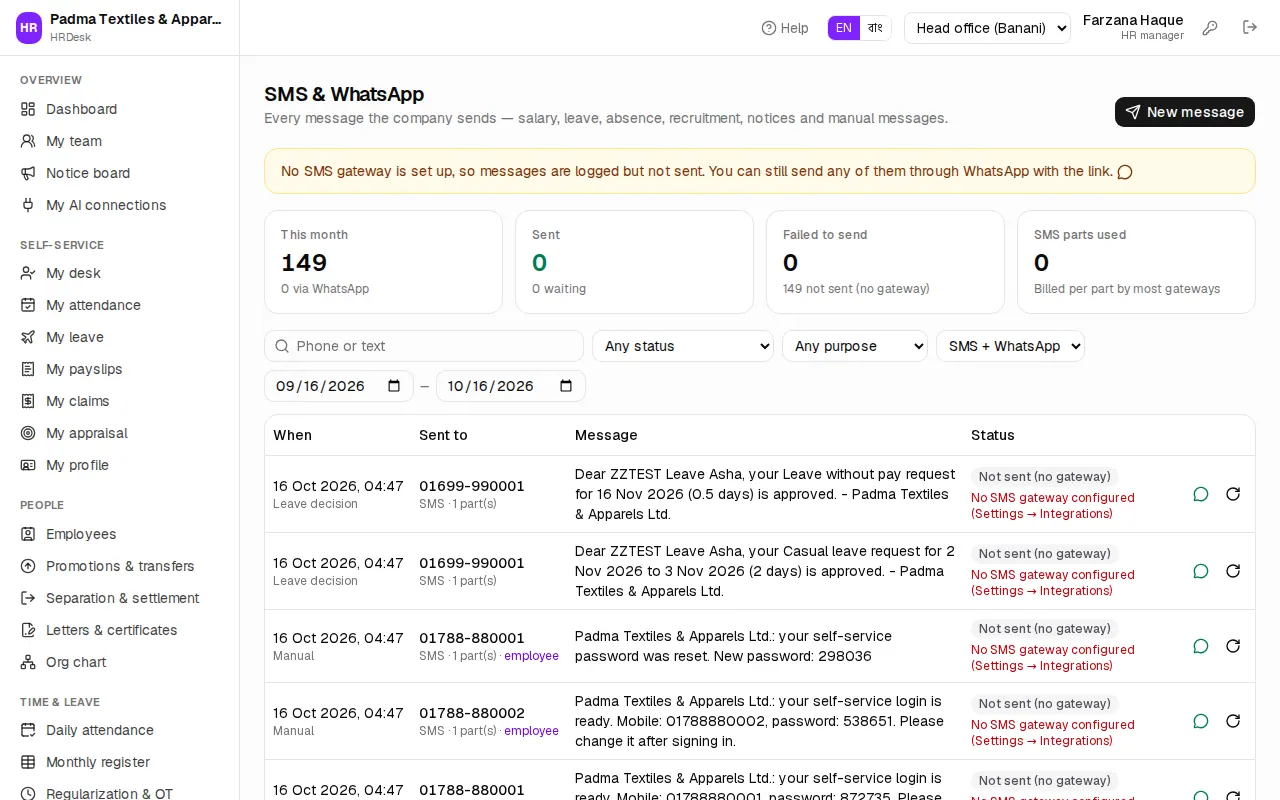
Open Admin › SMS & WhatsApp (HR manager, HR officer, Owner) and look at each message's Status:
| Status | Meaning and fix |
|---|---|
| Not sent (no gateway) | No SMS gateway is set up — the message is only logged. The owner sets one up in Settings › Integrations. Until then you can press the WhatsApp icon on a row and send it from your own phone. |
| Failed to send | The gateway refused or did not answer — the reason shows in red (e.g. wrong API key, no balance). It is retried automatically twice more, about 5 minutes apart; Retry now sends it at once. |
| Queued | It is about to be sent. |
Also check:
- No messages are created at all — under Settings › Integrations › Automatic messages tick Salary paid, Leave decisions, Absence alerts and so on.
- The employee's mobile number is missing or wrong — it must be a Bangladeshi number, 01XXXXXXXXX.
- Bangla SMS cost more — a Bangla SMS holds 70 characters. Setting Message language to English uses fewer parts.
- To test the gateway use Settings › Integrations › Send a test. Only the owner can change the gateway.
Printing and PDF
- Payslips, salary sheets, bank advice, job cards and the like open on their own print page and the print dialog appears by itself. Print and Close buttons sit at the top.
- Payslips offer A5 / A4 and English / বাংলা; salary sheets A3 / A4 — choose before printing.
- For a PDF, choose Save as PDF (or "Microsoft Print to PDF") instead of a printer in the print dialog.
- For wide papers like the salary sheet choose Landscape in the print dialog and switch "Headers and footers" off.
- Printing reports is covered in Reports. For the whole user guide as a PDF, press Download PDF on the guide page.
Slow internet
HRDesk runs in the browser, so every action needs the internet.
- After you press a button its text changes (e.g. "Signing in…") and it is disabled — don't press again, wait.
- If a page hangs, refresh it; saved data is never lost, only an unsaved form may need filling in again.
- Keep the date range of big reports short and pick one office.
- Phone check-in also needs the internet. Attendance machines, however, store punches while offline and send them when the connection is back.
Switching the language
- Press EN | বাং in the header — the language changes at once and is remembered on your account, so it stays after you sign in again. The sign-in page has the same switch.
- The HR manager sets the starting language for everyone in Settings › Language › Default language. For one user: Users & roles › edit › Language.
- SMS language is separate: Settings › Integrations › Message language. Payslip print language can also be chosen on the print page.
- Names of employees and departments show as they were typed — switching language does not translate them.