For employees & managers
For line managers
The My team page — who is in today, leave, attendance corrections and expense claims waiting for your decision, leave in the next two weeks, your team's appraisals and your own self-service
Who it is for:Line manager
On this page
Production managers, line chiefs, section in-charges — anyone with people working under them is a Line manager in HRDesk. After signing in, the My team page opens first: your team's attendance today and everything waiting for your decision, in one place. The page is made for the phone — you can approve standing on the floor.
In the demo, Padma Textiles' production manager Abdul Kader Bhuiyan (login 01600000005) is a line manager; the Sewing operators are in his team.
Who is in your team
Your team is everyone whose profile has your name in Reports to — and the people under them too (shown as "indirect"). HR sets this field; if someone is missing from your team or should not be in it, tell HR.
You only see your own team's data and can only decide their requests — employees of other departments, salaries and other people's personal accounts are not shown to you. On your team members' profiles the NID, birth registration and passport numbers, their documents and their bank / wallet account numbers are hidden too — ask HR if you need them.
| The page says | What to do |
|---|---|
| "Your login is not linked to an employee record" | Ask HR to link your login to your employee profile |
| "Nobody reports to you yet" | Ask HR to put you in Reports to on your team members' profiles |
The My team page
My team in the sidebar (it is also your home page after sign-in).
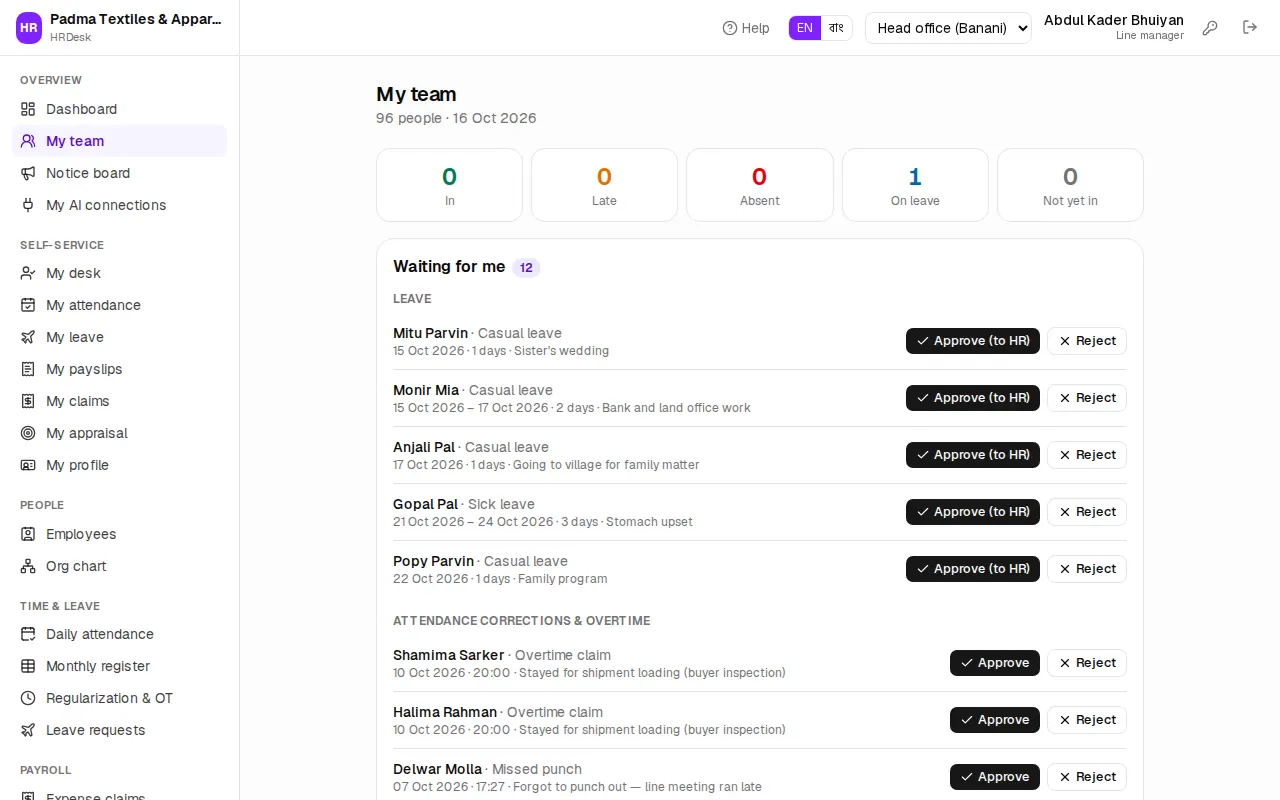
From top to bottom:
- Heading — how many people are in the team and today's date.
- Count cards — In, Late, Absent, On leave and Not yet in.
- Waiting for me — leave, attendance corrections & overtime and expense claims that need your decision. When there is nothing it says "Nothing waiting — all caught up."
- Today — each person's status today with in and out times. Absent people come first, then those not yet in, then the late ones. Attendance opens the full list.
- Away in the next 14 days — who is off on which day, with the leave code (CL, SL …). Blue = approved, yellow = pending. Handy when planning the line.
- My interviews and Appraisals to review — only shown when there are any.
- Team members — tap a name for the profile, the phone icon to call straight away.
At the very bottom are links to Leave requests, Regularization & OT, Expense claims and Performance.
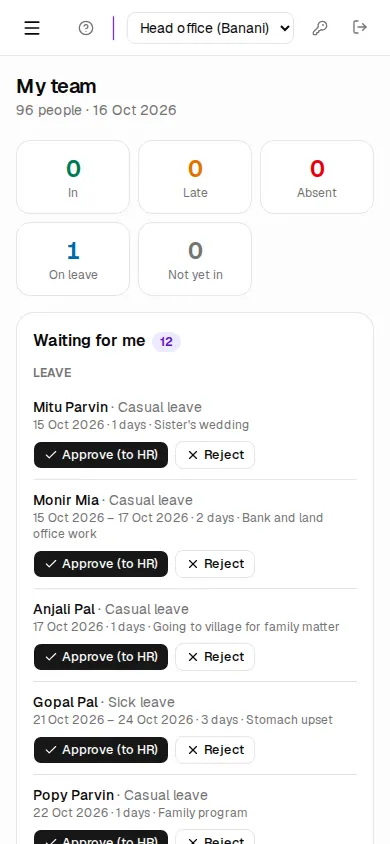
Approving leave
When someone in your team applies for leave it comes to you first, then to HR.
- Look at the request under Waiting for me › Leave — name, leave type, dates, days and reason. Tap the name for the full detail (certificate, history).
- If you agree, press Approve (to HR), add a note if you like and press Approve. You'll see "Approved — sent to HR".
- If not, press Reject, write the Reason for rejection and confirm. The request ends there.
Even after your approval, the leave is final only when HR approves it — that's when the employee gets the SMS and attendance shows On leave. The Time & leave › Leave requests page lists all your team's requests and has a month Calendar. The full rules: Leave.
Attendance corrections and overtime
When someone forgot to punch, was out on duty or worked extra, they send a correction request from their phone. It arrives under Waiting for me › Attendance corrections & overtime with the kind (Missed punch, Outdoor duty, Work from home, Overtime claim), date, times and reason.
- If it is right, press Approve, add a note if you like and confirm. Attendance is corrected at once — there is no separate HR step here.
- If it is wrong, press Reject and give the reason.
To change the minutes of an overtime claim, or approve several days of your team's overtime at once, go to Time & leave › Regularization & OT — it has an Overtime approval tab. You can also view your team's Daily attendance, Monthly register and job cards, but editing days is HR's job. More in Attendance.
Expense claims
Travel and other expense claims from your team arrive under Waiting for me › Expense claims — number, title and total. Approve (to HR) passes the claim on to HR / accounts for final approval and payment. A reason is required to reject. More in Loans, tax, PF & expense claims.
Appraisals and interviews
During an appraisal cycle, Appraisals to review lists each team member, with Self review done or Waiting for self review next to the name. Tap a name to open the appraisal; how to score it is in Performance & training.
If you are on an interview panel, My interviews shows the candidate, job, round, time and place (Recruitment).
Your own attendance, leave and payslips
A line manager is an employee too. The Self-service part of the sidebar has My desk, My attendance, My leave, My payslips and My appraisal — use them like every other employee (Self-service).