Employees
Separation & final settlement
Resignation, termination, retirement and other exits — notice period, clearance, the final settlement (gratuity, leave encashment, dues), payment, the settlement statement and what happens to the employee and login afterwards
Who it is for:Owner / MDHR manager
On this page
When someone leaves — they resign, the company terminates the job, or they retire — the whole process runs in Separation & settlement: notice, clearance, the final dues worked out under the Labour Act, payment and the release letter.
Only the Owner and HR manager see this area. There is no separate approval step — the HR manager handles it end to end; the printed settlement statement has signature boxes for the preparer, accounts, HR manager and approver.
Every separation goes through these states:
| Status | Meaning |
|---|---|
| On notice | The separation has started; the employee works until the last working day |
| In clearance | Departments are clearing the employee |
| Settled | The final dues are paid — the case is closed |
| Cancelled | Resignation withdrawn etc. — the employee is active again |
The list and summary
Open Separation & settlement in the sidebar.
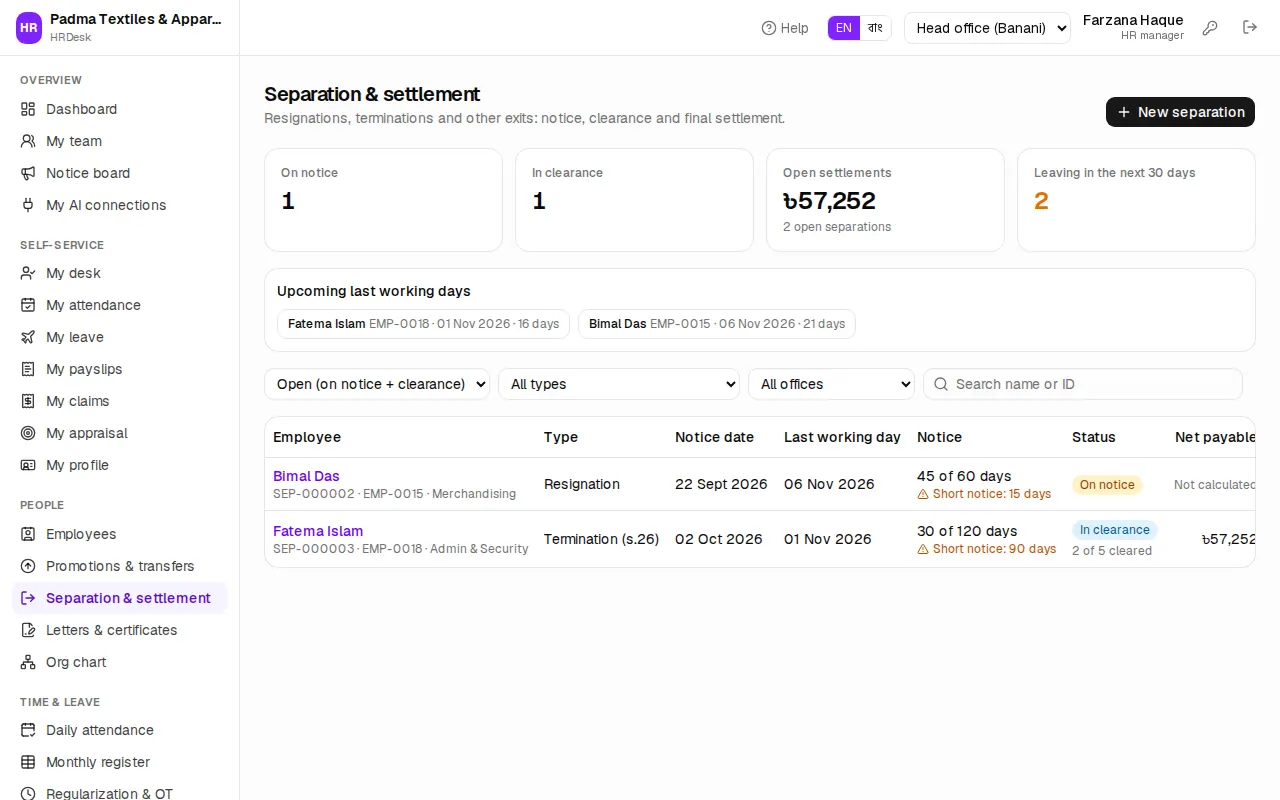
The cards at the top show On notice, In clearance, Open settlements (the total still to pay) and Leaving in the next 30 days. Below them, Upcoming last working days — click a name to open that separation.
The list shows Open (on notice + clearance) by default; filter by status, type and office, or search by name/ID. Each row shows how much of the notice was served, how many clearance items are done and the Net payable.
Starting a separation
- Press New separation.
- Search and pick the Employee.
- Choose the Type of separation — a short explanation of each appears below:
- Resignation — permanent workers give 60 days' notice, others 30 (s.27).
- Termination (s.26) — the company gives notice (120 days for permanent, 30 for others) or pays basic in lieu, plus 30 days' basic per year of service.
- Dismissal for misconduct (s.23) — after an inquiry; no notice pay or benefit, but earned dues are still paid.
- Discharge — ill-health (s.22), Retirement (s.28), Death in service (s.19), End of contract, Abandonment of job (s.27(3A)).
- Set the Notice date (for a death, Date of death) and the Last working day.
- The box below works it out: "Required notice: 60 days · Notice given: 30 days". Short notice shows an amber warning.
- Write the Reason / remarks (e.g. Better opportunity) and press Start separation.
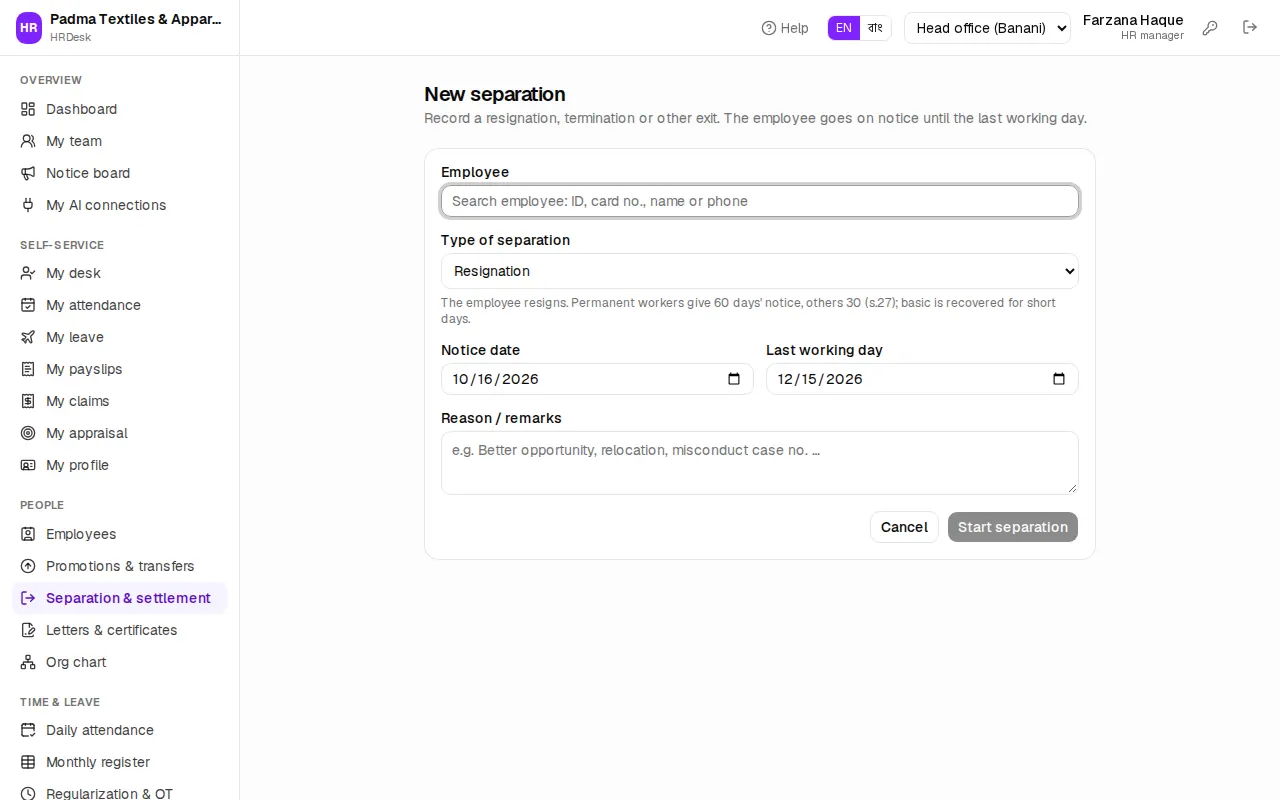
The separation gets a number (SEP-…), the employee goes On notice, and an entry is added to their career history.
If the dates are wrong or the employee stays longer, press Change dates on the separation page — the notice figures update themselves.
Clearance and exit interview
Next to the summary on the separation page is the Timeline — who did what and when.
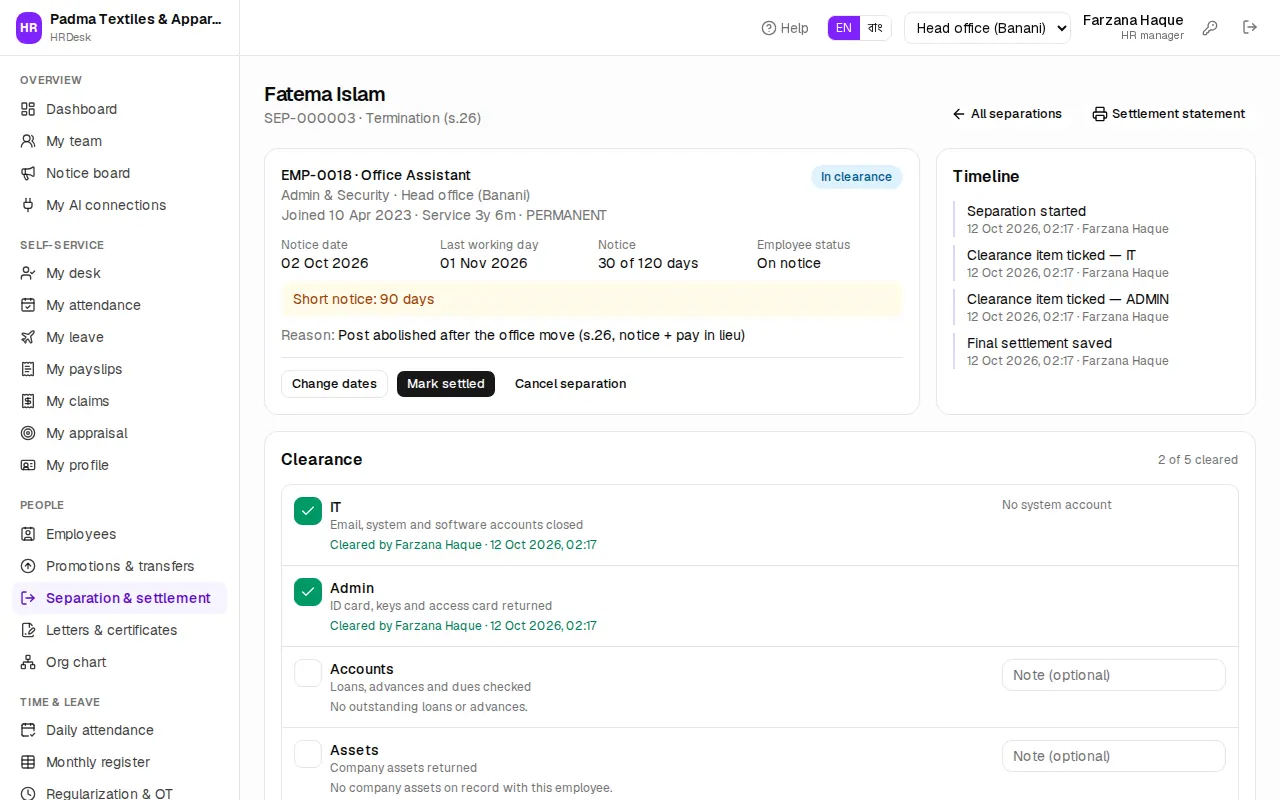
- Press Start clearance (or simply tick the first item — that also moves the case to In clearance).
- The Clearance list has five items:
- IT — email, system and software accounts closed
- Admin — ID card, keys and access card returned
- Accounts — loans, advances and dues checked (outstanding loans are listed under it)
- Assets — company assets returned (laptops, phones etc. held by the employee are listed under it)
- HR — personal file, handover and exit interview done
- Optionally type a Note (optional) next to an item, then click the square button on the left — a green tick and "Cleared by …" appear. Click again to untick a mistake.
- In Exit interview write why the employee is leaving, what went well and what could be better, and press Save notes.
Working out the final settlement
In the Final settlement part of the page HRDesk calculates under the Labour Act by itself — it reads the gross and basic on the last day, earned leave, provident fund and outstanding loans from the database.
Earnings:
- The final month's salary (e.g. Salary for 2026-11) — the days worked in that month. A month already in a payroll run is left out, so nobody is paid twice.
- Earned leave encashment — remaining earned-leave days × wages ÷ 30.
- Gratuity — completed years × days of basic (Padma's policy: 30 days a year once service reaches 5 years).
- Service benefit — the Act's benefit on termination, resignation (after 5 years), discharge, death and retirement.
- Pay in lieu of notice, or Short-notice recovery for short notice.
- Provident fund — own part + employer part (once vested).
- Other pay — enter by hand, with what it is for (e.g. festival bonus due).
Deductions: Loan / advance recovery, Other deductions (e.g. unreturned laptop), Income tax (TDS).
Changing the options at the top recalculates at once:
- Leave encashment on — Gross wages ÷ 30 or Basic ÷ 30; the Earned leave days can be changed by hand.
- Gratuity rule — company policy, or Labour Act s.2(10): 30 days a year, 45 after 10 years.
- Benefit & notice pay on.
- Pay the higher of service benefit and gratuity (not both) — ticked by default, as the Act says.
- Pay out provident fund with this settlement; for a resignation Waive recovery for short notice; for a death Died on duty / of a work accident (45 days a year).
If you disagree with any line, type your own figure in the Override (৳) box on the right. The bottom shows total earnings, total deductions and the Net payable to the employee. Press Save settlement when done.
Paying and the settlement statement
- Make sure all five clearance items are done and the settlement is saved — otherwise it cannot be paid.
- Press Mark settled.
- Choose Paid by (defaults to the employee's salary method — cash, bank, bKash …), the Payment date and the Reference (cheque / transaction no.).
- Press Mark settled again.
This pays out the provident fund (an unvested employer part is forfeited) and closes outstanding loans with a final repayment. The status becomes Settled — nothing can be changed after that.
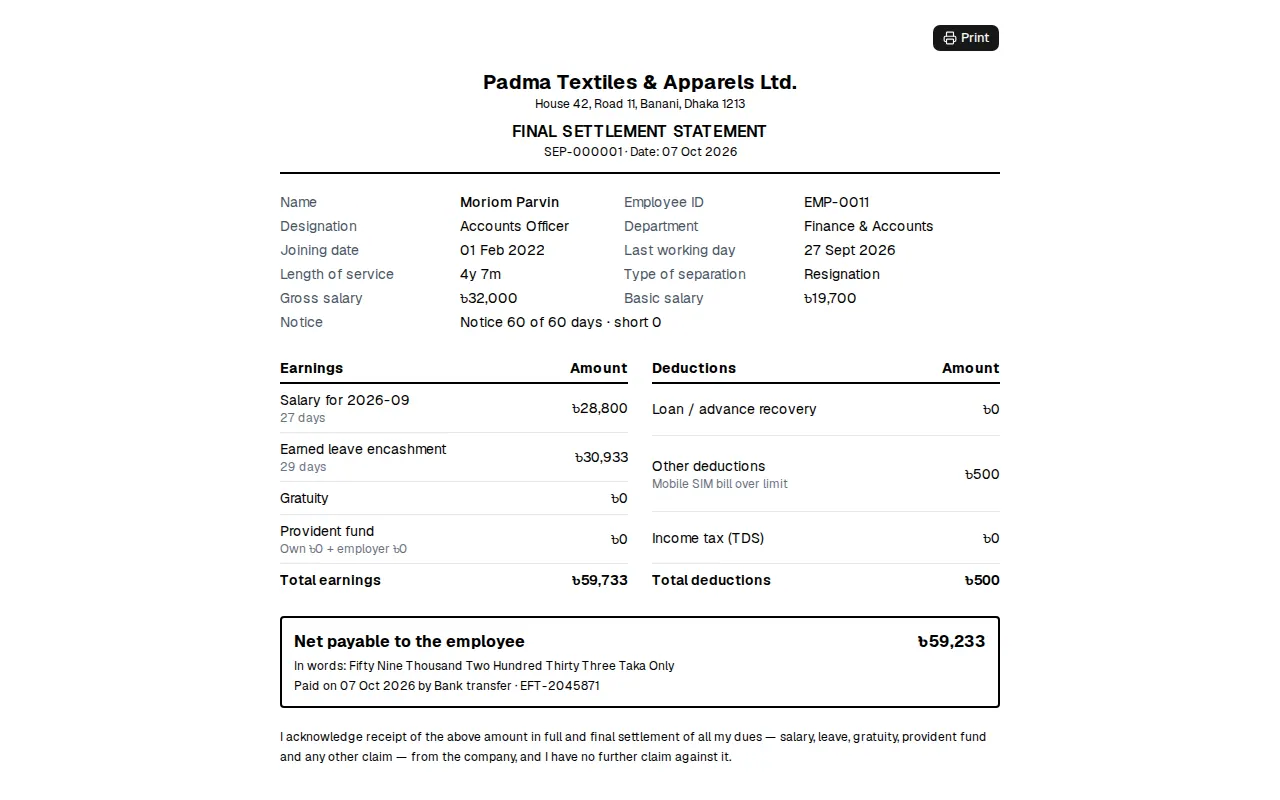
Settlement statement (or Final settlement statement) opens the print page — employee details, earnings and deductions, the net amount in words, the employee's acknowledgement and signature boxes. Print two copies and get the employee's (or, after a death, the nominee's) signature.
Release letter and experience certificate
In the Documents part at the bottom of the page:
- Issue release letter
- Issue experience certificate
Confirm, and the letter is issued with a number and listed there — click the number to print. The text comes from your templates; see Managing employees — letters and certificates.
What happens after the employee leaves
- Until the last working day the employee is On notice — they appear in attendance and on the salary sheet as before, and the profile says "Serving notice — last working day …".
- Once the last working day has passed the status becomes Separated by itself (a nightly job checks every company, so nobody has to open a page for it). The final month's salary sheet pays only up to the last day; from the next month they no longer appear in attendance, rosters or the salary sheet.
- At the same time their login is switched off (an owner's login is never touched). If needed (e.g. to download payslips) HR can press Enable login on the Login tab of the employee's profile — it stays enabled; the nightly job switches a login off only once. Cancelling the separation turns the login back on.
- They drop off the employee list by default — choose All, incl. separated to see them. Their old attendance, pay and letters stay on record.
Cancelling: if the employee withdraws the resignation, press Cancel separation any time before settlement and give a reason (e.g. Resignation withdrawn). The employee goes back to active and the separation entry is removed from the job history. A settled separation cannot be cancelled.
How the final month reaches the salary sheet is in Payroll; provident fund and loans are in Loans, tax & provident fund.