Recruitment & performance
Performance, training & assets
Appraisal cycles (goals, self review, manager review, final rating and increment recommendations), scheduling training and recording attendance, and which company assets are with whom.
Who it is for:Owner / MDHR managerHR officerLine manager
On this page
The Talent part of the sidebar has three jobs: Performance (the yearly appraisal), Training and Assets (who has which laptop, phone, SIM or ID card).
| Task | Who can do it |
|---|---|
| Create an appraisal cycle, add participants, change its stage, finalise | HR manager, owner |
| Set an employee's goals | HR manager, owner; a line manager for their own team only |
| Manager review | Line manager (own team), HR manager, owner |
| Your own self review | Every employee in the cycle — see My desk |
| Training and Assets | HR manager, HR officer, owner |
How an appraisal cycle runs
A cycle goes through four stages. HR moves it with the Move to … buttons at the top of the cycle page.
| Stage | What happens |
|---|---|
| Draft | Create the cycle, add participants, write goals. Employees don't see it yet |
| Goal setting | Goals are finalised; employees see their goals under My appraisal |
| Review | Employees self-review, managers score, HR finalises. Goals can no longer change |
| Closed | The cycle is over; no more edits or new participants |
You can also go back one stage (e.g. from Review to Goal setting). A cycle can't move to Goal setting without participants.
Creating a cycle and adding participants
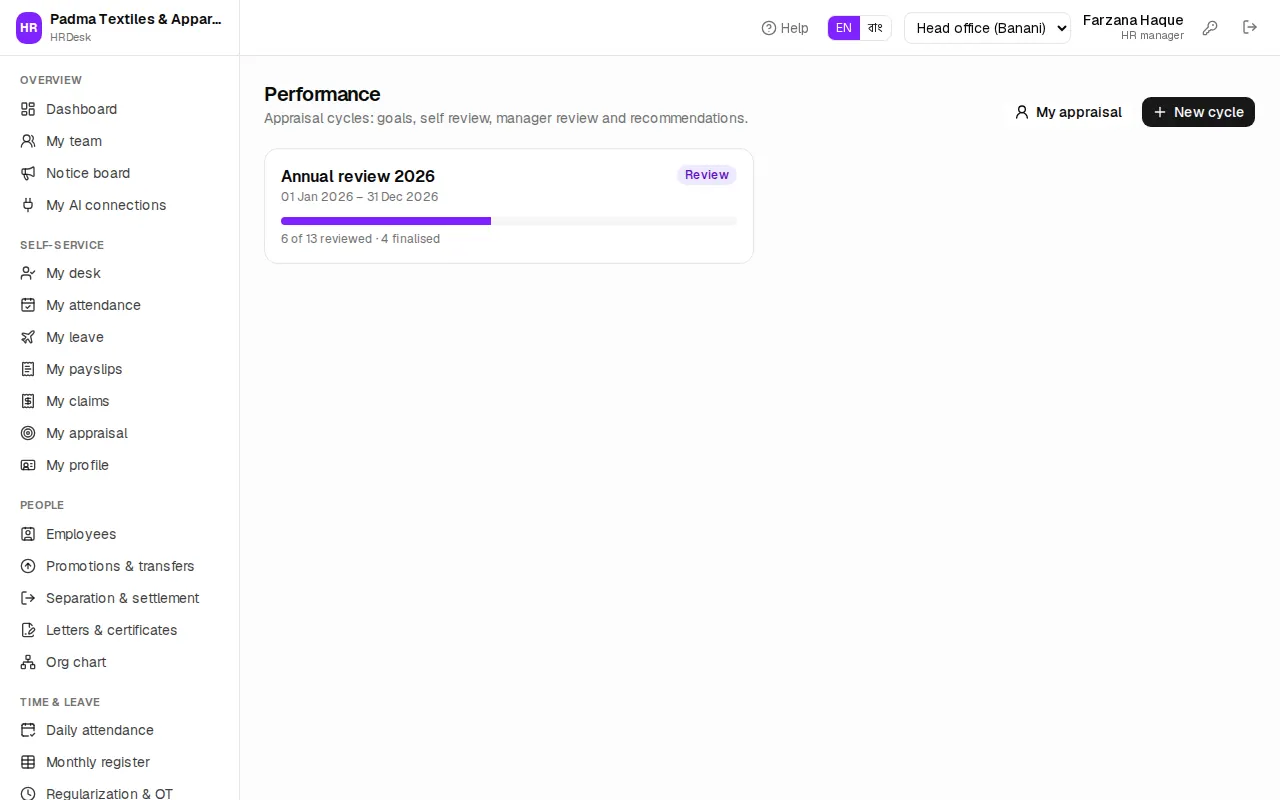
- Open Talent › Performance and click New cycle.
- Enter the Name (e.g. Annual review 2026), Period from and Period to.
- Should employees score themselves first? Keep or clear Employees review themselves first.
- Save. The cycle appears as a card; click it to open the cycle page.
- Click Add participants. Optionally choose a Department (e.g. Sewing) and an Office / factory, then Add.
Every active, confirmed employee not yet in the cycle is added — employees on probation are left out. Each person's Reviewer is their line manager, or the department head if they have no manager. Open someone's appraisal to Change reviewer, or Remove from cycle (their goals are deleted too).
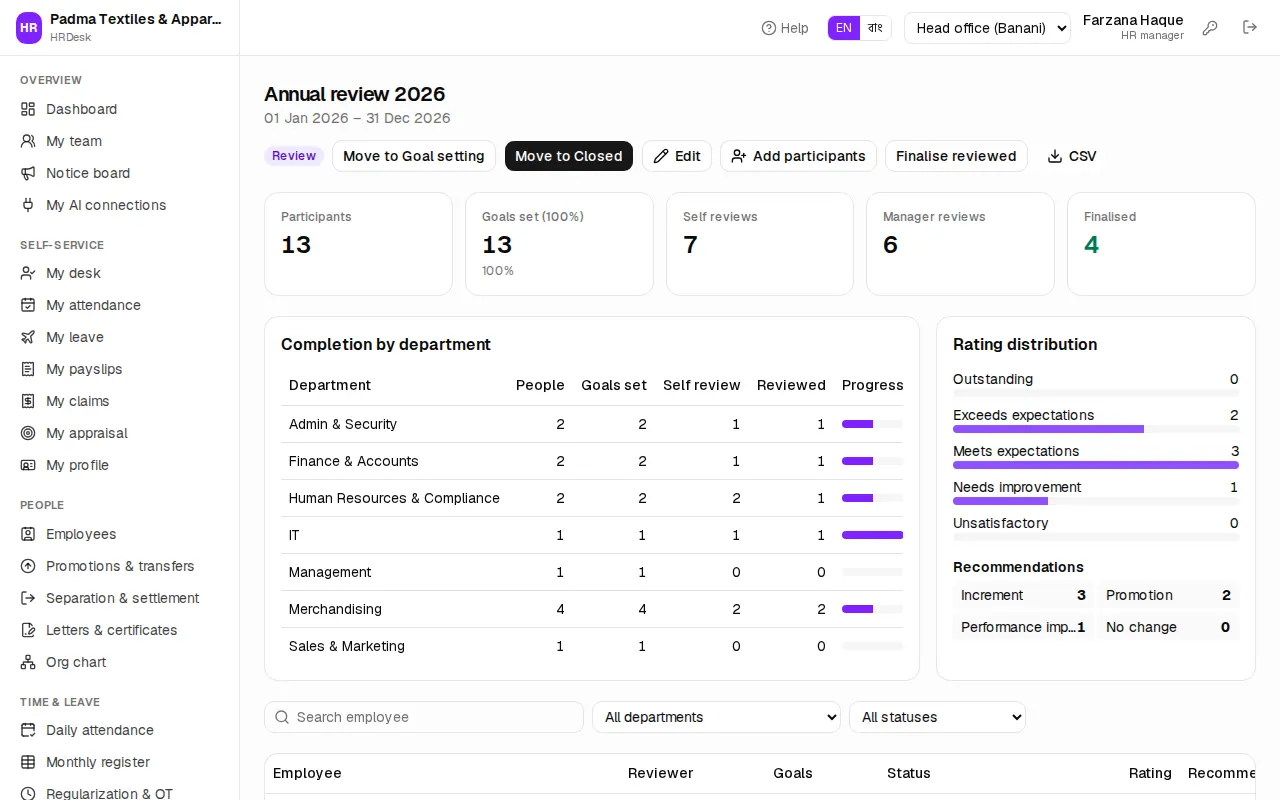
The cycle page shows counts for Participants, Goals set (100%), Self reviews, Manager reviews and Finalised, then Completion by department, Rating distribution and Recommendations. Filter the list by employee, department or status; CSV downloads the whole list.
Setting goals
Goals can only be changed in the Draft and Goal setting stages.
- Click the employee's name in the cycle list (e.g. Rupa Akter).
- In Goals & KPIs, each row has the goal (e.g. 120 pieces sewn per hour), Measure / target and Weight (%).
- Add goal for more (up to 20).
- Total weight turns green at exactly 100%; then click Save goals.
When many people do the same job (e.g. all sewing operators), write one person's goals and click Copy to department, then pick the Department. Tick Replace goals people already have to overwrite existing goals too.
Self review and manager review
When the cycle is in Review, employees score each goal 1–5 from their phone and submit a self review (see My appraisal).
What the manager (or HR) does:
- Open Performance and the cycle. A line manager sees only their own team.
- Click the employee. Read Employee's self review first if there is one; each goal shows Self: … with the employee's own score.
- In Manager review, click 1–5 for each goal, with an optional Comment (optional).
- Under Competencies, score five areas 1–5: Job knowledge, Quality of work, Teamwork, Attendance & punctuality, Initiative.
- Write Overall comments.
- Choose a Recommendation — Increment, Promotion, Performance improvement plan or No change. For an increment or promotion, enter Recommended increment (%).
- The purple line at the bottom shows the live result (goals · competencies · final). With every score filled in, click Submit review.
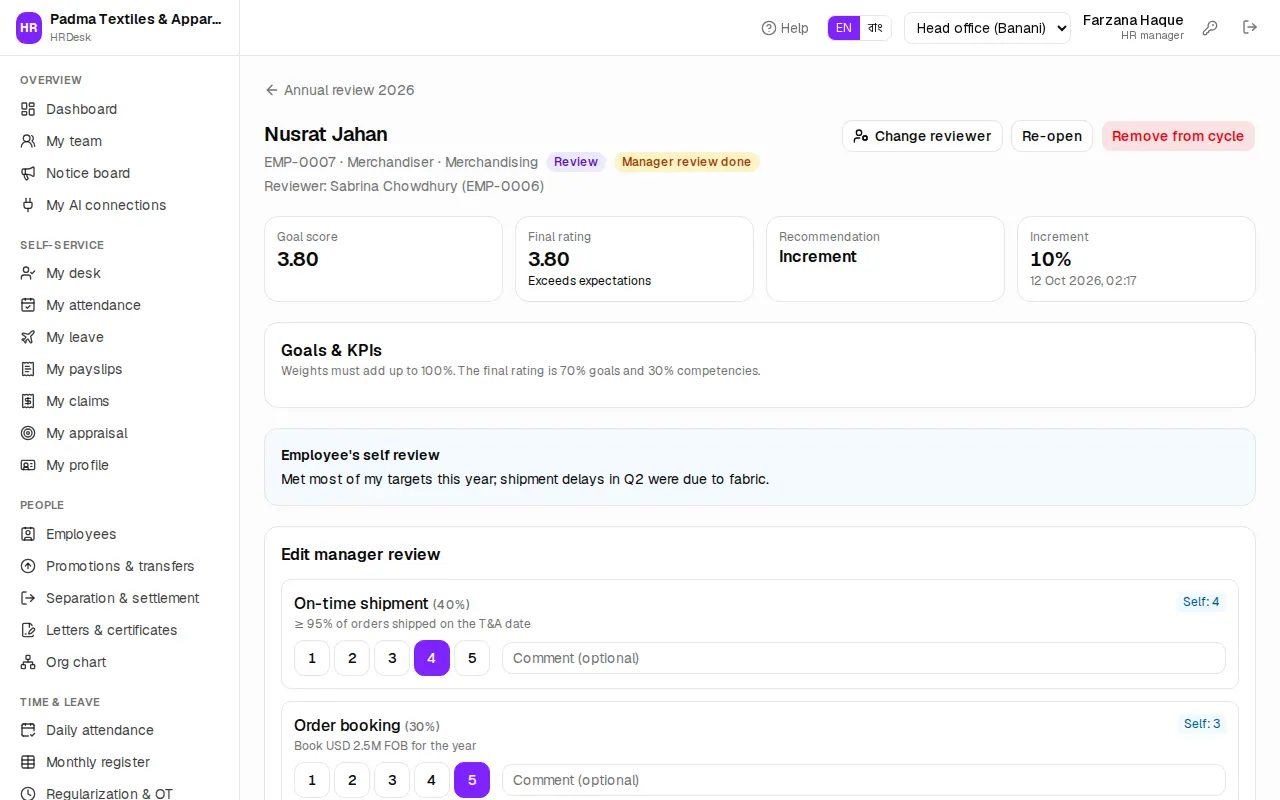
How the rating works: the goal score is each goal's score weighted by its weight. Final rating = 70% goals + 30% competencies. 4.50 or more is Outstanding, 3.75+ Exceeds expectations, 3.00+ Meets expectations, 2.00+ Needs improvement, below that Unsatisfactory.
Finalising and increments
After the manager submits, the status is Manager review done. Now the HR manager:
- Opens the appraisal and, in the Finalise box at the bottom, adjusts Final rating (1–5), Recommendation or Increment (%) if needed.
- Clicks Finalise. The employee sees the final rating under My appraisal.
All at once: on the cycle page, Finalise reviewed finalises everyone with a manager review, keeping the manager's ratings. If something was wrong, open the appraisal and click Re-open to send it back for another manager review.
Scheduling training
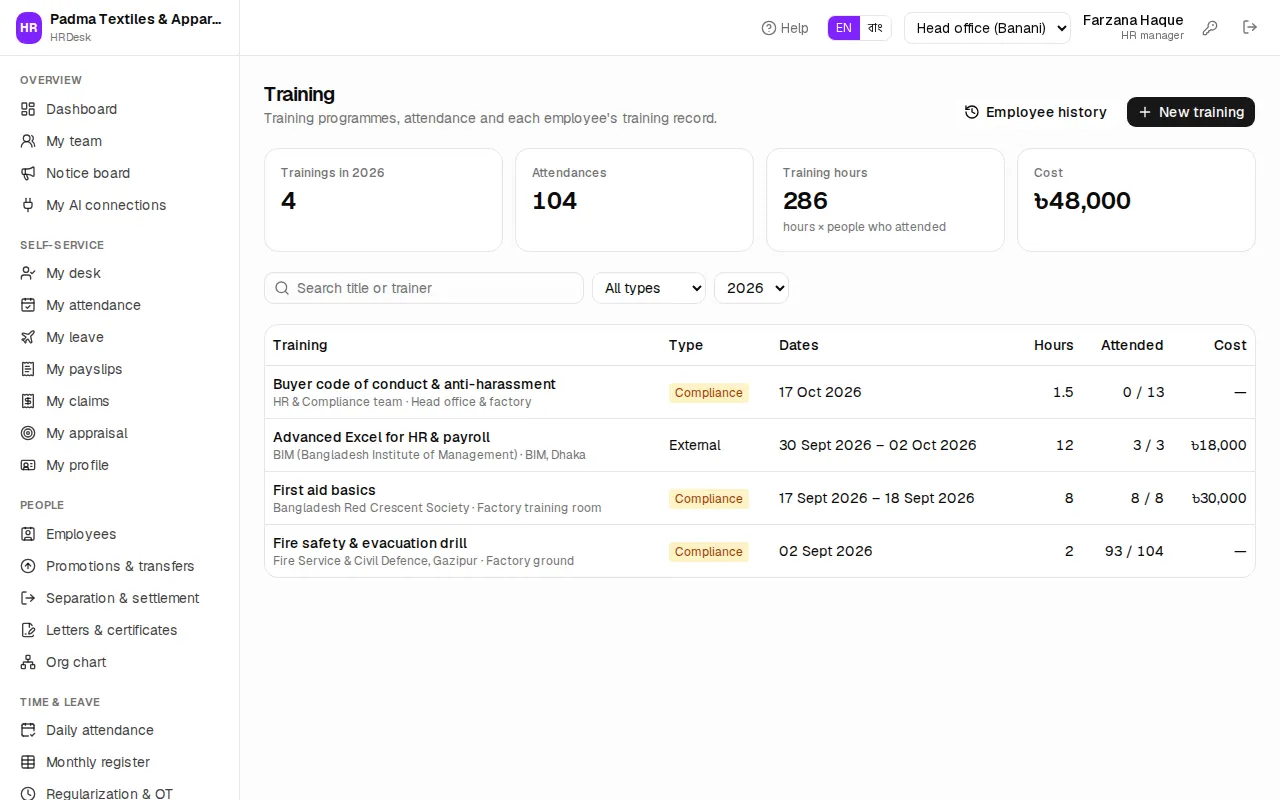
Talent › Training lists the year's training — fire safety drills, first aid, buyer code of conduct and so on. At the top: Trainings in 2026, Attendances, Training hours and Cost.
- Click New training.
- Enter the Title (e.g. Fire safety & evacuation drill) and Type — In-house, External, Online or Compliance.
- Fill in Trainer, Start date, End date (leave it empty for a one-day session), Hours, Cost (৳), Venue, Description.
- Save. Click the title in the list to open the training.
Compliance training (what buyer audits ask to see) is highlighted in yellow. Search by title or trainer, and filter by type and year.
Attendees and attendance
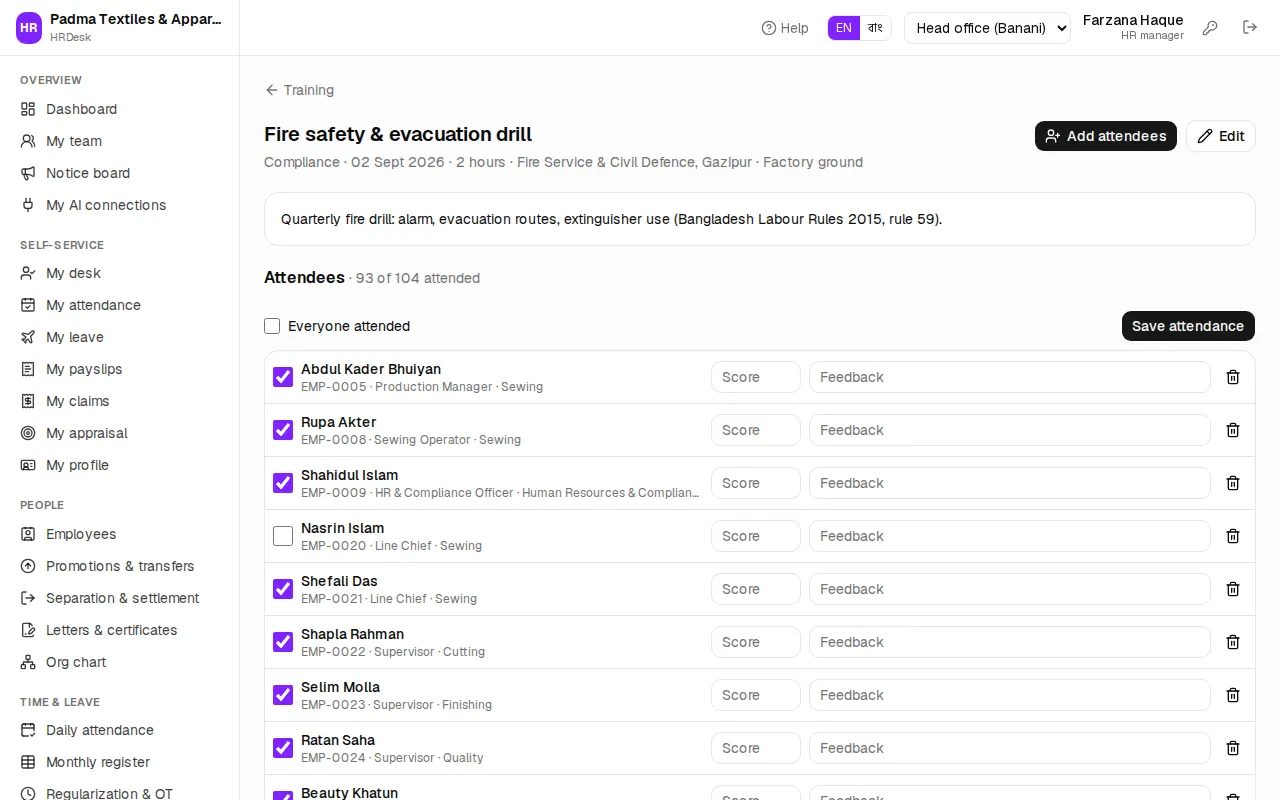
- On the training page, click Add attendees.
- Pick people one by one under Employees (type a name or code), and / or choose Everyone in a department. Setting Only at to an office or factory limits it to people there (with no department, it adds everyone at that place).
- Click Add.
- On the day, tick everyone who came. If all came, tick Everyone attended.
- Optionally enter a Score (0–100) and Feedback.
- Click Save attendance.
Once attendance is recorded the training can no longer be deleted; before that there is a Delete button.
Employee history: the Employee history button on Training shows, for one chosen employee, every training with hours, score and feedback. Employees see their own training under My profile.
Company assets
Talent › Assets tracks the company's laptops, desktops, mobile phones, SIM cards, vehicles, ID cards and furniture — and who has each one. At the top: total Assets, Issued, Damaged or lost and Purchase value.
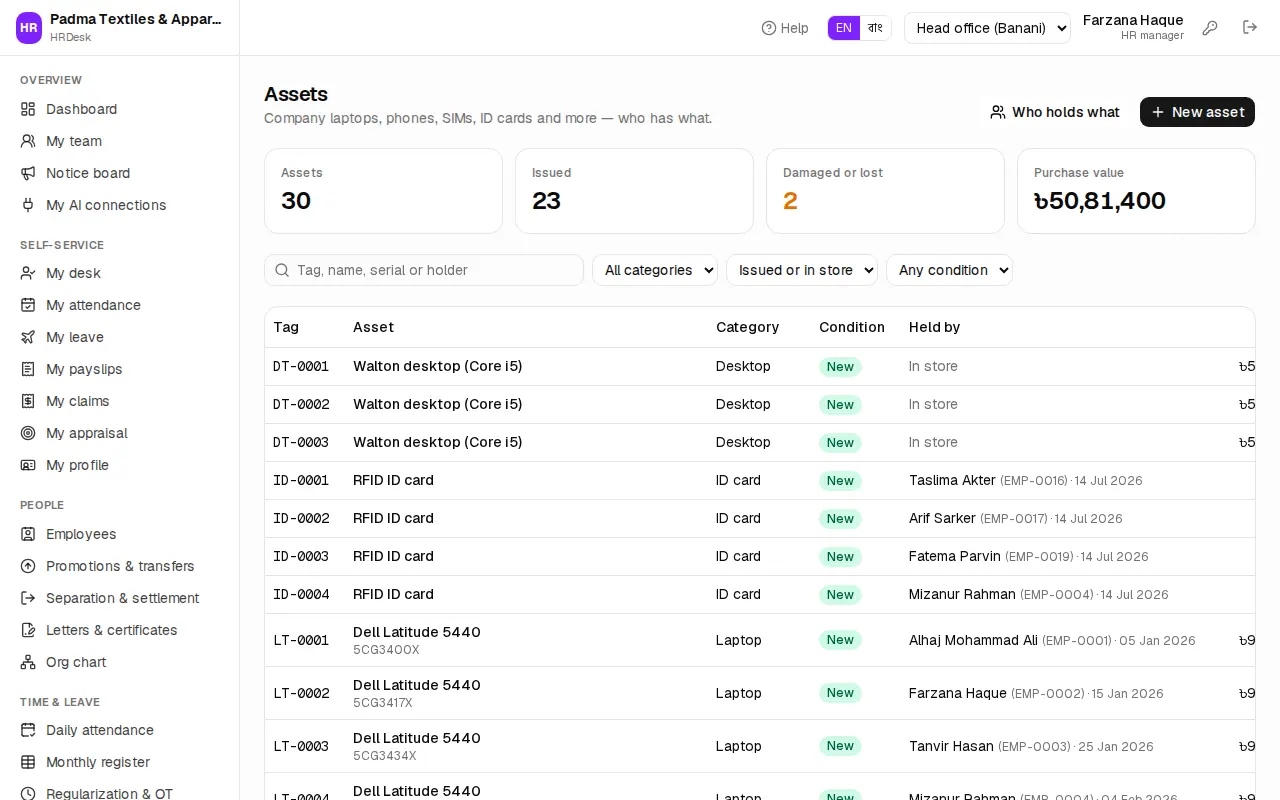
Registering an asset:
- Click New asset.
- Enter the Asset tag (e.g. LT-0012 — the number on the sticker), Category and Name / model (e.g. Dell Latitude 5440).
- Add Serial no., Condition, Purchase cost (৳), Purchase date and Note, then save.
Two assets can't share a tag.
Issuing to an employee: on the asset's page click Issue, choose the Employee, set the Issue date and a Note (e.g. with charger and bag). A lost or disposed asset, or an employee who has left, can't be chosen. An asset is with one person at a time — take it back first.
Taking it back: click Take back, set the Return date and Condition on return (good, fair, damaged, lost …), then Save. The History at the bottom shows who had it, when, and in what condition it came back.
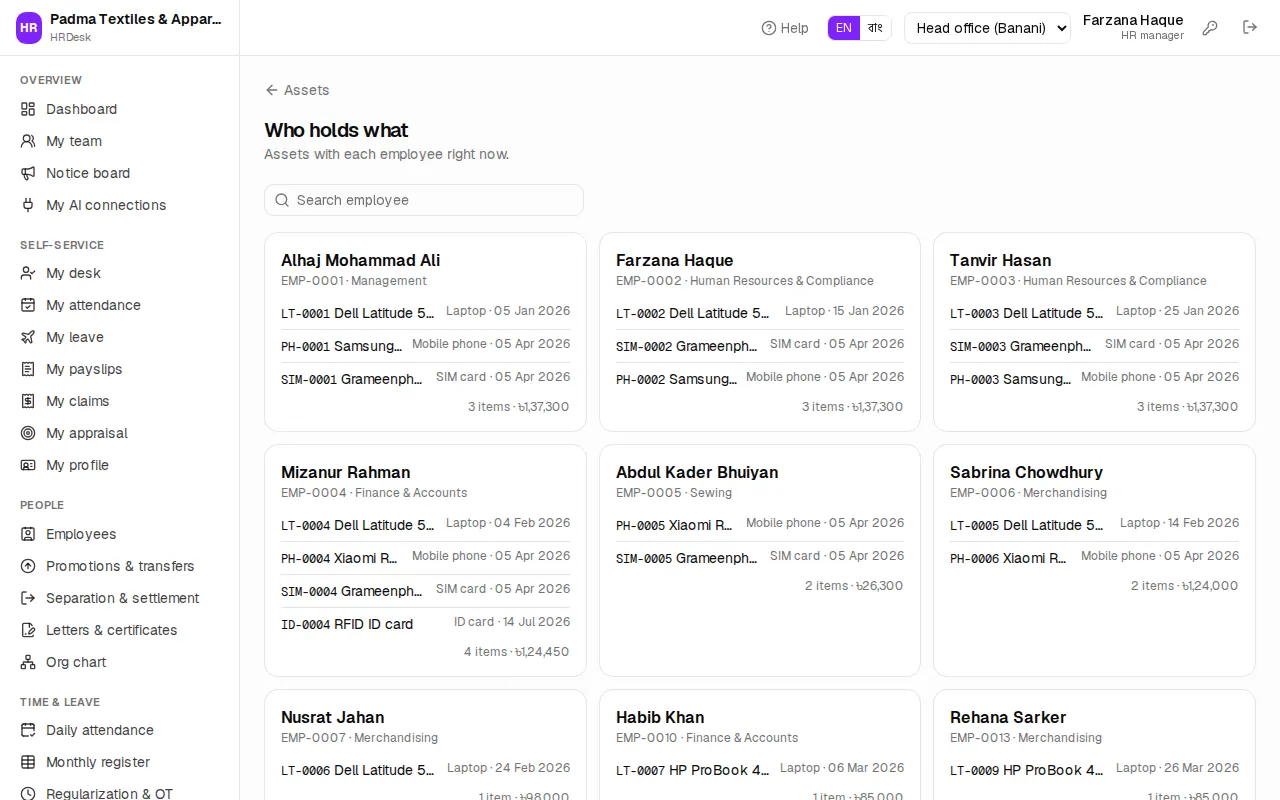
Who holds what lists the assets each employee has right now, with their total value. People on notice or who have left get a yellow tag — collect the items from them.