Owner & setup
Licence, payments & AI
Your JonakiSoft licence and features, the expiry banner and lock page, online payment accounts, the SMS and WhatsApp gateway, and connecting AI assistants such as Claude or ChatGPT
Who it is for:Owner / MDHR managerHR officerPayroll / accountsLine manager
On this page
HRDesk is licensed by JonakiSoft. The licence decides which modules your company can use and for how long. This chapter covers where to see the licence, what happens when it ends, your own payment gateways, the SMS/WhatsApp gateway and AI assistants.
Who can do what:
| Page | Owner | HR manager | Other staff |
|---|---|---|---|
| Licence & features on Settings | ✓ | ✓ | — |
| AI assistants (MCP) | ✓ | ✓ | — |
| Integrations (SMS & WhatsApp) | ✓ | — | — |
| Online payments | ✓ | — | — |
| My AI connections | ✓ | ✓ | ✓ (HR officer, payroll / accounts, line manager) |
Employee (self-service) logins see none of these pages.
Licence & features
Open Admin › Settings and scroll down a little to the Licence & features box.
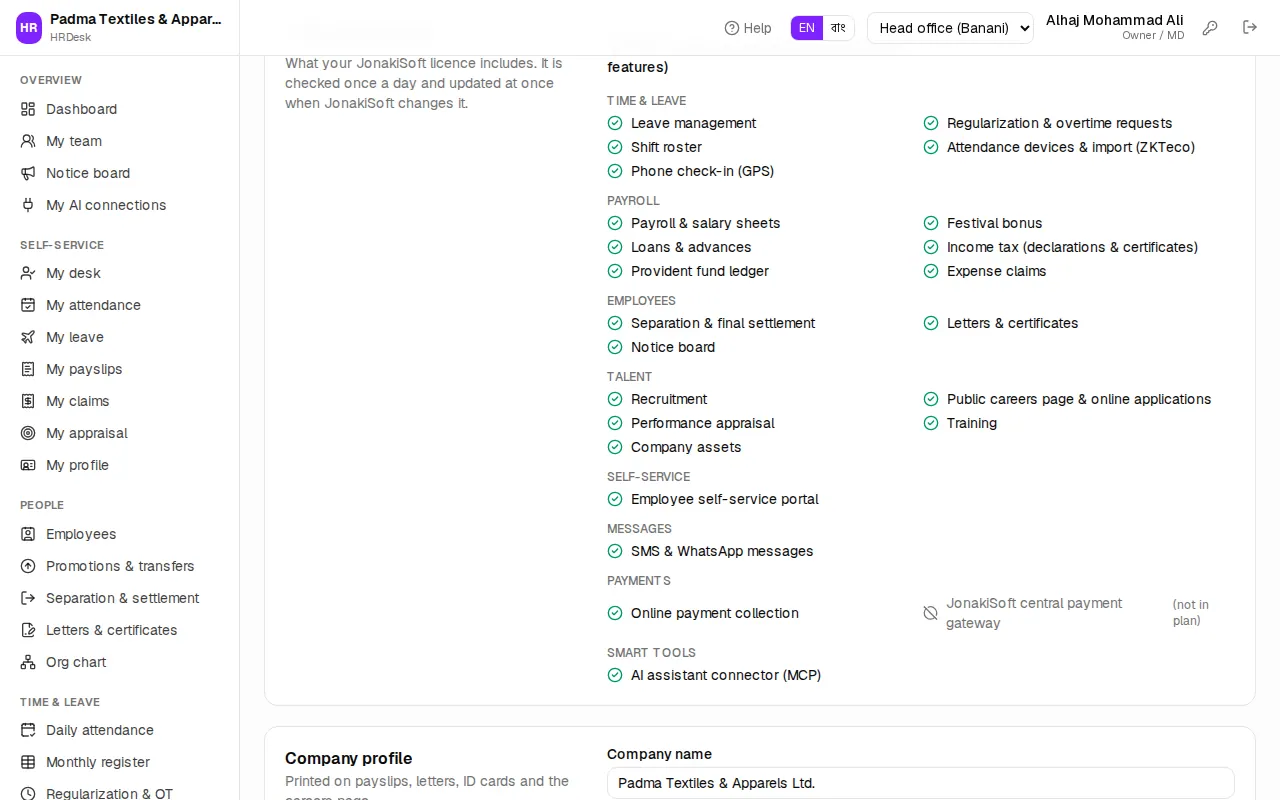
- Licence status: the state JonakiSoft reports — for example a green Active, or a yellow Grace period during the grace days. Without a connection to JonakiSoft's server it reads "Licence server not connected (all standard features)"; on the demo company, "Demo company (all standard features)".
- Plan, Valid until (plus "grace until …" when there are grace days) and Last synced.
- Below, the modules in groups: Time & leave, Payroll, Employees, Talent, Self-service, Messages, Payments, Smart tools. A green tick means on; a grey one says "(not in plan)".
The licence is checked once a day and updated at once when JonakiSoft changes it. To check right now, press Sync licence now — the button appears only when your server is connected to the licence server.
When the licence ends
Grace days: after the licence ends, everything keeps working for a few days. Every page shows a yellow banner: "Your licence has expired. HRDesk keeps working until (date); please renew." Details opens a page with JonakiSoft's phone, WhatsApp and email; Continue takes you back to work.
Locked: when the licence is expired, suspended or revoked, signing in shows a lock page such as "Your licence has expired" or "Your licence is suspended". Then:
- No data is deleted. Employees, attendance, leave and payroll are all kept and open again as soon as the licence is active.
- Employee self-service and the public careers page are paused too.
- The owner sees "To renew or reactivate the licence, contact JonakiSoft:"; everyone else sees "Ask your company's owner to renew, or contact JonakiSoft:". The page has only a Sign out button.
Modules switched on and off
JonakiSoft switches modules on or off according to your plan — for example Leave management, Festival bonus, Recruitment, SMS & WhatsApp messages, Phone check-in (GPS).
- A switched-off module disappears from the sidebar and from the dashboard shortcuts.
- Opening an old link shows "(module name) is not part of your plan". Everything else keeps working.
- Employees, daily attendance, the monthly register, organisation setup, reports, settings, users and the audit log are in every plan.
- Switching a module off never changes pay maths (overtime, tax, provident fund, gratuity); those follow the policy on Settings.
Online payments
Admin › Online payments (owner only) stores the company's own SSLCommerz, bKash and Nagad merchant accounts. HRDesk does not take any money online yet; when it does, the money goes to these accounts.
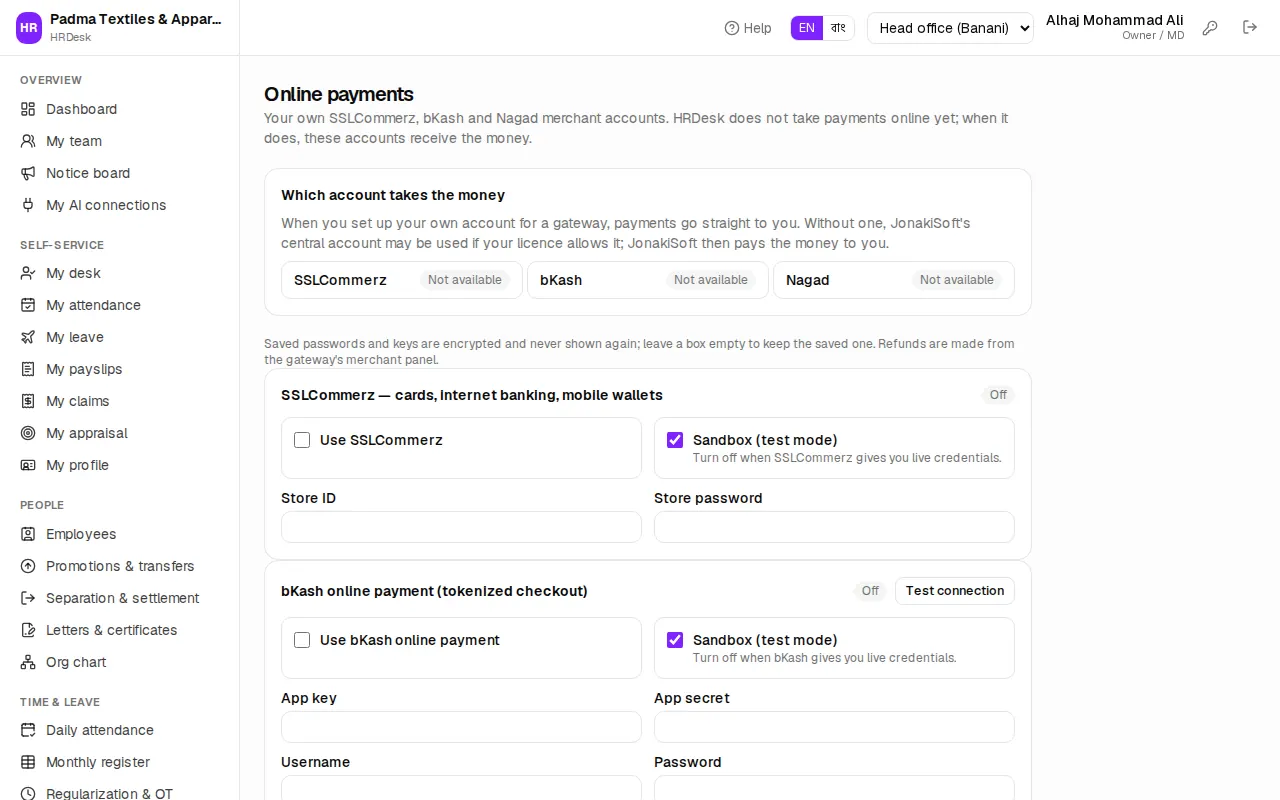
The Which account takes the money box shows, for each gateway, Your account, JonakiSoft central (if your licence allows it, payments go to JonakiSoft's account and JonakiSoft pays you) or Not available.
- Tick the gateway you will use: Use SSLCommerz, Use bKash online payment or Use Nagad online payment.
- Enter what the gateway gave you: SSLCommerz Store ID and Store password; bKash App key, App secret, Username, Password; Nagad Merchant ID, Merchant number, Merchant private key, Nagad public key.
- Keep Sandbox (test mode) ticked for test accounts; untick it when you get live credentials.
- Press Save payment settings. For bKash and Nagad, Test connection checks the details.
Each box shows its state: Off, Credentials missing, On · sandbox or Live. Saved passwords and keys are encrypted and never shown again; leave a box empty to keep the saved one. Refunds are made from the gateway's own merchant panel.
Payments collected by JonakiSoft at the bottom lists money taken through the central account and JonakiSoft's settlement summary (collected, gateway fees, settled, payable). If online payments are not in your plan, a yellow message appears at the top.
SMS & WhatsApp gateway
Only the owner can open Admin › Integrations. An HR manager sees "Only the owner can change the SMS gateway." on Settings. Without a gateway, messages are still logged and staff can forward them with WhatsApp click-to-chat.
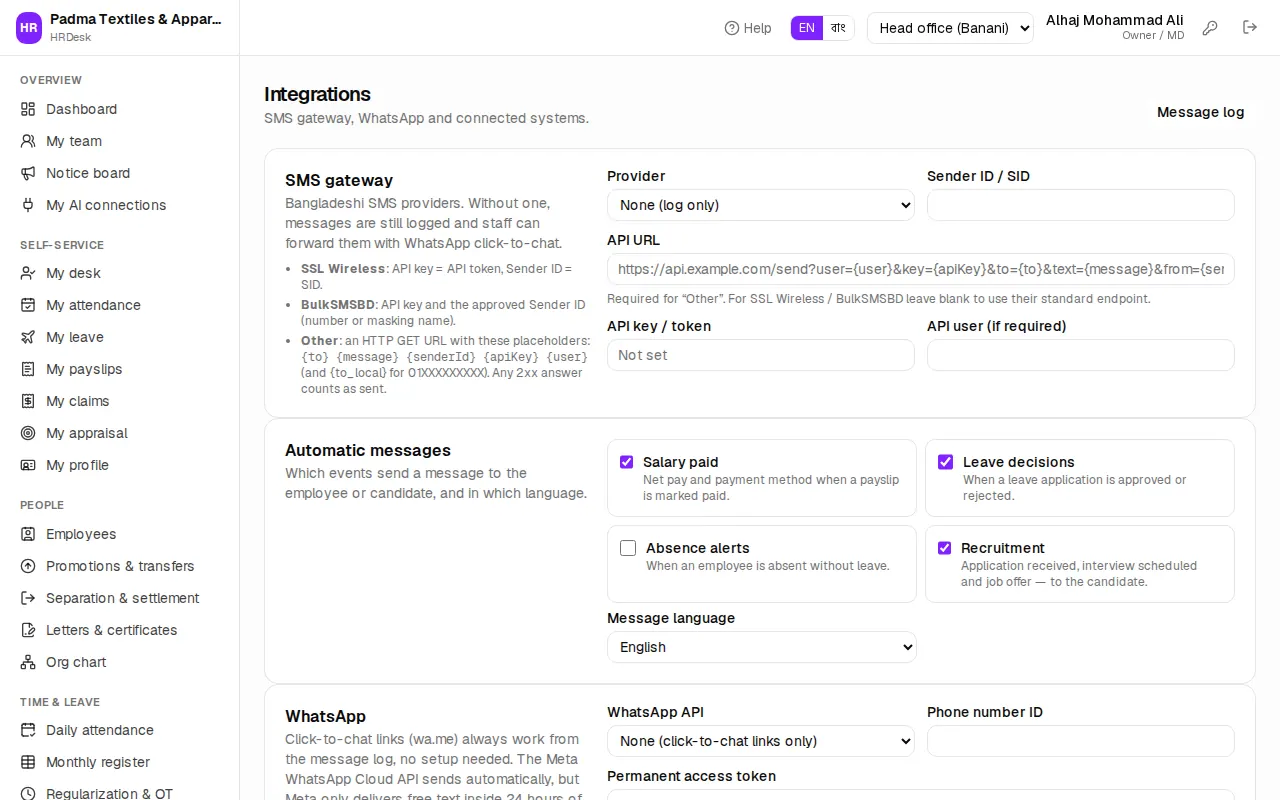
SMS gateway:
- Choose the Provider: SSL Wireless (SMS Plus), BulkSMSBD or Other (HTTP GET URL). None (log only) sends no SMS.
- Enter the Sender ID / SID and API key / token, plus API user (if required).
- API URL is needed only for "Other"; leave it blank for SSL Wireless or BulkSMSBD.
Automatic messages: tick which events send a message to the employee or candidate: Salary paid, Leave decisions, Absence alerts, Recruitment. With Bangla as the Message language, one SMS holds only 70 characters, so messages may cost more.
WhatsApp: click-to-chat links always work. To send automatically, choose WhatsApp Cloud API (Meta) under WhatsApp API and enter the Phone number ID and Permanent access token. Meta delivers free text only within 24 hours of the person's last message; failures show in the log.
Press Save messaging settings. Then in Send a test type your own number and press Send test SMS; the provider's answer is shown. The test uses the saved settings. The Message log button at the top lists every message sent (Notices & SMS).
AI assistants (MCP)
This lets AI apps such as Claude or ChatGPT answer questions from your company's HR data — for example "Who is absent today?". It is sold separately; if it is not in your plan the page shows Not in your plan.
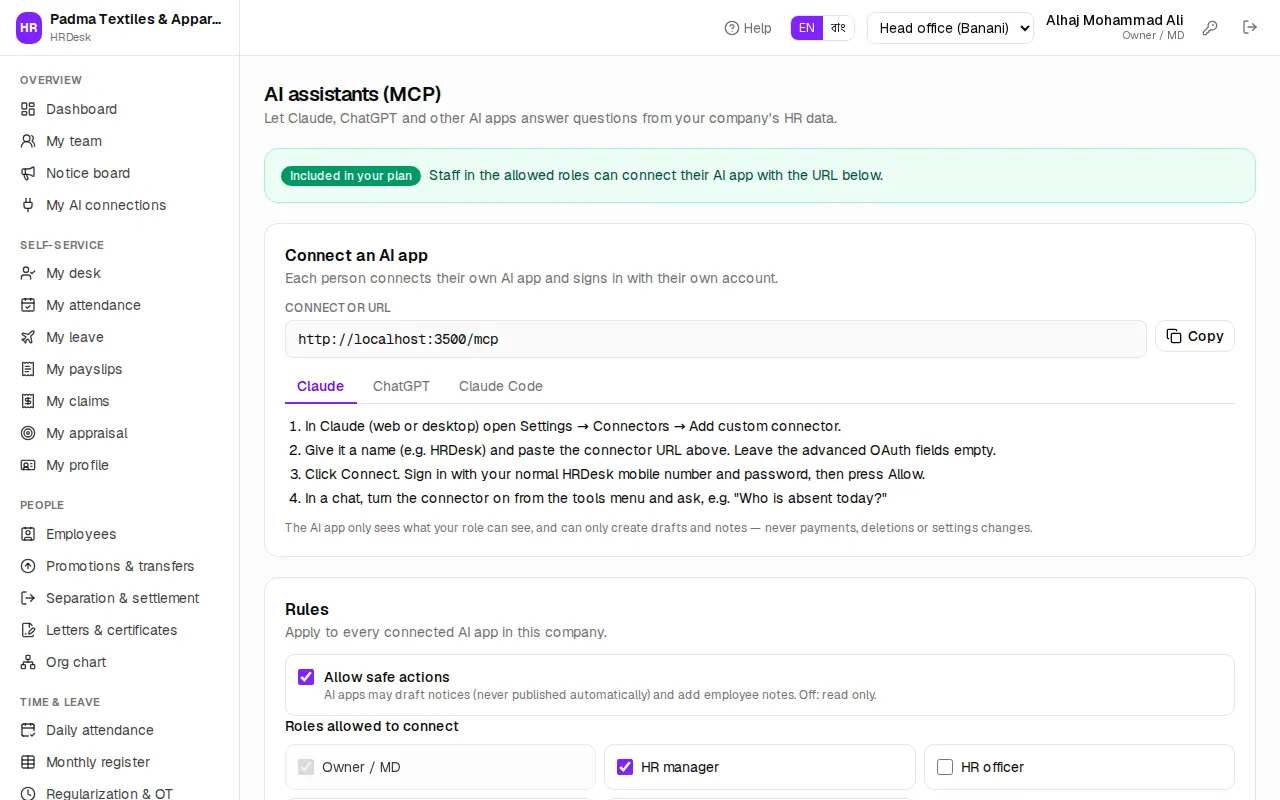
The owner or HR manager opens Admin › AI assistants (MCP) and sets the Rules:
- Allow safe actions: when on, AI apps may draft notices (never published automatically) and add employee notes. Off: read only.
- Roles allowed to connect: the owner always can; tick HR manager, HR officer, Payroll / accounts and Line manager as needed. At the start only the owner and HR manager are ticked.
- Press Save.
Connected apps lists which user connected which app, with Read only or Read + safe actions, and when it was last used; Revoke cuts any connection. Recent activity shows the last 50 requests from AI apps (kept for 180 days).
Connecting your own AI app
Each person connects their own AI app to their own account. Open Overview › My AI connections in the sidebar (the menu is hidden when AI is not in the plan).
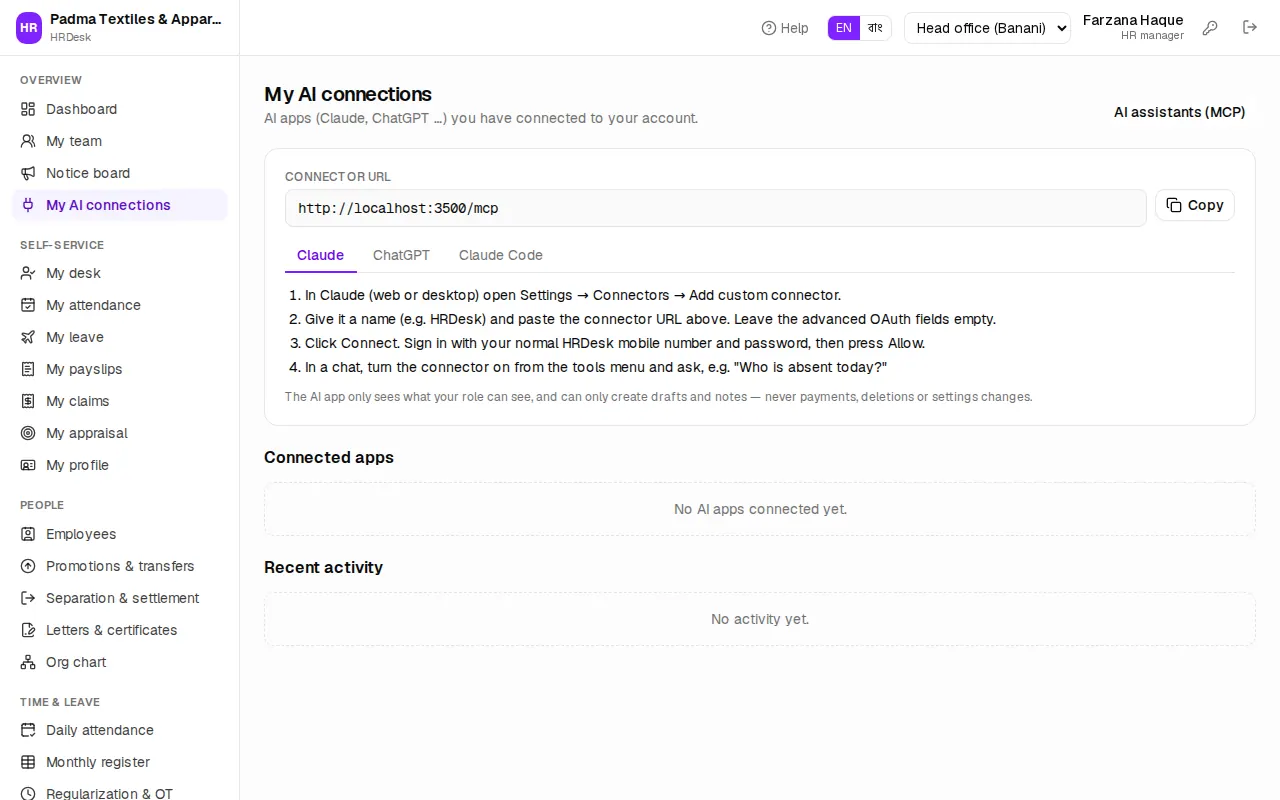
- Press Copy next to the Connector URL.
- On the Claude tab: in Claude (web or desktop) open Settings → Connectors → Add custom connector, give it a name (for example HRDesk) and paste the URL. For ChatGPT or Claude Code, follow the steps on their tabs.
- Press Connect; an HRDesk page opens. Sign in with your own mobile number and password.
- Read what access is asked for and press Allow (or Deny).
- In a chat, turn the connector on and ask your question.
Your connections are listed under Connected apps on the same page; Revoke disconnects one (the app must sign in again). If you see "The owner has not allowed the … role to connect AI assistants", ask the owner or HR manager to tick your role under Rules.